
Products compared
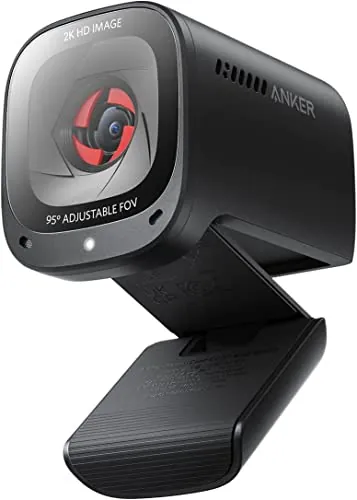
Anker
Anker PowerConf C200 2K Webcam
Black PowerConf C200, hardware model A3369 (Anker part A3369011). Anker’s U.S. page names the C200 and links to A3369 documentation; its manufacturer sources do not map this Amazon listing to a retail part number.
Model A3369
Amazon ASIN B09MFMTMPD
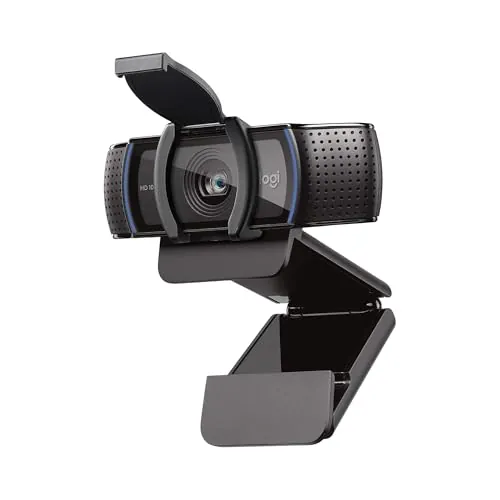
Logitech
Logitech C920e Business Webcam
Black Logitech C920e, part 960-001401. Logitech distinguishes this mic-enabled version from C920e part 960-001384, which is mic-disabled. The manufacturer sources do not map this Amazon listing to a part number, so check the exact seller offer.
Model 960-001401 (mic enabled)
Amazon ASIN B09DVGV7BH
Differences that matter
Sources for Maximum listed resolution and frame rate
Sources for Mounting and computer connection
Treat maximum resolution as a camera specification, then check the call app
Anker's A3369 manual lists 2K at 30 fps as the C200's top mode. Logitech lists the C920e at 1080p Full HD at 30 fps, with 720p at 30 fps also available. Those are listed capture modes, not a test of picture quality or proof of what a particular call will transmit.
Anker specifically warns that conferencing applications can cap video below the webcam's maximum. If 2K is the reason you are leaning toward the C200, check your current application and account settings first. A useful test before ordering is to check the meeting platform's own camera settings and confirm that your computer has a usable USB-A connection.
Choose the framing workflow you will actually use
The C200 offers 65°, 78° and 95° field-of-view options. Anker directs users to AnkerWork software for those adjustments; it recommends the app for customization but its setup guide describes plug-and-play camera use. If you alternate between a close single-person frame and a wider desk or room view, these presets give a documented reason to consider C200.
The C920e is specified at a fixed 78° diagonal field. Logitech's Logi Tune app lists zoom and other personal controls, which is distinct from changing the camera's documented lens field-of-view setting. If a fixed 78° suits your normal desk position, the additional AnkerWork FOV step may not matter.
Compare the physical covers and mic selection separately
The C200 has a cover built into its body; Anker says the cover blocks the lens and its FAQ says the microphones can still be used when that cover is closed. When setting up a call, select the C200 as the camera and microphone input in the computer or meeting software.
Logitech lists C920e part 960-001401 as mic-enabled and 960-001384 as mic-disabled. Confirm which part the seller is offering before buying. The sources describe a physical lens shade only and do not establish broader camera or computer security.
Check clip, tripod thread and cable before placing the webcam
Both manuals describe monitor or laptop clip mounting plus a 1/4-inch tripod thread; a tripod is not included with either camera. The C200's manual describes USB-C at the camera and USB-A at the computer, with an adapter required if the computer lacks USB-A. The C920e has an attached five-foot USB-A cable. Plan around your host ports and cable reach, then choose the clip or tripod position that fits your display setup.
Confirm the exact Logitech listing says C920e part 960-001401. This comparison does not transfer the C920e's specifications to the Logitech C920 or C920s, which are separate model names.
Product details
Anker PowerConf C200 2K Webcam
- Maximum listed video mode
- 2K at 30 fps in the A3369 user manual; actual app output can be capped by conferencing software. Source
- Framing
- 65°, 78° and 95° FOV settings; Anker says AnkerWork software changes FOV and other settings. Source
- Privacy and microphones
- Integrated sliding lens cover; Anker's C200 FAQ says the microphones remain usable when the cover is closed. Select C200 as the camera and microphone input in the computer/app. Source
- Mount and connection
- Adjustable clip/stand for a monitor or laptop and a standard 1/4-inch tripod thread; cable is USB-C at camera and USB-A at host, with adapter needed if host has no USB-A port. Source
Logitech C920e Business Webcam
- Maximum listed video mode
- Full HD 1080p at 30 fps; 720p at 30 fps is also listed. Source
- Framing
- Fixed 78° diagonal field of view; Logi Tune offers zoom and other controls, not a documented selectable optical FOV set. Source
- Privacy and microphone
- C920e part 960-001401 is identified as mic-enabled and has two integrated omnidirectional microphones; the included privacy shade attaches separately and flips over the lens. Source
- Mount and connection
- Universal clip and 1/4-inch tripod thread; fixed attached 5-foot USB-A cable. Tripod not included. Source
Before you buy
Community discussions
A shared-workplace user asks whether C200 framing carries across computers
Anker PowerConf C200 2K Webcam
A user wanted a consistent 78-degree field of view on the C200 in a shared workplace where coworkers could not install AnkerWork on every computer.
What to check
If the webcam moves between computers, check whether the settings follow the camera or whether each computer needs the app.
Common questions
Does the C200 always send video at 2K during a call?
No guarantee. The A3369 manual lists 2K at 30 fps, but Anker says third-party conferencing software can limit the resolution below the webcam's maximum. Check the current settings and supported mode for your specific application.PowerConf C200 A3369 User Manual (manufacturer manual mirrored by Manuals.plus)PowerConf C200 A3369 FAQ — Anker soundcore support
Can the C920e change from its 78° view to a wider or tighter field?
Logitech specifies C920e at a fixed 78° diagonal FOV. Logi Tune offers zoom controls, but the reviewed C920e sources do not document alternate lens-field presets like the C200's 65°, 78° and 95° options.Logitech C920e Business Webcam, U.S. page for part 960-001401Logitech C920e HD Webcam datasheet, part 960-001401Anker PowerConf C200 2K Webcam, U.S. product page
Do the C200 or C920e microphones work when the lens is covered?
Anker says the C200 microphones remain usable with the physical cover closed. Logitech identifies C920e part 960-001401 as mic-enabled and lists two integrated microphones, but its cited material does not state whether they work with the shade closed. The shade covers the lens; this does not establish broader camera or computer security.PowerConf C200 A3369 FAQ — Anker soundcore supportLogitech C920e specifications and part-number variants
Which C920e part is this comparison about?
Logitech identifies C920e part 960-001401 as mic-enabled and lists 960-001384 as mic-disabled. Check the part number on the seller listing: the microphone detail in this guide does not apply to that other part or to C920/C920s listings.Logitech C920e specifications and part-number variantsLogitech C920e Business Webcam, U.S. page for part 960-001401
Sources and scope
Check the video limits in your call app. Logitech’s mic-enabled C920e uses part 960-001401. Its similar part 960-001384 is mic-disabled, so confirm the part number if you need the onboard microphone.
- Anker PowerConf C200 2K Webcam, U.S. product page
- PowerConf C200 A3369 FAQ — Anker soundcore support
- PowerConf C200 A3369 User Manual (manufacturer manual mirrored by Manuals.plus)
- PowerConf C200 setup — Anker soundcore support
- Logitech C920e Business Webcam, U.S. page for part 960-001401
- Logitech C920e HD Webcam datasheet, part 960-001401
- Logitech C920e specifications and part-number variants
Related comparisons
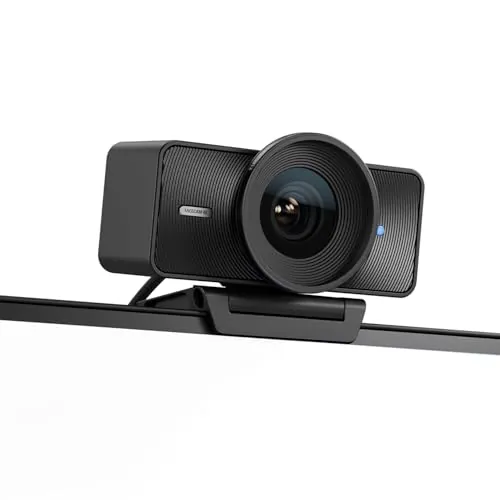
Elgato Facecam 4K vs Anker PowerConf C200: Capture Modes, Focus Distance and Mic Setup
Facecam 4K supports 2160p60 only over USB 3 and only in MJPG; its USB 2 modes stop at 1080p60. PowerConf C200 (A3369) tops out at 2K30 in its manual, offers autofocus and three framing angles, and includes dual microphones. Measure your camera distance and check the app’s actual input options before choosing.
Read comparison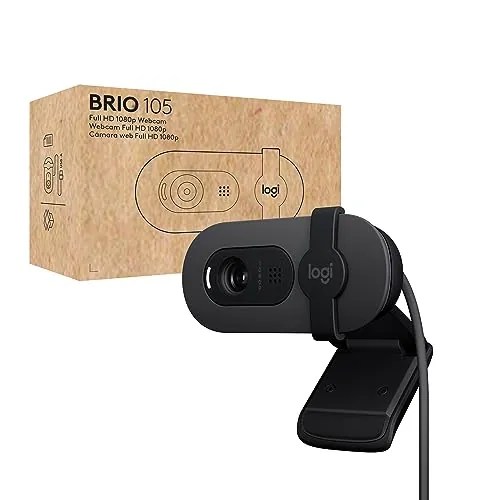
Logitech Brio 105 vs Anker PowerConf C200: Fixed View or Adjustable Framing?
The Logitech Brio 105 (North American Graphite part 960-001579) lists fixed focus, up to 1080p/30, and a 1.5 m attached USB-A cable. Anker's PowerConf C200 (A3369) adds autofocus, selectable 65°, 78° or 95° framing through AnkerWork, and a detachable USB-C camera connection; its supplied cable runs from USB-C at the camera to USB-A at the computer. Before buying, check your real seated camera distance, computer ports and permission to install configuration software. A webcam's listed maximum is not a promise that a meeting app will transmit that mode.
Read comparison