
Products compared
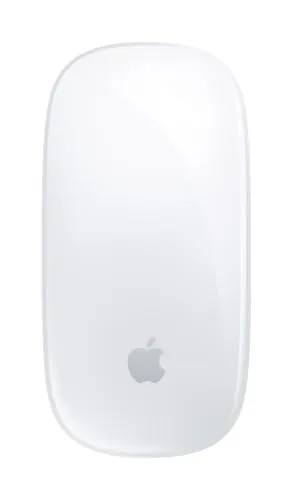
Apple
Apple Magic Mouse - White Multi-Touch Surface (USB-C)
White U.S. USB-C Magic Mouse; not the earlier Lightning version.
Model MXK53AM/A
Amazon ASIN B0DL72PK1P
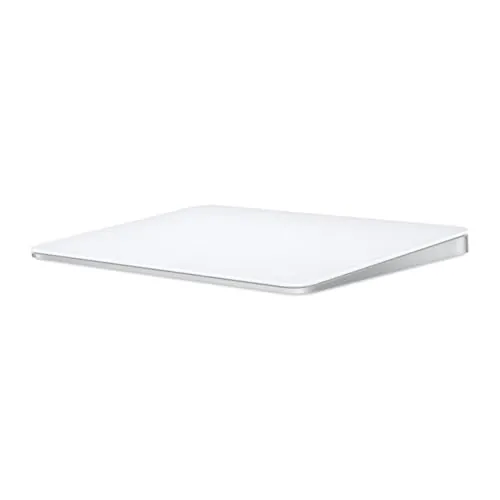
Apple
Apple Magic Trackpad - White Multi-Touch Surface (USB-C)
White U.S. USB-C Magic Trackpad with Force Touch; not an older Lightning version.
Model MXK93AM/A
Amazon ASIN B0DL6ZN6GK
Differences that matter
What matters most to you?
Choose a priority to see what it changes.
Sources for How you point and use gestures
Sources for Use during charging
Sources for Desk footprint to measure
Sources for Mac setup and exact connector
Start with the input motion you want
The Magic Mouse still moves like a mouse: you guide it across the desk, and its top surface adds gestures. Apple lists scrolling and page swipes for this USB-C model. The Magic Trackpad is controlled on its glass surface; Apple documents pinch-to-zoom and two-finger rotation for trackpads, and lists Force Touch for this model.
Try the gestures you expect to use in System Settings > Mouse or Trackpad before deciding that one set fits your routine. Apple's support page says those settings show gestures available on your Mac and let you change or disable them. The documented feature set is a use-case comparison, not a measured claim about speed, comfort or precision.
Check charging against your workday
The practical difference is whether you can use the same device while it is plugged in. Apple says Magic Mouse is unavailable while charging and puts its port on the underside. The Magic Trackpad remains usable while charging and has its port at the rear. If you want mouse movement but cannot pause, plan around that interruption or keep another input device ready; if you select Trackpad for continuity, the trade is using trackpad input.
Both exact white USB-C products include a woven USB-C Charge Cable. Confirm your offer is the intended USB-C model rather than an older Lightning listing, and that your Mac meets Apple's stated macOS 15.1 minimum.
Measure the usable desk area, not just the device
Apple lists the Mouse at 11.35 cm deep by 5.71 cm wide and the Trackpad at 16.0 cm wide by 11.49 cm deep. The Trackpad therefore takes a larger device footprint. Those dimensions do not measure the area your hand or fingers need, so leave room for the movement pattern you prefer and any keyboard placement you use.
Neither product has an advantage established here for long-session comfort, accuracy or productivity. Those are personal or measured-use questions outside the available source evidence.
Product details
Apple Magic Mouse - White Multi-Touch Surface (USB-C)
Apple Magic Trackpad - White Multi-Touch Surface (USB-C)
Before you buy
Community discussions
How would charging interrupt your work?
Apple Magic Mouse - White Multi-Touch Surface (USB-C)
When Apple switched its accessories to USB-C, one reader asked how the updated Magic Mouse would sit while plugged in. The reply pointed out that the connector had changed while the charging position remained underneath.
What to check
Check where the cable plugs in and whether you need to keep pointing or gesturing during a recharge.
Common questions
Can I keep using the Magic Mouse while it charges?
No. Apple says Magic Mouse is unavailable while charging and locates its charging port underneath. If this is your only input device, plan a break or use a backup; the Trackpad can be used while charging.Recharge the built-in battery in your Apple keyboard, mouse, or trackpad
Which gestures differ between the Mouse and Trackpad?
Apple documents mouse scrolling and page swipes on its touch surface, while trackpad gestures include pinch-to-zoom and rotation. Check System Settings > Mouse or Trackpad for the gestures supported by your Mac.Use Multi-Touch gestures on Mac
How do I avoid ordering the wrong generation?
Check the white USB-C model number on the offer: MXK53AM/A for Magic Mouse and MXK93AM/A for Magic Trackpad. Apple lists macOS 15.1 or later for both and shows a USB-C Charge Cable in each box.Magic Mouse (USB-C) - White Multi-Touch SurfaceMagic Trackpad (USB-C) - White Multi-Touch Surface
Sources and scope
This guide covers Mac use of the exact white USB-C models MXK53AM/A and MXK93AM/A. It does not cover older Lightning models or make comfort, accuracy, productivity, battery-life or reliability rankings. Apple’s documented gestures and product dimensions are reference points; check System Settings for gestures supported by your Mac.
Related comparisons
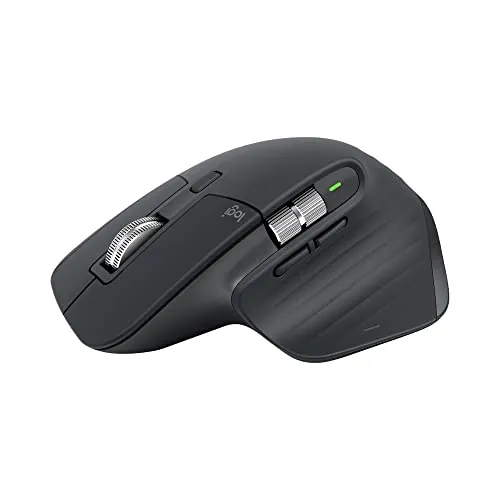
Logitech MX Master 3S vs Apple Magic Mouse USB-C: Scroll Controls, Mac Setup, and Host Switching
Consider the Logitech MX Master 3S Graphite (model 910-006561) if you want a physical MagSpeed wheel, a thumb wheel or a documented Easy-Switch routine for up to three computers. Choose the white USB-C Apple Magic Mouse (MXK53AM/A) if you prefer Multi-Touch gestures and its documented Mac pairing and charging path. Before checkout, confirm the exact Logitech edition and receiver bundle and check your computer’s ports and operating system. These are feature-fit recommendations, not test results.
Read comparison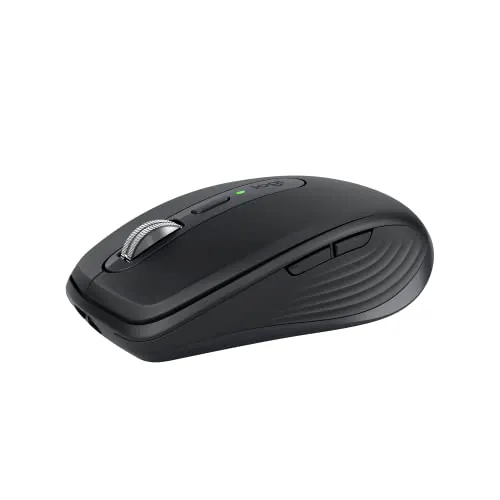
Apple Magic Mouse USB-C vs Logitech MX Anywhere 3S: Gestures or Switching?
This exact pair is a white USB-C Apple Magic Mouse (MXK53AM/A) versus a Graphite Logitech MX Anywhere 3S (910-006925). Apple’s mouse uses a Multi-Touch surface and its gestures require macOS Sequoia 15.1 or later. Logitech uses a wheel and buttons, and pairs with up to three Bluetooth computers for manual Easy-Switch channel selection. Logitech Flow is a separate workflow for cursor movement and clipboard transfer: pair on different channels, install Logi Options+ on each computer, and connect the computers to the same network. Both use USB-C charging cables, but Logitech explicitly says it can be used while charging; Apple’s page documents pairing/charging by connecting the included cable to a USB-C port on a Mac and does not specify in-use charging. These are feature and setup differences, not comfort or performance rankings.
Read comparison