
Products compared
ASUS
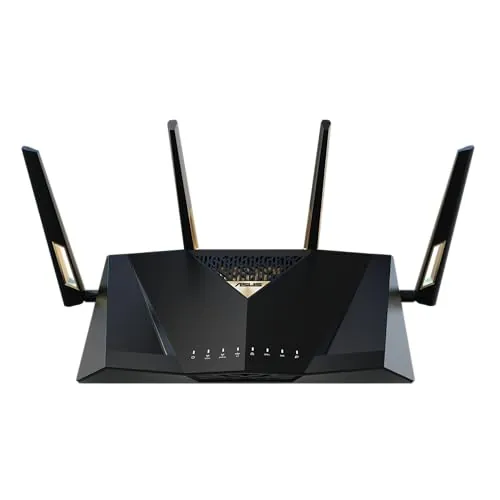
ASUS RT-BE88U WiFi 7 Router
U.S. model; dual-band router with 10G/SFP+ and mixed-speed wired ports.
Model RT-BE88U
Amazon ASIN B0D55SWRSM
TP-Link
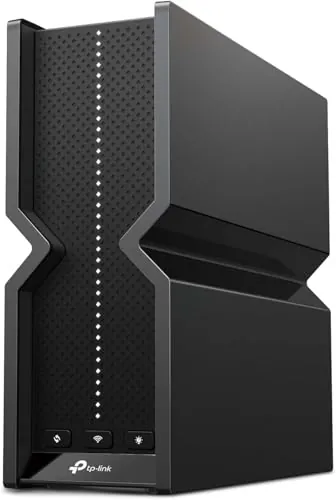
TP-Link Archer BE550 Wi-Fi 7 Router
U.S. model; tri-band router with one 2.5 Gbps WAN and four 2.5 Gbps LAN ports.
Model Archer BE550
Amazon ASIN B0CJSNSVMR
Differences that matter
What matters most to you?
Choose a priority to see what it changes.
Sources for Wireless bands for your clients
Sources for Copper Ethernet port mix
Sources for SFP+ and port-role planning
Make a short client-band list first
Check the Wi-Fi specifications for the devices that matter most in your home. The RT-BE88U documentation lists 2.4 GHz and 5 GHz, with MLO described across those bands; the BE550 lists a third band at 6 GHz. TP-Link says corresponding client support is required for Wi-Fi 7 features and notes that some 6 GHz channels can be restricted by region.
If you cannot name a device that needs 6 GHz, do not treat the BE550's extra band as a guaranteed speed or coverage advantage. If a particular client needs it, verify the exact client radio, OS/driver support and local channel rules before you choose.
Turn your wired gear into a port map
Before comparing the port totals, write down the incoming modem/ONT connection and every device you plan to wire: a switch, NAS, desktop, access point or game console. Note whether each endpoint is 10G RJ45, 2.5G RJ45, Gigabit Ethernet or SFP+; use the exact device manuals to check any cable or transceiver requirements.
This makes the tradeoff concrete: the RT-BE88U lists 10G and SFP+ options alongside 2.5G and Gigabit ports, while the BE550 lists one 2.5G WAN and four 2.5G LAN ports. A 2.5G or 10G label only describes the interface capability; the modem, ISP plan, cable and connected device can still set a lower link or transfer rate.
Check the uplink role before cabling the ASUS
The RT-BE88U quick-start guide's factory-default note describes setting up the 2.5G WAN connection to release another 10G LAN port. That is useful when assigning a WAN handoff and planning a fast wired endpoint, but it also means you should read the model's setup screen and port instructions instead of assuming every WAN/LAN jack has a fixed role.
The BE550's listed layout is simpler to count as one 2.5G WAN plus four 2.5G LAN ports. Draw the intended modem-to-router and router-to-device links, then verify the exact port labels and role settings for whichever model you buy.
Product details
ASUS RT-BE88U WiFi 7 Router
- Listed wireless bands
- 2.4 GHz and 5 GHz; ASUS describes dual-band MLO across these bands. Source
- Wired port inventory
- One 10 Gbps WAN/LAN, one 10 Gbps SFP+, one 2.5 Gbps WAN/LAN, three 2.5 Gbps LAN, four Gigabit LAN, and one USB 3.2 Gen 1 port. Source
- 2.5G WAN setup note
- The quick-start guide says that, under factory defaults, setting up the 2.5G WAN connection can release another 10G LAN port; confirm the intended port role during setup. Source
TP-Link Archer BE550 Wi-Fi 7 Router
Before you buy
Community discussions
Checking the port assigned to each wired device
TP-Link Archer BE550 Wi-Fi 7 Router
An Archer BE550 owner said two of their wired devices connected through another LAN port after having trouble on LAN port 1.
What to check
Draw the connection for the uplink and each wired device. Verify which ports remain available and test the negotiated speed on the ports you intend to use.
Trying the wired link between rooms
TP-Link Archer BE550 Wi-Fi 7 Router
An owner using two Archer BE550 routers reported an upload-speed issue from the satellite after setting it up with an Ethernet link.
What to check
When mapping wired ports, include any connection between routers. Test a device in the far room on the wiring you plan to use.
Common questions
Does the ASUS RT-BE88U list a 6 GHz band?
No. ASUS's U.S. specification lists 2.4 GHz and 5 GHz for the RT-BE88U and identifies it as dual-band. TP-Link lists the Archer BE550 as tri-band with a 6 GHz band. Verify client support and regional availability before treating 6 GHz as a deciding feature.RT-BE88U Tech SpecsArcher BE550 U.S. Product and Specifications Page
Which model has a 10G SFP+ port?
The ASUS RT-BE88U specification lists one 10G SFP+ port. Before buying for a switch or NAS, confirm that endpoint's interface and compatible cabling/transceiver. TP-Link's BE550 port list specifies five 2.5G Ethernet ports and does not list SFP+.RT-BE88U Tech SpecsArcher BE550 U.S. Product and Specifications Page
Can I expect the BE550's listed Wi-Fi rates as real internet speeds?
No. TP-Link states that actual wireless throughput and coverage vary with client and network conditions, and that actual network speed can be limited by Ethernet port, cable and ISP factors. The product's listed rates are not a matched real-world test against the ASUS router.Archer BE550 U.S. Product and Specifications Page
Sources and scope
This is a specification and setup comparison, not a matched speed, range, latency or reliability test. Client support, available channels, ISP handoff, cabling, connected-device ports, placement and network conditions affect results. Check current regional requirements and each exact device before buying.
Related comparisons
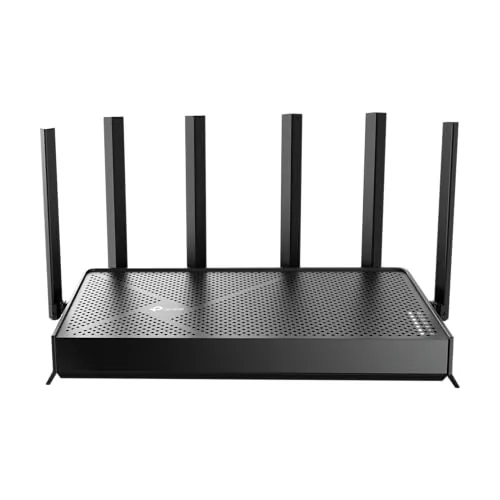
TP-Link Archer BE400 vs BE550: Will You Use 6 GHz and Four 2.5G LAN Ports?
The assigned US listings are one Archer BE400 (ASIN B0DVBP5L6Y) and one Archer BE550 (ASIN B0CJSNSVMR). TP-Link's US pages describe BE400 as dual-band Wi-Fi 7 on 2.4/5GHz with one 2.5Gbps WAN, one 2.5Gbps LAN and three 1Gbps LAN ports. BE550 is tri-band Wi-Fi 7 with 2.4/5/6GHz, one 2.5Gbps WAN and four 2.5Gbps LAN ports. Choose BE550 if you have clients whose exact specifications support 6GHz or need multiple multi-gig wired endpoints. BE400 can fit a 2.4/5GHz household with at most one 2.5G LAN device. Before ordering BE550, verify the hardware revision and confirm your client supports 6GHz; Wi-Fi 7 alone is not enough. The BE400 listing still has a captured BE400-vs-BE230 box-field mismatch that must be confirmed with its seller.
Read comparisonASUS RT-BE88U vs TP-Link Archer BE400: Plan Your Wired Network First
The RT-BE88U is the fit to investigate for a 10G WAN, SFP+ link or several multi-gig wired devices. The Archer BE400 covers a simpler 2.5G WAN, one 2.5G LAN device and three gigabit clients. Both are dual-band Wi-Fi 7 routers, so neither adds a 6GHz band.
Read comparison