
Products compared
ASUS
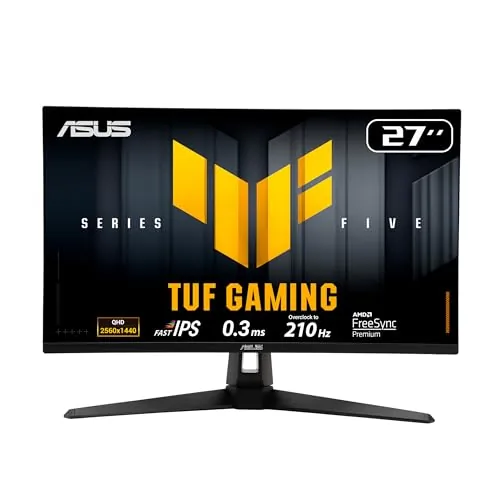
ASUS TUF Gaming VG27AQL5A
U.S. 27-inch QHD monitor. ASUS lists 210 Hz as an overclocked maximum; its technical specifications show different vertical-frequency ceilings for HDMI and DisplayPort.
Model VG27AQL5A
Amazon ASIN B0F237NSVQ
ASUS
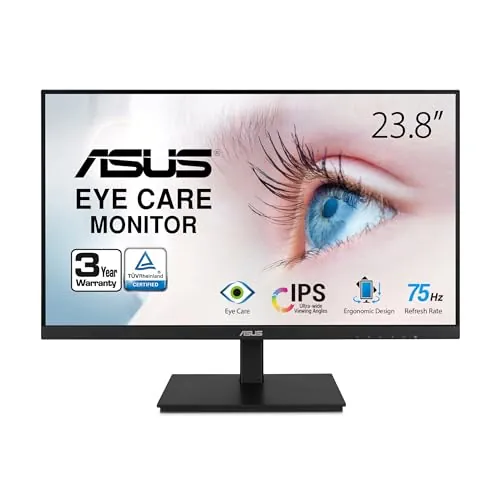
ASUS VA24DQSB
U.S. 23.8-inch Full HD monitor with DisplayPort, HDMI, VGA and two USB 2.0 downstream hub ports. The hub uses a separate USB upstream connection; video still uses HDMI, DisplayPort or VGA.
Model VA24DQSB
Amazon ASIN B09F9WVYTY
Differences that matter
What matters most to you?
Choose a priority to see what it changes.
Sources for Native screen format
Sources for Refresh mode depends on the input path
Sources for Inputs and peripheral wiring
Sources for Stand movement and desk measurement
Sources for Listed regional accessories
Start with the native resolution your computer will use
The VG27AQL5A's native format is 27 inches at 2560 × 1440. VA24DQSB is 23.8 inches at 1920 × 1080. That is the first decision: do you want the larger QHD workspace and have a host that can drive it, or does Full HD on the narrower listed monitor meet the job? This comparison describes the maker-listed formats and does not claim a subjective sharpness or picture-quality winner.
For placement, ASUS estimates the TUF at 61.50 cm wide and 21.50 cm deep with its stand. VA24DQSB's U.S. spec lists 54 cm wide and 21.10 cm deep; its manual gives different overall heights at the lowest and highest stand positions. Measure the actual desk and allow space for the cables exiting the rear.
Treat refresh rate as an input-path requirement
The TUF technical page separates its vertical-frequency limits: HDMI up to 144 Hz and DisplayPort up to 210 Hz. ASUS labels the 210 Hz mode as overclocked. If you want that mode, plan for the DisplayPort route and check the graphics source and every adapter or dock between computer and monitor. The spec is the display's supported input range, not a promise of the frame rate your game produces.
For VA24DQSB, the manual's 1920 × 1080 at 75 Hz entry is explicitly tagged HDMI/DP. Although the monitor also has VGA, the reviewed timing table does not assign that same FHD 75 Hz mode to VGA. If your computer only has VGA, check the exact mode your host can send rather than assuming all listed inputs support all listed refresh rates.
Compare the ports you will actually connect
The TUF has two HDMI 2.0 inputs and one DisplayPort 1.4 input. It also has a USB-C-shaped connector, but ASUS labels it a service port, not a host video input or laptop-power connection. If two HDMI sources need to remain plugged in, that input count may be useful.
VA24DQSB has one HDMI, one DisplayPort and one VGA video input. It adds two USB 2.0 Type-A ports for peripherals, but those are downstream hub ports: run a separate USB upstream cable from the monitor to the computer to enable them. That cable does not replace the VGA/HDMI/DisplayPort video connection.
Check stand movement and the box before ordering
Both ASUS spec pages list 130 mm of height adjustment, tilt and portrait pivot. The TUF page lists ±20° swivel. VA24DQSB's manual lists ±180° swivel only after the base stop screw is removed, so account for that setup condition. Use ASUS's estimated dimensions as a starting point, not a guarantee that a stand will fit a desk shelf or clear a wall.
ASUS lists a DisplayPort cable with the TUF and HDMI and USB 2.0 cables with VA24DQSB, while warning that accessories vary by region. Confirm the exact Amazon package if a cable is necessary to connect your host or enable the USB hub. Neither model's listed USB port arrangement makes it a native one-cable USB-C monitor dock.
Product details
ASUS TUF Gaming VG27AQL5A
- Native resolution and size
- 27-inch, 2560 × 1440 (QHD) Source
- Input-specific vertical-frequency limits
- ASUS lists HDMI at up to 144 Hz and DisplayPort at up to 210 Hz; the 210 Hz product mode is marked overclocked Source
- Video and other ports
- 2 × HDMI 2.0, 1 × DisplayPort 1.4, and a USB-C service port; service port is not a video or laptop-charging input Source
- Stand adjustment
- Height 0–130 mm; tilt +20° to −5°; swivel ±20°; pivot ±90° Source
ASUS VA24DQSB
- Native resolution and size
- 23.8-inch, 1920 × 1080 (Full HD) Source
- Supported 75 Hz timing
- Manual lists 1920 × 1080 at 75 Hz for HDMI/DisplayPort; use the input-specific timing rather than assuming that mode over VGA Source
- Video inputs and USB hub
- 1 × DisplayPort 1.2, 1 × HDMI 1.4, 1 × VGA; 2 × USB 2.0 Type-A downstream ports enabled by a separate USB upstream cable Source
- Stand adjustment
- Height 0–130 mm, tilt +35° to −5°, pivot ±90°; swivel is ±180° after removing the base stop screw Source
Before you buy
Community discussions
Setting up the VA24DQSB as a vertical side monitor
ASUS VA24DQSB
An ASUS VA24DQSB owner set it vertically beside a 42-inch LG C2. They needed to raise it a little to align the top of both screens.
What to check
Measure the screen you want to align with and check the height range with the monitor in portrait orientation.
Planning the cable from a laptop dock to the TUF display
ASUS TUF Gaming VG27AQL5A
An owner in Germany connected a TUF VG27AQL5A to their laptop through a dock with a DisplayPort output.
What to check
Start with the outputs on your laptop or dock, then check the input and cable you need. Confirm which cables your own regional package includes.
Common questions
Can VG27AQL5A reach 210 Hz over HDMI?
ASUS's U.S. specifications list HDMI vertical frequency up to 144 Hz and DisplayPort up to 210 Hz. ASUS labels the 210 Hz product mode as overclocked. Plan around DisplayPort and verify your computer, graphics output and any dock or adapter; the manual's detailed overclock setup was not available for this guide.ASUS TUF Gaming VG27AQL5A U.S. Technical SpecificationsASUS TUF Gaming VG27AQL5A U.S. Product Page
Does VA24DQSB support 1920 × 1080 at 75 Hz over VGA?
The manual lists its 1920 × 1080, 75 Hz timing specifically for HDMI/DP. Do not assume the same timing on VGA; use the supported-mode table for your planned input and host.ASUS VA24D Series User Guide: VA24DQSB-specific sections
Will VA24DQSB's USB ports work from the video cable alone?
No. The USB 2.0 ports are downstream hub ports. ASUS's manual directs you to connect the monitor's USB upstream port to the computer with a separate USB cable; video remains on VGA, HDMI or DisplayPort.ASUS VA24DQSB U.S. Technical SpecificationsASUS VA24D Series User Guide: VA24DQSB-specific sections
Does the TUF VG27AQL5A's USB-C port charge a laptop or carry video?
ASUS labels the VG27AQL5A USB-C socket as a service port. The listed display inputs are HDMI and DisplayPort; do not treat the service socket as a USB-C video, peripheral-hub or laptop-charging port.ASUS TUF Gaming VG27AQL5A U.S. Technical Specifications
Can VA24DQSB swivel the full 180 degrees without setup?
Its model-specific manual says the ±180° swivel adjustment is available after removing the stop screw at the bottom of the base. Confirm that setup condition before planning the monitor's placement.ASUS VA24D Series User Guide: VA24DQSB-specific sections
Sources and scope
This is a feature and setup comparison based on current U.S. ASUS specifications and applicable model-specific manual sections. No controlled display, latency, color, motion, brightness or gaming test was performed. For VG27AQL5A, ASUS's current exact-model specifications and product page establish the resolution, input-specific refresh ceilings and 210 Hz overclock label; the linked series manual could not be read through the research reader in this run, so this guide does not give a step-by-step overclock setup. For VA24DQSB, the manual's 1920 × 1080 at 75 Hz timing is marked HDMI/DP; do not assume VGA provides that same 75 Hz timing. Dimensions and listed accessories vary by region.
Related comparisons
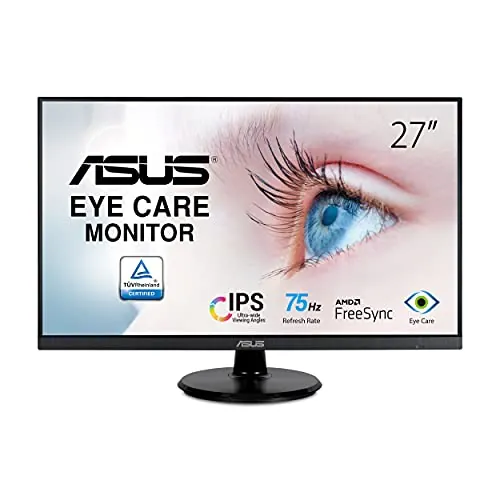
ASUS VA24DQ vs VA24DQSB: Stand Movement, USB Hub and Display Modes
These two 23.8-inch Full HD ASUS monitors share a 1920 × 1080 panel class, HDMI, DisplayPort, VGA and up-to-75Hz manufacturer ratings. The practical difference is the stand and peripheral routing: VA24DQ only tilts and has no USB 2.0 ports, while VA24DQSB adds height, swivel, portrait pivot and a two-port USB hub that needs a separate upstream cable to the computer. The manuals disagree on VA24DQ's maximum upward tilt (+20° versus +23°), so this guide does not use that angle to decide between them.
Read comparison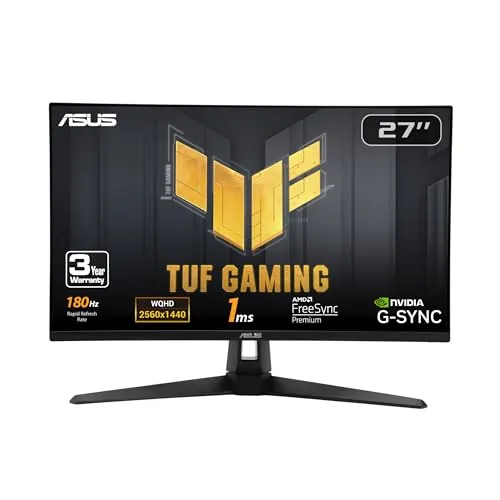
ASUS VG27AQL5A vs VG27AQ3A: Check the Port and Stand Before You Buy
Both are 27-inch QHD ASUS TUF Gaming monitors with DisplayPort 1.4 and two HDMI 2.0 inputs. ASUS lists the VG27AQL5A up to 210Hz over DisplayPort and gives it a height-adjustable, pivoting stand; the VG27AQ3A is listed up to 180Hz over DisplayPort and has no height adjustment. Both HDMI signal ranges stop at 144Hz, so the 210Hz headline only helps a compatible DisplayPort setup.
Read comparison