
Products compared
ASUS
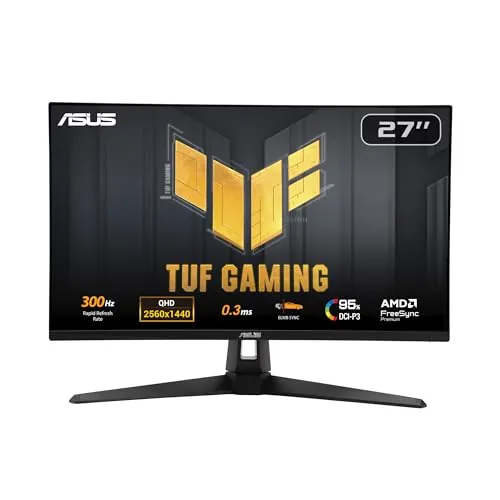
ASUS TUF Gaming VG27AQM5A
27-inch QHD display. Check the VG27AQM5A model code and the inputs on your exact listing.
Model VG27AQM5A
Amazon ASIN B0F233D6W1
ASUS
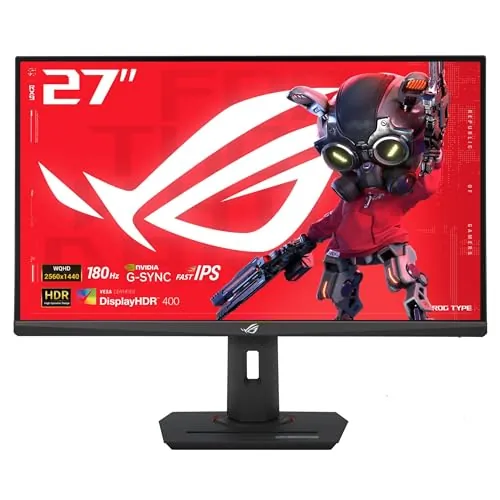
ASUS ROG Strix XG27ACS
27-inch QHD display with USB-C video input. Check that the listing is for XG27ACS.
Model XG27ACS
Amazon ASIN B0CV24GQ9W
Differences that matter
What matters most to you?
Choose a priority to see what it changes.
Sources for QHD refresh modes by input
Sources for USB-C: video, service or power
Sources for Included stand adjustment
Sources for Other setup differences
Start with the device and cable you will actually use
Both monitors are 27-inch QHD (2560 × 1440) models, so the headline size and resolution do not settle this choice. The useful difference is per input. ASUS lists the VG27AQM5A HDMI and DisplayPort signal ranges through 300 Hz. Its manual's supported timing table includes QHD 300 Hz for each. The XG27ACS supports QHD through 180 Hz over USB-C/DisplayPort, but ASUS lists HDMI through 144 Hz; its manual timing table likewise assigns 155–180 Hz QHD modes to Type-C and DisplayPort rather than HDMI.
These figures describe monitor-supported input modes. Your source also has to generate and send the chosen resolution and refresh rate over that port and cable. Before buying, check the exact output of your desktop graphics card, laptop, console or dock; do not infer the mode from the connector shape or from a game's frame-rate marketing.
The two USB-C ports do different jobs
The TUF's USB-C connector is easy to misread: ASUS labels it a service port, and the monitor manual says it connects to a PC for firmware upgrades. It is not the TUF's video input. Use HDMI or DisplayPort for the picture.
The ROG USB-C port does accept DisplayPort Alt Mode video and lists 7.5 W of Power Delivery. A compatible laptop can use it for video, but that power rating is not a promise of adequate laptop charging. Check the laptop's own power requirement and keep its normal charger available if the monitor's output is too small. Also confirm that the particular laptop USB-C port supports video output; USB-C form factor alone is not enough.
Check stand height and connected-device count
The included stands solve different desk problems. The VG27AQM5A tilts and swivels but has no height adjustment. ASUS lists 0–120 mm height adjustment for the XG27ACS. Measure from the desk to the screen position you want while seated. If you choose the TUF but need a higher screen, plan for a separate compatible VESA 100 × 100 mm stand or arm.
Input counts may matter when several devices stay connected: the TUF lists two HDMI 2.1 inputs and one DisplayPort 1.4 input, while the ROG lists one HDMI 2.0, one DisplayPort 1.4 and the video-capable USB-C input. ASUS lists built-in 2 W speakers for the TUF. Make a device-to-port list before you order, including which source should use each cable.
A quick pre-buy fit check
1. Record the exact source model and the output port you will use. For a laptop-to-ROG USB-C connection, confirm video over DisplayPort Alt Mode in the laptop's specifications.
2. Write down the target mode, such as QHD at 144, 180, 240 or 300 Hz. Compare it with the monitor's limit for that exact input. For the ROG, QHD HDMI is listed through 144 Hz; its USB-C/DP is listed through 180 Hz. For the TUF, ASUS lists QHD modes to 300 Hz over both HDMI and DP.
3. Check the graphics hardware, console settings and cable documentation for that same mode. If one part of the chain is limited, the higher monitor ceiling will not remove that limit.
4. Measure the screen height and count devices to connect. The TUF stand has no vertical travel; the ROG stand has 0–120 mm. Include a separate VESA mount in the plan if needed.
5. If using ROG USB-C for a laptop, compare 7.5 W with the laptop's stated power needs and retain its charger where necessary.
Product details
ASUS TUF Gaming VG27AQM5A
- Display
- 27-inch Fast IPS; 2560 × 1440 QHD; manufacturer-listed maximum refresh rate 300 Hz. Source
- Inputs and their role
- One DisplayPort 1.4 and two HDMI 2.1 inputs; USB-C is listed as a service port, and the manual describes it for firmware upgrades rather than video input. Source
- Stand and audio
- Tilt and swivel; no height adjustment. ASUS lists two 2 W speakers and 100 × 100 mm VESA mounting. Source
ASUS ROG Strix XG27ACS
- Display
- 27-inch Fast IPS; 2560 × 1440 QHD; manufacturer-listed maximum refresh rate 180 Hz. Source
- Inputs and their role
- One DisplayPort 1.4, one HDMI 2.0, and USB-C with DisplayPort Alt Mode; USB-C Power Delivery is listed at 7.5 W. Source
- Stand
- Tilt and 0–120 mm height adjustment; VESA 100 × 100 mm mounting is listed. Source
Before you buy
Community discussions
Brazil-market XG27ACS owner describes night viewing
ASUS ROG Strix XG27ACS
A Brazil-based owner reported using an XG27ACS at 2560 × 1440 and 180 Hz over DisplayPort. In a dark room, they said the IPS glow was less noticeable in person than in photos, though a yellow tint was visible at an angle. The post does not establish behavior for other regions or revisions.
What to check
If you play in a dark room, assess the exact unit from your normal viewing position and at the angles you use; this individual report does not confirm that a U.S. offer or another revision will look the same.
Common questions
Can I connect a laptop to the TUF VG27AQM5A over USB-C for video?
ASUS calls that Type-C connector a service port, and its manual says to use it to connect a PC for monitor firmware upgrades. For display video, use the documented HDMI or DisplayPort inputs instead.TUF Gaming VG27AQM5A Tech SpecsTUF Gaming Monitor VG27AQM5A Series User Guide
Does the ROG XG27ACS support 180 Hz over HDMI?
ASUS lists the XG27ACS HDMI input through 144 Hz. Its USB-C/DisplayPort path is listed through 180 Hz. Check the manual timing table and your device output before ordering for a specific mode.ROG Strix XG27ACS Tech SpecsASUS LCD Monitor XG Series User Guide (XG27ACS)
Will the ROG USB-C port fully charge my laptop?
The monitor specification lists USB-C Power Delivery at 7.5 W. Whether that is enough depends on your laptop and how you use it; check its power requirement and plan to keep the laptop charger if unsure.ROG Strix XG27ACS Tech SpecsASUS LCD Monitor XG Series User Guide (XG27ACS)
Does a 300 Hz specification mean the TUF will run every game at 300 frames per second?
No. It describes a supported monitor input mode. The frame rate delivered depends on the source hardware, game, settings, connection and cable; this comparison includes no matched gaming or motion test.TUF Gaming VG27AQM5A Tech SpecsTUF Gaming Monitor VG27AQM5A Series User Guide
Which included stand is easier to position vertically?
ASUS lists 0–120 mm of height adjustment for the XG27ACS stand and no height adjustment for the VG27AQM5A stand. Either model supports 100 × 100 mm VESA mounting if you choose a separate compatible mount.TUF Gaming VG27AQM5A Tech SpecsROG Strix XG27ACS Tech Specs
Sources and scope
This guide compares manufacturer-published specifications and manual timing tables; it is not a hands-on review or matched test. A listed input timing is a supported monitor mode, not a promise that a particular GPU, console, adapter or cable can generate it. No image-quality, motion, latency, response-time or gaming-performance winner is claimed. The XG27ACS USB-C output is listed at 7.5 W, but laptop charging sufficiency depends on the laptop and workload. Check the exact model, listing, cable and current manuals before purchase.
Related comparisons
ASUS ROG Strix XG27ACS vs TUF VG27AQ3A: USB-C, 180Hz and Desk Setup
Both exact ASUS models are 27-inch 2560×1440 Fast IPS monitors with a listed maximum refresh rate of 180Hz. The connector path matters: ASUS lists HDMI up to 144Hz on both; ROG XG27ACS also lists DisplayPort and USB-C DisplayPort Alt Mode up to 180Hz, while TUF VG27AQ3A lists DisplayPort up to 180Hz. ROG adds USB-C with 7.5W power delivery and a stand that raises up to 120 mm and rotates to portrait. TUF has two HDMI inputs, built-in 2W × 2 speakers, tilt and swivel, but no stand height adjustment or pivot. Before buying, match the monitor input to your computer's output and decide whether you need to raise the screen or connect multiple HDMI sources.
Read comparison
ASUS ROG Strix XG27ACS vs LG 27GR83Q-B.AUS: Refresh Rate, USB-C, and Stand Fit
Both are 27-inch QHD gaming displays, but the useful refresh ceiling depends on your cable path. ASUS XG27ACS carries video over USB-C DisplayPort Alt Mode and supports 180Hz through USB-C/DisplayPort, with HDMI listed to 144Hz. LG 27GR83Q-B.AUS offers two HDMI 2.1 inputs and DisplayPort, with up to 240Hz when the graphics card supports the required interface. Check the exact host output, cable and stand movement your desk needs before buying.
Read comparison