
Products compared
ASUS
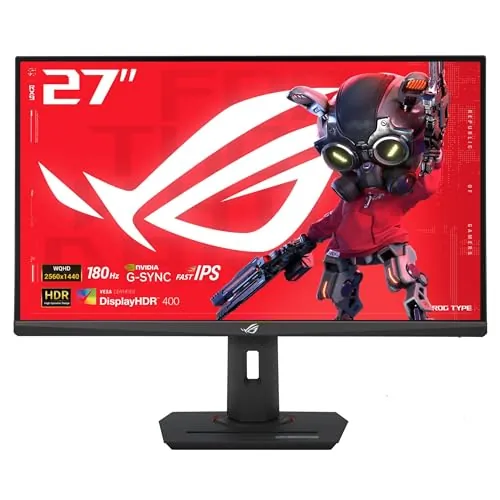
ASUS ROG Strix XG27ACS Gaming Monitor, Black
The black U.S. ASUS ROG Strix XG27ACS is a 27-inch QHD monitor with DisplayPort, HDMI 2.0 and USB-C DisplayPort Alt Mode.
Model XG27ACS
Amazon ASIN B0CV24GQ9W
ASUS
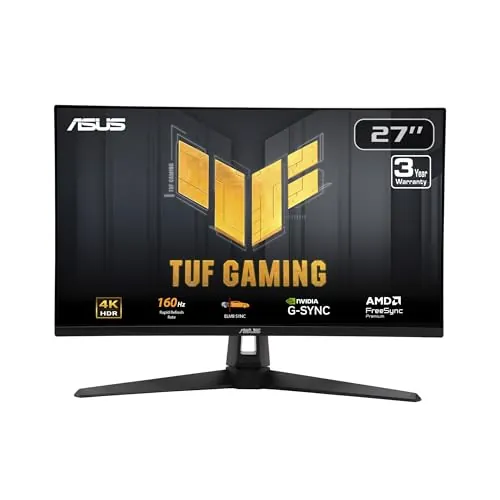
ASUS TUF Gaming VG27UQ1A Gaming Monitor, Black
The black U.S. ASUS TUF Gaming VG27UQ1A is a 27-inch 4K monitor with two HDMI 2.1 ports and one DisplayPort 1.4 DSC input.
Model VG27UQ1A
Amazon ASIN B0DHG1GTG2
Differences that matter
What matters most to you?
Choose a priority to see what it changes.
Sources for Resolution and refresh limit by input
Sources for Variable refresh support and input options
Sources for Height and viewing-angle adjustment on the included stand
Match the monitor port to your target signal
Start from the source, not the monitor headline: write down whether you need QHD or 4K, then the refresh rate your PC or console can actually output. ASUS lists the XG27ACS at 2560×1440, with 180Hz over DisplayPort and USB-C and up to 144Hz over HDMI. Its USB-C is a video-capable DisplayPort Alt Mode input and supplies 7.5W, which is not enough evidence to promise it will power a particular laptop.
The VG27UQ1A is a 3840×2160 display with a 160Hz maximum listed. It has two HDMI 2.1 inputs and one DisplayPort 1.4 DSC input; ASUS specifically describes 4K at 120Hz via HDMI 2.1 for console use. Its manual calls the Type-C connector service-only, so use one of its HDMI or DisplayPort inputs for video. Your source, cable and settings still determine which signal you can send.
Check VRR support and desk height before you order
Both models document variable-refresh support. The VG27UQ1A manual lists G-SYNC Compatible, FreeSync Premium and Adaptive-Sync for DisplayPort, and FreeSync Premium for HDMI. ASUS lists Adaptive-Sync for XG27ACS, but its materials used here do not enumerate VRR options separately by input. Confirm the GPU, console, connection and settings you intend to use; this is not a promise that every mode works with every source.
The included stands answer a different day-to-day question. XG27ACS gives 120mm of height adjustment, plus swivel and portrait pivot in the manual. VG27UQ1A tilts but has no listed height adjustment. Both specify 100×100mm VESA mounting. If you need to raise the panel, favor the adjustable ROG stand or plan and verify a separate VESA mount for the TUF before buying.
Product details
ASUS ROG Strix XG27ACS Gaming Monitor, Black
- Resolution and rated maximum refresh
- 2560×1440; up to 180Hz over DisplayPort and USB-C, and up to 144Hz over HDMI, per ASUS signal-frequency specifications. Source
- Video inputs
- DisplayPort 1.4, HDMI 2.0 and USB-C with DisplayPort Alt Mode; USB-C power delivery is listed at 7.5W. Source
- Included-stand movement
- 0–120mm height adjustment, tilt, swivel and pivot are shown in the XG27ACS manual. Source
ASUS TUF Gaming VG27UQ1A Gaming Monitor, Black
- Resolution and rated maximum refresh
- 3840×2160; up to 160Hz maximum listed. ASUS separately describes 4K/120Hz console visuals through HDMI 2.1. Source
- Video inputs
- Two HDMI 2.1 FRL ports and one DisplayPort 1.4 DSC port. The USB Type-C socket is a service port, not a video input. Source
- Included-stand movement
- Tilt is listed; ASUS lists no height adjustment. The manual documents the tilt range and VESA mounting procedure. Source
Before you buy
Community discussions
Trying the DisplayPort and HDMI paths separately
ASUS ROG Strix XG27ACS Gaming Monitor, Black
An XG27ACS owner reported seeing an intermittent horizontal line on DisplayPort that they did not see over HDMI. They also found the matte texture visible on bright scenes.
What to check
Compare the mode each port carries on the host you use. Check a game and a bright desktop in that mode before settling on the connection.
Common questions
Can XG27ACS run at 180Hz over HDMI?
ASUS lists 180Hz for DisplayPort and USB-C and a 144Hz maximum signal frequency over HDMI. Check the source device and cable for the mode you want.ROG Strix XG27ACS — Tech Specs (U.S.)
Does VG27UQ1A's USB-C port take video from a laptop?
No video function is documented for that connector: its manual labels the Type-C port as service only. Its video inputs are the HDMI and DisplayPort ports in the specifications.ASUS TUF Gaming Monitor VG27UQ1A Series — English User ManualTUF Gaming VG27UQ1A — Tech Specs (ASUS USA)
Does the VG27UQ1A included stand adjust up and down?
ASUS lists no height adjustment for the VG27UQ1A stand. It lists tilt and a 100×100mm VESA pattern; check the manual and the mount specification if you plan to use a separate arm.TUF Gaming VG27UQ1A — Tech Specs (ASUS USA)
Are the listed refresh rates measured results?
No. They are ASUS specifications. The highest mode available depends on the source device, selected port, cable and settings; this guide does not report a paired performance test.ROG Strix XG27ACS — Tech Specs (U.S.)TUF Gaming VG27UQ1A — Tech Specs (ASUS USA)
Sources and scope
Refresh-rate and VRR statements are manufacturer specifications. The maximum mode available depends on the source device, selected input, connection cable and settings. No side-by-side motion, image-quality, HDR, latency or gaming test is claimed.
Related comparisons
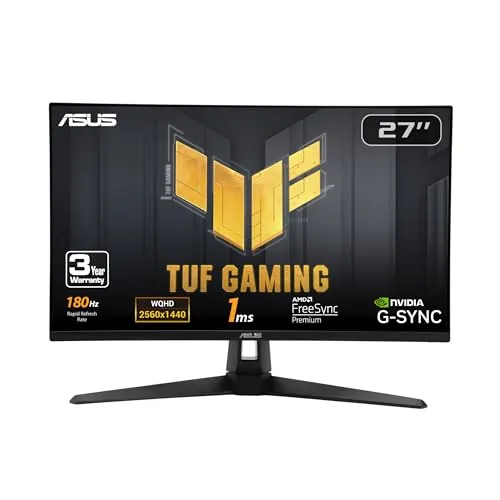
ASUS ROG Strix XG27ACS vs TUF VG27AQ3A: USB-C, 180Hz and Desk Setup
Both exact ASUS models are 27-inch 2560×1440 Fast IPS monitors with a listed maximum refresh rate of 180Hz. The connector path matters: ASUS lists HDMI up to 144Hz on both; ROG XG27ACS also lists DisplayPort and USB-C DisplayPort Alt Mode up to 180Hz, while TUF VG27AQ3A lists DisplayPort up to 180Hz. ROG adds USB-C with 7.5W power delivery and a stand that raises up to 120 mm and rotates to portrait. TUF has two HDMI inputs, built-in 2W × 2 speakers, tilt and swivel, but no stand height adjustment or pivot. Before buying, match the monitor input to your computer's output and decide whether you need to raise the screen or connect multiple HDMI sources.
Read comparison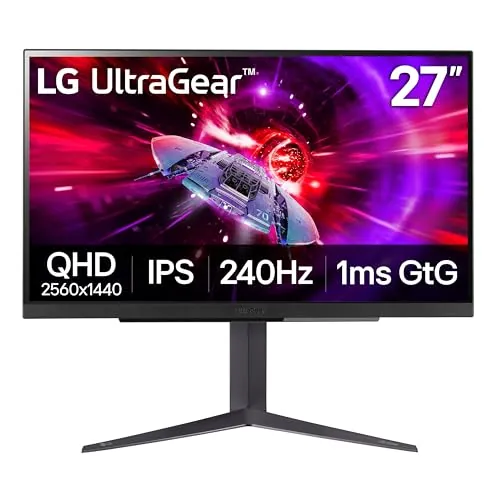
ASUS ROG Strix XG27ACS vs LG 27GR83Q-B.AUS: Refresh Rate, USB-C, and Stand Fit
Both are 27-inch QHD gaming displays, but the useful refresh ceiling depends on your cable path. ASUS XG27ACS carries video over USB-C DisplayPort Alt Mode and supports 180Hz through USB-C/DisplayPort, with HDMI listed to 144Hz. LG 27GR83Q-B.AUS offers two HDMI 2.1 inputs and DisplayPort, with up to 240Hz when the graphics card supports the required interface. Check the exact host output, cable and stand movement your desk needs before buying.
Read comparison