
Products compared
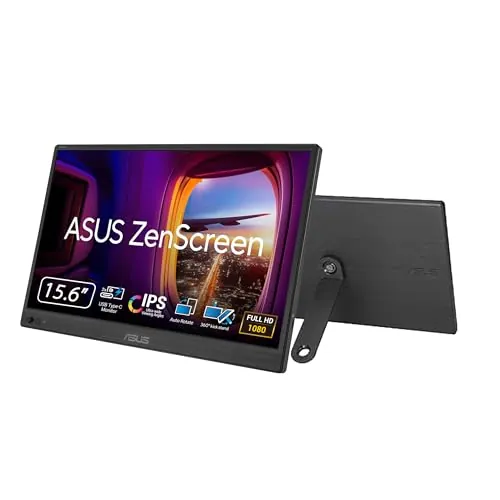
ASUS
ASUS ZenScreen MB169CK Portable Monitor
For the U.S. MB169CK, ASUS lists USB-C DP Alt Mode and Mini HDMI inputs. Check the package contents because ASUS says included accessories vary by region.
Model MB169CK
Amazon ASIN B0CPFYVPBG
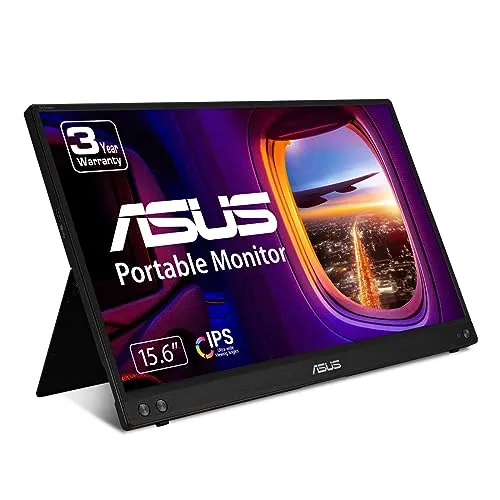
ASUS
ASUS ZenScreen MB16ACV Portable Monitor
For the U.S. MB16ACV, its single USB-C port supports DP Alt Mode and USB 3.2. ASUS documents a driver-enabled USB Type-A hybrid-signal route; it is not a second video connector.
Model MB16ACV
Amazon ASIN B0966YYP65
Differences that matter
What matters most to you?
Choose a priority to see what it changes.
Sources for Video connection paths
Sources for Power path when using HDMI or USB-A
Sources for Built-in stand and mounting
Sources for Listed body footprint and travel weight
Start with the cable your laptop can actually use
For a USB-C setup, verify DP Alt Mode on the exact laptop port before comparing screens. ASUS lists MB169CK with two USB-C DP Alt Mode ports and Mini HDMI; MB16ACV has one USB-C port with DP Alt Mode and USB 3.2. ASUS describes MB16ACV's USB-A hybrid-signal option, but the DisplayLink driver is required. A USB-C-shaped port without DP Alt Mode is not enough for the plug-and-play USB-C video path, and a USB-A plug is not enough to establish that the software will work on your system.
The practical split is physical input versus driver-enabled route: MB169CK's Mini HDMI can accept a compatible HDMI video source, while MB16ACV may suit a USB-A host when its current driver supports the operating system. If your work laptop restricts drivers, check with IT before choosing MB16ACV for USB-A use.
Plan power and cables as part of the video connection
MB169CK's USB-C DP Alt Mode path can carry video and power in a single cable when the host supports that mode. When using its Mini HDMI input, ASUS says to use USB-C for power; the product page says a separate power adapter may be used. Do not treat HDMI as the monitor's power source. Its English user guide lists both a USB-C cable and a Mini HDMI-to-HDMI cable among included accessories, but ASUS cautions that contents can vary by region, so verify the exact offer.
ASUS describes MB16ACV's USB-C hybrid signal as carrying both power and video. If using the USB-A hybrid-signal route, the required DisplayLink driver adds a software check to the physical cable check. Before travel, test your planned host and bring any required cable, adapter or power supply rather than assuming an exact package from the model name alone.
Match the stand to the surface and angle you use
ASUS lists MB169CK's stand as a 360° kickstand and separately identifies a 1/4-inch tripod socket. For MB16ACV, ASUS lists a kickstand with a +15° to +35° tilt range and the same socket size. These are different positioning descriptions, not a comparative stability test. If you already use a tripod, confirm the socket and what comes in the specific seller package; ASUS says the MB16ACV tripod is not included.
The available specifications do not list height adjustment for either model. For a desk where screen height matters, check the stand arrangement you actually intend to use and the monitor's position relative to your laptop, rather than assuming the kickstand raises the panel to eye level.
Use body dimensions as a first storage check
Both are 15.6-inch viewable Full HD monitors. ASUS lists their bodies at about 14.1 inches wide and 8.9 inches high. MB16ACV's listed body is thinner, but it weighs more according to the two US specs. MB169CK's dimensions explicitly say without stand, while MB16ACV's listing labels its measurements as physical dimensions; keep those conventions in mind when comparing thickness or planning a tight sleeve.
Before buying, compare the full bag compartment with the monitor, sleeve and cable you plan to pack. The small body difference is a screening aid rather than a promise of fit, and the lighter listed weight does not mean MB169CK has a thinner body.
Product details
ASUS ZenScreen MB169CK Portable Monitor
ASUS ZenScreen MB16ACV Portable Monitor
- USB-C video
- One USB-C port with DisplayPort Alt Mode and USB 3.2 Source
- USB-A video path
- Hybrid-signal connection via USB Type-A requires the DisplayLink driver Source
- Body dimensions and weight
- 14.09 × 8.86 × 0.39 in; 0.9 kg (1.98 lb) Source
- Stand and mounting
- Kickstand tilt range +15° to +35°; 1/4-inch tripod socket Source
Before you buy
Community discussions
Planning one portable monitor for a Mac mini and iPad
ASUS ZenScreen MB169CK Portable Monitor
A traveler looking for a monitor for both a Mac mini and iPad lists ASUS MB169CK as one candidate alongside another portable display. Their request centers on fitting a compact setup across devices and frequent travel.
What to check
Check the exact Mac mini and iPad generations, their video outputs, required cables and power path against the MB169CK and MB16ACV documentation; then compare how each monitor’s stand and cables fit your travel bag.
Common questions
Can I connect MB169CK to a computer over HDMI?
ASUS lists one Mini HDMI input for MB169CK. Its overview says to connect HDMI for the video signal and USB-C for power. Check that your cable or adapter matches Mini HDMI at the monitor end.ASUS ZenScreen MB169CK Tech Specs - ASUS USASUS ZenScreen MB169CK product page - ASUS US
Will MB16ACV work with a USB-A laptop?
ASUS describes a hybrid-signal USB Type-A connection and says the DisplayLink driver is required. Check the current ASUS driver for your laptop's operating system and software setup before ordering; USB-A connector fit alone does not establish compatibility.ASUS ZenScreen MB16ACV product page - ASUS USASUS ZenScreen MB16ACV support: manuals and driver downloads - ASUS US
Which one is lighter or slimmer to carry?
ASUS lists MB169CK at 0.78 kg and 0.47 in thick, with dimensions labeled without stand. It lists MB16ACV at 0.9 kg and 0.39 in thick. So MB16ACV has the slimmer listed body, while MB169CK has the lower listed weight; the dimension labels are not fully harmonized, so check your bag and exact package.ASUS ZenScreen MB169CK Tech Specs - ASUS USASUS ZenScreen MB16ACV Tech Specs - ASUS US
Do either monitors include a tripod?
Both US specifications list a 1/4-inch tripod socket. ASUS says the tripod is not included with MB16ACV; verify package contents for the exact offer and region before buying.ASUS ZenScreen MB169CK Tech Specs - ASUS USASUS ZenScreen MB16ACV product page - ASUS US
Sources and scope
This is a documentation-based comparison, not a hands-on display test. It does not compare brightness, image quality, reliability or real-world performance. USB-C video requires a compatible host port; the MB16ACV USB-A route requires ASUS's DisplayLink driver and should be checked against the buyer's current OS and software requirements. Confirm the exact MB169CK / MB16ACV model and seller package; listed regional accessories can vary.
- ASUS ZenScreen MB169CK Tech Specs - ASUS US
- ASUS ZenScreen MB169CK product page - ASUS US
- ASUS MB169CK English User Guide
- ASUS ZenScreen MB16ACV Tech Specs - ASUS US
- ASUS ZenScreen MB16ACV product page - ASUS US
- ASUS ZenScreen MB16ACV support: manuals and driver downloads - ASUS US
- ASUS FAQ: Identify whether USB-C supports display on a portable monitor
Related comparisons
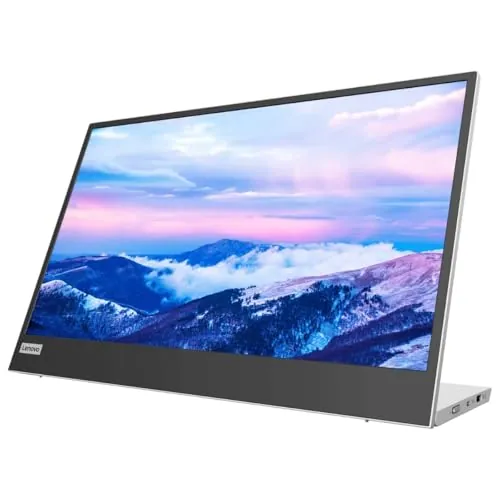
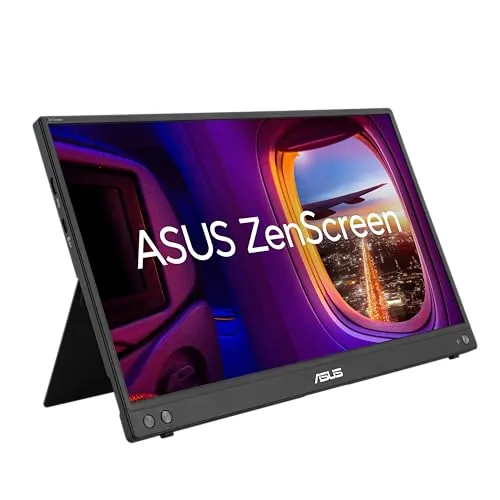
Lenovo L15 66E4UCC1UZ vs ASUS ZenScreen MB16AHV: Host Ports and Stand Setup
Both monitors need a suitable connection from your laptop. ASUS lists USB-C video and Mini HDMI for the MB16AHV, plus an adjustable kickstand and a tripod socket. For Lenovo L15 part 66E4UCC1UZ, confirm which ports, power and stand features apply to the U.S. listing before ordering.
Read comparison
Dell P1425 vs Lenovo ThinkVision M14t Gen 2: Touch, Resolution and USB-C Fit
These 14-inch portable monitors share a USB-C DisplayPort video path, but answer different work needs. Lenovo lists a 2240 × 1400 10-point touchscreen and a passive touch pen in its model-family package; Dell lists 1920 × 1200 and no touchscreen. Pick Lenovo if direct screen interaction matters and your host supports USB-C DisplayPort Alt Mode and the needed touch behavior. Pick Dell if you do not need touch and its 1920 × 1200 workspace suits your laptop workflow. Confirm the exact Lenovo regional model code and seller box before ordering.
Read comparison