
Products compared
ASUS
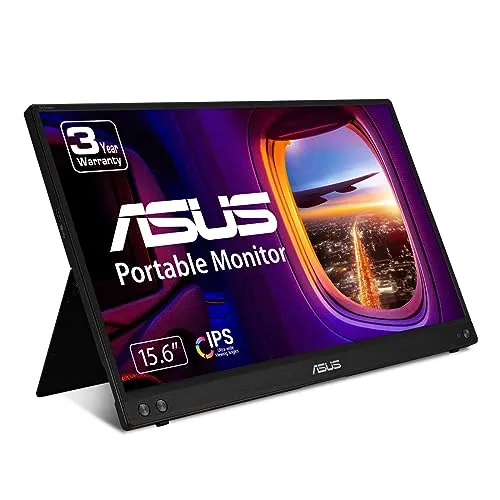
ASUS ZenScreen Portable Monitor
ASUS ZenScreen MB16ACV. ASUS documents a native USB-C video/power route, a USB-A route requiring DisplayLink software, a fold-out kickstand and a rear 1/4-inch socket. The exact-model specification lists USB-C-to-A and USB-C cables among accessories but says accessories vary by region; verify the selected box rather than assuming the list is the package.
Model MB16ACV
Amazon ASIN B0966YYP65
Lenovo
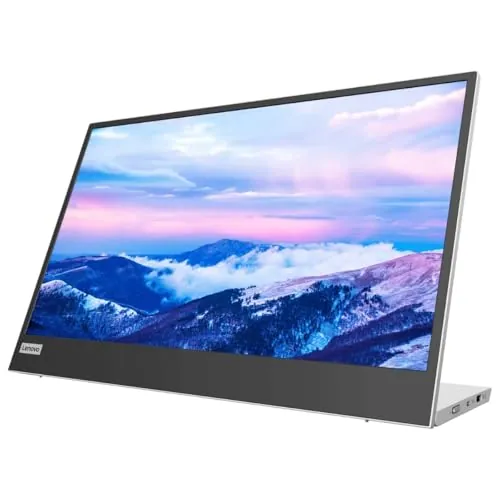
Lenovo L15 Portable Monitor
The exact U.S. part 66E4UCC1UZ appears on Lenovo’s U.S. product page and in the North America row of the L15 PSREF model table. Lenovo documents USB-C DisplayPort Alt Mode and power-output conditions, plus a USB-C adapter path when the source cannot supply enough power. The PSREF in-box list for the U.S. part includes a 1 m USB-C-to-USB-C cable, pair of clips, sleeve and quick setup guide; it does not list a power adapter.
Model 66E4UCC1UZ (L15)
Amazon ASIN B0B5GRGCX5
Differences that matter
What matters most to you?
Choose a priority to see what it changes.
Sources for Driver and protected media
Sources for Desk stand and external mount
Sources for Exact model and listed box items
Start with the laptop ports, not the monitor connector
For either model, inspect the exact laptop’s technical specification for video and power over USB-C. ASUS’s native path is USB-C hybrid signal with DisplayPort Alt Mode; its other documented route uses USB-A and a DisplayLink driver. The current ASUS U.S. support page lists Windows driver downloads and cautions that some protected apps may limit protected content to the host screen in USB 3.0 mode.
Lenovo’s L15 direct USB-C workflow requires the host to provide video and enough power. Its guide specifies DP Alt Mode, PD 2.0 or above and an electronically marked 5 A cable. An external USB-C adapter can connect to either monitor port in the powered setup. None of these documents tests a particular laptop, dock or adapter.
Plan the cable and adapter that are actually in the box
Lenovo’s U.S. part page identifies L15 model 66E4UCC1UZ, and the corresponding PSREF model row lists a 1 m USB-C-to-USB-C cable, clips, sleeve and quick setup guide; no adapter appears in that list. If your host cannot power the monitor or you need to charge the laptop through it, the family guide describes a separate adapter path. Check your laptop’s own charging requirement as well.
ASUS’s exact-model technical specifications list USB-C and USB-C-to-A cables, a sleeve and quick start guide, but mark accessories as region-variable. The U.S. product page identifies the connections and tripod exclusion, not the exact Amazon carton contents. Read the selected listing’s package section before assuming a cable or adapter is supplied.
Match the desk mount to the monitor
MB16ACV has a fold-out kickstand and a rear 1/4-inch threaded socket; ASUS says a tripod is not included. Lenovo’s U.S. L15 model row lists a two-hole 100 mm mount and up to 10 mm of lift from its stand. The product is not a height-adjustable desktop arm.
For L15 external mounting, use the instructions for the actual bracket. Its family guide describes clips and two M4 screws and specifies bracket conditions. A generic VESA label is not enough to confirm that a particular arm’s plate, screws and orientation work for your setup.
Pre-buy compatibility checklist
1. Look up the laptop’s exact model. Record whether its USB-C port supports DP Alt Mode and power output; do not infer either from a USB-C connector. 2. If considering ASUS over USB-A, verify the driver is available for your OS, installation is permitted, and the protected-content caveat is acceptable. 3. For Lenovo, verify power requirements and whether an external USB-C adapter is needed.
4. Decide on the stand first: a separately purchased 1/4-inch tripod for ASUS or Lenovo’s built-in stand/100 mm two-hole arrangement. 5. Compare the exact ASIN’s included cable and adapter list with the corresponding manufacturer record. This checklist resolves host and desk fit; it does not rank image quality.
Product details
ASUS ZenScreen Portable Monitor
- Video and power inputs
- One USB-C port with DisplayPort Alt Mode; ASUS describes a hybrid USB-C connection carrying power and video. The listed input rating is DC 5 V, 3 A. Source
- USB-A option
- ASUS says the USB Type-A connection requires its USB Monitor/DisplayLink driver; the current U.S. support page lists Windows 11 and Windows 10 driver choices and warns that protected content may stay on the host display. Source
- Stand and mount
- Fold-out kickstand plus rear 1/4-inch threaded socket. ASUS says the tripod is not included; no height adjustment is listed. Source
- Accessories listed by ASUS
- The technical-spec page lists USB-C and USB-C-to-A cables, sleeve, warranty card and quick start guide, while warning that accessories vary by region. Confirm the exact U.S. package contents on the offer. Source
Lenovo L15 Portable Monitor
- Video, power and ports
- For U.S. part 66E4UCC1UZ, Lenovo's PSREF lists two USB-C 3.1 Gen 1 ports with DP 1.2 Alt Mode (one upstream, one downstream). Lenovo's L15 guide says a direct source must provide video and power; confirm the capabilities of your specific host. Source
- Cable and optional power adapter
- The model table lists a 1 m USB-C-to-USB-C cable in the box. The family guide requires an electronically marked 5 A cable for direct setup and shows a separate USB-C adapter connected to either monitor port for powered use; an adapter is not listed in the U.S. part's PSREF box list. Source
- Stand and mount
- The exact part row lists up to 10 mm of stand lift and a 100 mm two-hole mount. Check the actual bracket and instructions; Lenovo's guide calls out clips, two M4 screws and mount load requirements. Source
- Included items
- The 66E4UCC1UZ PSREF row lists monitor, 1 m USB-C-to-USB-C cable, one pair of clips, sleeve and quick setup guide. Source
Before you buy
Community discussions
Moving the L15 around a laptop desk
Lenovo L15 Portable Monitor
An L15 owner described moving the screen from one side of their laptop to the other and valued having fewer cables and no separate stand in their setup.
What to check
Picture the screen on both sides of your laptop. Check whether your laptop can send video and power over USB-C and whether the cable reaches in both positions.
Common questions
Will any USB-C laptop port work with either monitor?
No. ASUS recommends checking the computer’s own port specifications; its native USB-C route uses DP Alt Mode, while the Lenovo L15 manual requires USB-C video and power output and points to DP Alt Mode/PD 2.0 or above. Verify the exact laptop model, not just the connector shape.ASUS U.S. ZenScreen MB16ACV product pageASUS guide to checking a computer’s USB-C port capabilitiesLenovo L15 Monitor PSREF product and model tableLenovo L15 User Guide
Can ASUS connect to a USB-A laptop?
ASUS documents a USB Type-A route through its DisplayLink/USB Monitor driver. The current U.S. support page lists Windows 10/11 driver options and warns that protected content may be restricted to the host screen in USB 3.0 mode. Check OS and installation permission first.ASUS U.S. ZenScreen MB16ACV product pageASUS MB16ACV U.S. support downloads and driver notes
Does Lenovo include a USB-C power adapter?
Lenovo’s model table for U.S. part 66E4UCC1UZ lists a 1 m USB-C-to-USB-C cable, clips, sleeve and quick guide; it does not list a power adapter. The L15 guide describes adding a separate adapter to the monitor when needed. Verify the selected seller’s package and your host’s power capability.Lenovo L15 Monitor PSREF product and model tableLenovo L15 User Guide
Are ASUS’s cable and sleeve inclusions certain for this U.S. Amazon offer?
ASUS’s exact MB16ACV technical-spec page lists USB-C and USB-C-to-A cables plus a sleeve, but it explicitly says accessories vary by region and tells buyers to check local availability. Confirm the in-box section for the selected U.S. offer.ASUS ZenScreen MB16ACV technical specifications
Can I attach either screen to any tripod or VESA arm?
The interfaces differ. ASUS documents a 1/4-inch threaded socket and says the tripod is not included. Lenovo’s U.S. part table lists a 100 mm two-hole mount; its guide specifies an appropriate VESA bracket and installation requirements. Check the bracket’s actual pattern and instructions.ASUS U.S. ZenScreen MB16ACV product pageLenovo L15 Monitor PSREF product and model tableLenovo L15 User Guide
Sources and scope
This guide compares manufacturer-documented connection, power, box-list and mounting conditions. It does not test particular laptops, docks, adapters, video quality, latency, color, brightness in use or reliability. A connector shape does not establish a host’s video or power capabilities. Lenovo’s available user guide is for the L15 family and identifies a different cover suffix; exact U.S. identity and listed box contents are tied to Lenovo’s 66E4UCC1UZ part page and PSREF row. ASUS’s exact-model technical-spec accessory list explicitly varies by region, so confirm the actual selected U.S. carton.
- ASUS U.S. ZenScreen MB16ACV product page
- ASUS ZenScreen MB16ACV technical specifications
- ASUS MB16ACV U.S. support downloads and driver notes
- ASUS guide to checking a computer’s USB-C port capabilities
- Lenovo U.S. L15 Portable Monitor, part 66E4UCC1UZ
- Lenovo L15 Monitor PSREF product and model table
- Lenovo L15 User Guide
Related comparisons
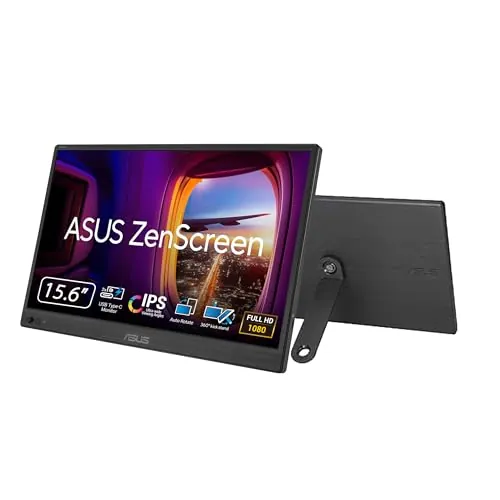
ASUS ZenScreen MB169CK vs Lenovo L15: Ports, Charging and Stand Fit
Both are 15.6-inch 1080p portable displays, but they connect differently. MB169CK adds Mini HDMI alongside USB-C DisplayPort Alt Mode; Lenovo L15 uses USB-C DisplayPort Alt Mode and advertises up to 65W pass-through charging. Check your source port, charger and travel setup before choosing.
Read comparison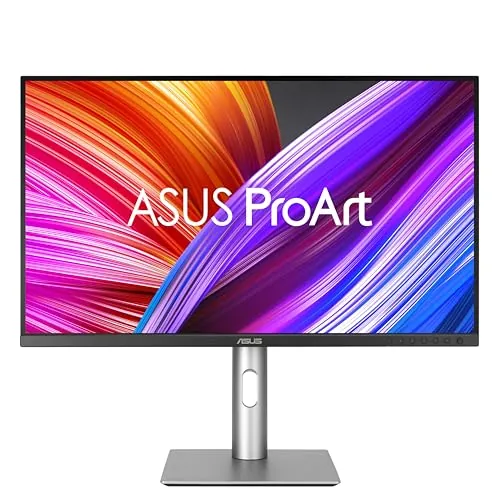
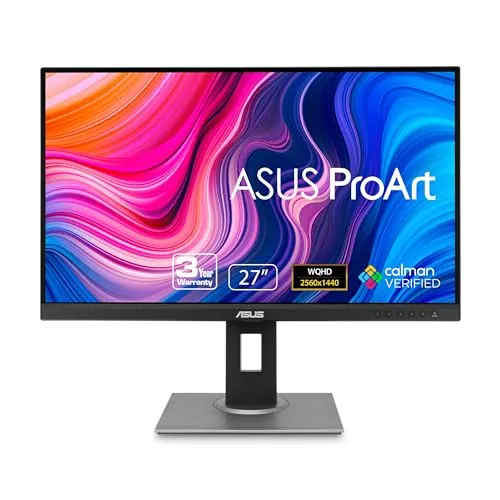
ASUS ProArt PA279CRV vs PA278QV: 4K USB-C or QHD Legacy Inputs?
Both are 27-inch ASUS ProArt IPS monitors, but they solve different desk problems. PA279CRV is 3840×2160 (4K) and its USB-C input supports DisplayPort Alt Mode and up to 96 W Power Delivery; with a compatible laptop it can carry video and USB data through one cable while connecting the monitor's hub. PA278QV is 2560×1440 (QHD), lists HDMI, DisplayPort, Mini DisplayPort and dual-link DVI-D, and has a four-port USB-A hub that needs a separate USB-B upstream connection. Before buying, check the laptop's USB-C video support and power needs, or check which legacy video port your desktop uses. ASUS lists different color-space coverage on the two models; these manufacturer specifications do not predict a user's calibrated result.
Read comparison