Pickagu

CORSAIR HS65 SURROUND vs Logitech G522 LIGHTSPEED: Connections and Mic Controls

CORSAIR HS65 SURROUND Wired Gaming Headset — CarbonModel CA-9011270-NALogitech G522 LIGHTSPEED Wireless Gaming Headset — BlackModel 981-001491

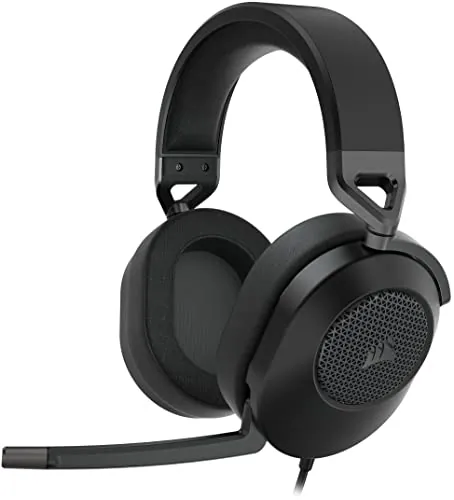
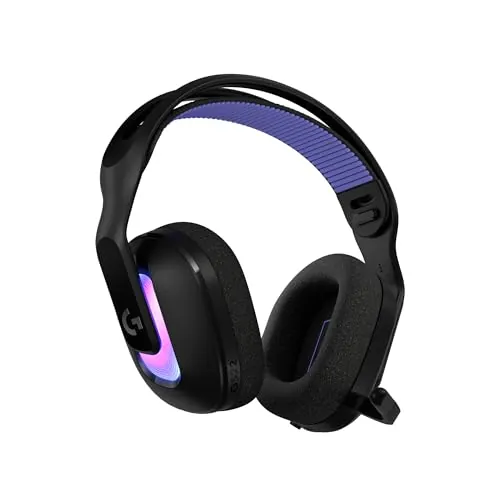
The black CORSAIR HS65 SURROUND (CA-9011270-NA) is a wired headset with a 3.5 mm path and an included USB adapter for documented PC features. The black Logitech G522 LIGHTSPEED (981-001491) offers LIGHTSPEED, Bluetooth, and USB-wired options, but USB-wired and LIGHTSPEED cannot run together. Their mic controls differ too: flip the HS65 boom up to mute, or press the G522 mute button and use its red indicators. Match the exact host, cable path, and mute control to your setup; these documented differences do not establish an audio or mic-performance winner.

Choose by what matters to you

Choose CORSAIR HS65 SURROUND Wired Gaming Headset — Carbon CA-9011270-NA

Your setup has a compatible 3.5 mm audio connection and you prefer a wired route. For its documented PC software features, plan to use the included USB adapter; Corsair says the adapter needs a high-power USB 2.0-or-better port. The boom itself is the mute control: raise it to mute, lower it to unmute.

Check price on Amazon

Choose Logitech G522 LIGHTSPEED Wireless Gaming Headset — Black 981-001491

You want to select between LIGHTSPEED wireless, Bluetooth, and USB-wired audio for different sessions. When its USB cable is connected, LIGHTSPEED is unavailable, so use Bluetooth or USB-wired in that state. Its mic mute is a button with red visual indicators.

Check price on Amazon

Keep comparing if your decision depends on measured microphone clarity, sound quality, comfort, battery life, latency, or game-specific performance. The cited sources document setup options and controls, not comparative test results. Also confirm the exact model and included accessories on the listing you plan to buy.

As an Amazon Associate I earn from qualifying purchases.Affiliate disclosure

Products compared

CORSAIR HS65 SURROUND Wired Gaming Headset — Carbon · CA-9011270-NA

CORSAIR

CORSAIR HS65 SURROUND Wired Gaming Headset — Carbon

Black/Carbon U.S. SKU; wired headset with 3.5 mm connection and included USB adapter.

Model CA-9011270-NA
Amazon ASIN B09YHQ3Y61
Check current price on Amazon
Logitech G522 LIGHTSPEED Wireless Gaming Headset — Black · 981-001491

Logitech G

Logitech G522 LIGHTSPEED Wireless Gaming Headset — Black

Black U.S. SKU; offers LIGHTSPEED, Bluetooth, and USB-wired connection modes.

Model 981-001491
Amazon ASIN B0FFM5SP6M

Check current price on Amazon

Differences that matter

Difference
CORSAIR HS65 SURROUND Wired Gaming Headset — Carbon
Logitech G522 LIGHTSPEED Wireless Gaming Headset — Black
Why it matters
Connection choices
CORSAIR HS65 SURROUND Wired Gaming Headset — CarbonWired 3.5 mm stereo; the included USB adapter enables virtual 7.1 on PC.
Logitech G522 LIGHTSPEED Wireless Gaming Headset — BlackLIGHTSPEED wireless, Bluetooth, or USB-wired audio; USB-wired and LIGHTSPEED cannot be used together.
Start with how you actually connect each host. The HS65 is the simpler fit when you want a cable-based 3.5 mm path. The G522 gives you more documented mode choices, with one important limit: connecting its USB cable rules out LIGHTSPEED until you disconnect it.
Sources for Connection choices
Host and cable path
CORSAIR HS65 SURROUND Wired Gaming Headset — CarbonThe guide lists 3.5 mm stereo on PC, Mac, PS4, PS5, Nintendo Switch, and mobile. The included adapter enables virtual 7.1 on PC.
Logitech G522 LIGHTSPEED Wireless Gaming Headset — BlackThe guide shows LIGHTSPEED through a USB receiver on PC, Bluetooth pairing, and included USB-A-to-USB-C wired audio on PC, PlayStation, or a Nintendo Switch dock.
Write down the devices you will use and check which input each one has. If you want the HS65's PC adapter features, reserve a suitable USB port as well as the headset's 3.5 mm connection. For G522 USB-wired use, account for the supplied cable and the loss of LIGHTSPEED while connected.
Sources for Host and cable path
PC adapter and software setup
CORSAIR HS65 SURROUND Wired Gaming Headset — CarbonCorsair says the included USB adapter must be connected to a PC for iCUE features; powering the adapter requires a high-power USB 2.0-or-better port.
Logitech G522 LIGHTSPEED Wireless Gaming Headset — BlackThe G522 setup guide shows selecting the headset as Windows input and output devices and describes G HUB as optional for advanced features.
Before buying the HS65 for its PC features, check that a suitable USB port is available; some older keyboard and monitor ports may not provide the power Corsair specifies. With either model, check the operating-system and game/chat input selections if an app uses a different audio device.
Sources for PC adapter and software setup
Microphone mute action
CORSAIR HS65 SURROUND Wired Gaming Headset — CarbonFlip the boom up to mute and down to unmute.
Logitech G522 LIGHTSPEED Wireless Gaming Headset — BlackPress the mic mute button; red is visible at the button base and the boom-tip LED lights red while muted.
Choose the control action you will remember and can reach during a call or game. The documentation describes how each control works but does not show which is faster or less error-prone in use.
Sources for Microphone mute action

Before you buy: map the ports and controls in your setup

Make a short list of every device you plan to connect. For the HS65, confirm that each has the 3.5 mm audio path described by Corsair. If PC software features are part of your reason for choosing it, also identify a high-power USB 2.0-or-better port for the included adapter; Corsair cautions that some older keyboard and monitor ports may not provide enough power.

For the G522, choose a mode for each session: LIGHTSPEED via its USB receiver, Bluetooth, or USB-wired audio with the included cable. USB-wired mode disables LIGHTSPEED while connected. If you frequently switch devices, write down which connection you expect to use rather than assuming the modes combine.

Finally, decide which mute action you prefer: lift the HS65 boom or press the G522 button and check its red indicators. These are documented control differences, not a measured call-quality or usability result. Verify the exact SKU, color, and included accessories on the specific retailer listing before checkout.

Product details

CORSAIR HS65 SURROUND Wired Gaming Headset — Carbon

Documented connection path
3.5 mm stereo; included USB adapter enables virtual 7.1 on PC Source
Mic mute control
Flip the boom up to mute and down to unmute Source

Logitech G522 LIGHTSPEED Wireless Gaming Headset — Black

Documented connection modes
LIGHTSPEED wireless, Bluetooth, and USB-wired; USB-wired and LIGHTSPEED cannot be used at the same time Source
Mic mute control
Press the mic mute button; red appears at the button base and the boom-tip LED lights red while muted Source

Before you buy

  • Match the retailer listing to the exact black models: HS65 SURROUND SKU CA-9011270-NA (ASIN B09YHQ3Y61) or G522 LIGHTSPEED SKU 981-001491 (ASIN B0FFM5SP6M). The manufacturer U.S. product pages identify these SKUs and color names.
  • List your actual hosts and the available ports before choosing. For HS65, check for a 3.5 mm jack; if you want its PC adapter features, also confirm access to a high-power USB 2.0-or-better port.
  • For G522, decide whether each session will use the LIGHTSPEED receiver, Bluetooth, or USB-wired audio. Do not plan on LIGHTSPEED and USB-wired operating together.
  • If mic muting matters mid-session, compare the boom-up action with a button press and its red visual indicators. Documentation cannot tell you which control will feel more natural to you.

Community discussions

Checking G522 microphone use with a Pixel 7 Pro

Logitech G522 LIGHTSPEED Wireless Gaming Headset — Black

A Logitech G522 owner using a Pixel 7 Pro wanted to know how they could use the headset microphone with their phone.

What to check

If you need the mic for phone calls, check the headset’s available input paths for your exact phone and how you intend to connect it.

Original Reddit discussion

Common questions

Does the HS65 require its USB adapter for every device?

No. Corsair's guide describes 3.5 mm stereo for the listed PC, Mac, PlayStation, Nintendo Switch, and mobile examples. The included adapter enables virtual 7.1 on PC and is required for the documented iCUE feature workflow on PC.HS65 SURROUND Quick Start GuideHS65 SURROUND Wired Gaming Headset — Carbon

Can the G522 use LIGHTSPEED while connected by USB for wired audio?

No. Logitech says USB-wired and LIGHTSPEED cannot be used at the same time. When a USB cable is connected, the mode control switches between Bluetooth and USB-wired rather than LIGHTSPEED.G522 LIGHTSPEED Setup GuideHow to switch between Bluetooth and LIGHTSPEED on G522

How do their microphone mute controls work?

Raise the HS65 boom to mute and lower it to unmute. On G522, press the mic mute button; red appears at the button base and the boom-tip LED lights red while muted.HS65 SURROUND Quick Start GuideG522 LIGHTSPEED Setup Guide

Sources and scope

This is a documentation-based setup comparison, not a listening, microphone, comfort, battery, durability, or latency test. Manufacturer-listed host paths describe supported connection examples and do not guarantee every app or device configuration. Prices and current offers are not compared.

  1. HS65 SURROUND Wired Gaming Headset — Carbon
  2. HS65 SURROUND Quick Start Guide
  3. G522 LIGHTSPEED Wireless Gaming Headset — Black (U.S.)
  4. G522 LIGHTSPEED Setup Guide
  5. How to switch between Bluetooth and LIGHTSPEED on G522