
Products compared
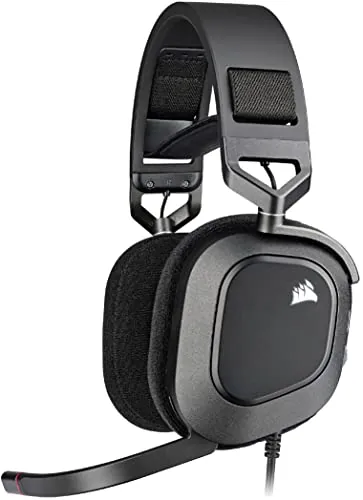
Corsair
Corsair HS80 RGB USB Wired Gaming Headset
U.S. Carbon/Black wired USB headset with a permanently attached flip-up microphone
Model CA-9011237-NA
Amazon ASIN B09YHQWHKV
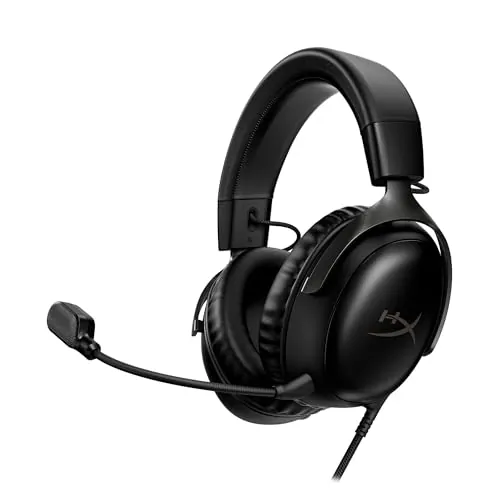
HyperX
HyperX Cloud III Wired Gaming Headset (Black)
U.S. Black wired headset with USB-C, included USB-A adapter and USB dongle, plus a 3.5 mm connection and detachable microphone
Model 727A8AA
Amazon ASIN B0C3BSZ56D
Differences that matter
What matters most to you?
Choose a priority to see what it changes.
Sources for Microphone stays attached or can be removed
Sources for Mute and volume controls on the headset
Sources for Computer software scope
Start with the port on your actual device
The Corsair HS80 RGB USB is a wired USB model. Corsair lists PC and Mac audio compatibility, and its quick start guide begins by connecting the headset to a computer USB port. If your routine depends on a controller's 3.5 mm headset jack, this exact HS80 is not the analog connection in this comparison.
The Black HyperX Cloud III Wired gives you a 3.5 mm option as well as USB-C and USB-A options through the included USB dongle and adapter. HyperX lists a broad device set, but also states that the USB adapter does not work on Xbox. For an Xbox controller with a headset jack, choose the 3.5 mm route and check the exact device's available port.
Choose the microphone routine you will use
HS80 RGB USB keeps its boom attached. Lift it to mute, lower it to unmute, or use the left-earcup mute button; Corsair says iCUE can change that button's function. This choice suits someone who wants the mic to stay on the headset and uses the boom as a quick physical mute.
Cloud III Wired's microphone detaches, and HyperX documents an earcup mute toggle with an LED indicator plus a volume wheel. If you remove the mic between calls or play sessions, plan where to store the separate part. The controls make different routines possible; they do not establish which microphone sounds better.
Check software needs before relying on PC features
Corsair's guide says iCUE on Windows 10 or later enables additional HS80 RGB USB functions, including RGB, EQ, microphone input and sidetone adjustments, and toggling 7.1 on or off. It also warns that some features are disabled without the software. If you only need USB audio and physical controls, separate that need from the software-dependent options.
HyperX says Cloud III NGENUITY features are available over USB on a supported Windows PC and that settings do not carry over to another system. Treat each platform as its own setup: a feature listed for PC should not be assumed on a console or phone.
Pre-buy connection and microphone checklist
Before ordering, note the host device, the exact port you will use, and whether you need to remove the microphone. Pick HS80 RGB USB for its documented USB computer route and attached flip-up mute boom. Pick Cloud III Wired when a 3.5 mm controller jack or removable microphone is part of the plan.
For Xbox, do not count the Cloud III USB adapter as a working connection; HyperX points to the controller's 3.5 mm headset jack. For PC software controls, verify the current OS requirements. These checks answer the setup question without relying on assumed cross-platform behavior or unmeasured sound results.
Product details
Corsair HS80 RGB USB Wired Gaming Headset
A fit for a desk where USB is the intended route and you want the microphone to remain attached. The boom itself provides a raise-to-mute action, with a separate left-earcup mute button also documented.
- Connection and listed audio hosts
- Wired USB headset; Corsair lists PC and Mac audio compatibility. The quick start guide describes connecting it to a computer's USB port. Source
- Microphone and controls
- The boom stays attached. Flip it up to mute and down to unmute; the left earcup also has a mute button. iCUE can change that button's function. Source
- Cable and software
- Corsair lists a 1.8 m cable. Its guide says iCUE on Windows 10 or later enables additional settings; some features are disabled without the software. Source
HyperX Cloud III Wired Gaming Headset (Black)
A fit when a compatible controller headset jack or a detachable boom matters. The adapter bundle adds USB connection options, but HyperX explicitly excludes Xbox from USB-adapter operation; check the exact console route rather than assuming every included plug works everywhere.
- Connection options and listed devices
- Wired 3.5 mm, USB-C and USB-A options; the box lists a USB dongle and USB-C-to-USB-A adapter. HyperX lists PC, PS5/PS4, Xbox, Nintendo Switch, Mac and mobile compatibility, with the connection depending on the device. Source
- Microphone and controls
- The microphone is detachable. HyperX documents an earcup mute button with an LED mute indicator and an earcup volume wheel. Source
- Xbox USB-adapter limitation
- HyperX says the included USB adapter does not function on Xbox; for an Xbox controller with a 3.5 mm headset jack, use the analog connection. The included DTS license is for PC only. Source
Before you buy
Community discussions
Reaching the earcup controls
HyperX Cloud III Wired Gaming Headset (Black)
After a week using the Cloud III Wired over USB, an owner preferred its earcup volume wheel and mute button. They had accidentally changed settings on the inline controls of their previous headset.
What to check
Try leaving the microphone in speaking position while muting on Cloud III. Compare that motion with lifting the HS80 boom.
Keeping voice chat connected through a game
HyperX Cloud III Wired Gaming Headset (Black)
A Windows user reported that the Cloud III Wired microphone intermittently stopped picking up their voice during a game while playback continued. Reconnecting the USB dongle restored the mic temporarily in that setup.
What to check
Test the Cloud III over the actual connection you plan to use. The reported interruption occurred on Windows through the included USB dongle.
Common questions
Can I plug the Corsair HS80 RGB USB into a controller's 3.5 mm headset jack?
This exact HS80 RGB USB is a wired USB headset; Corsair lists PC and Mac audio compatibility and its guide shows a USB computer connection. It is not the 3.5 mm controller-jack option in this pair. HyperX documents Cloud III Wired with a 3.5 mm connection.Corsair HS80 RGB USB Wired Gaming Headset — Carbon, CA-9011237-NACorsair HS80 RGB USB Quick Start Guide, 49-002529 ABHyperX Cloud III Wired Gaming Headset — Black 727A8AA
Does the Cloud III USB adapter work on Xbox?
No. HyperX says the included USB adapter does not function on Xbox. For a compatible Xbox controller headset jack, use the Cloud III's 3.5 mm connection instead.HyperX Cloud III DTS and USB adapter limitation on Xbox
Which headset has a removable microphone?
HyperX lists the Cloud III Wired microphone as detachable. Corsair lists the HS80 RGB USB microphone as non-detachable; its boom flips up to mute and down to unmute.HyperX Cloud III Wired Gaming Headset — Black 727A8AACorsair HS80 RGB USB Wired Gaming Headset — Carbon, CA-9011237-NACorsair HS80 RGB USB Quick Start Guide, 49-002529 AB
Does Cloud III's PC software setup carry over to a console?
HyperX says NGENUITY features apply on a supported Windows PC over USB and that settings do not carry over to another system. Check the platform and connection you plan to use rather than assuming PC controls are available on console.HyperX Cloud III Wired Gaming Headset — Black 727A8AA
Sources and scope
This is a manufacturer-documented connection and handling comparison, not a listening, microphone, comfort, latency or durability test. Platform compatibility does not mean every connector or software feature works on every device. The Corsair page identifies this wired USB model as CA-9011237-NA and lists PC/Mac audio compatibility; the Cloud III listing is the Black wired 727A8AA. Wireless HS80 variants, HS80 MAX models and Cloud III S are outside this comparison.
Related comparisons
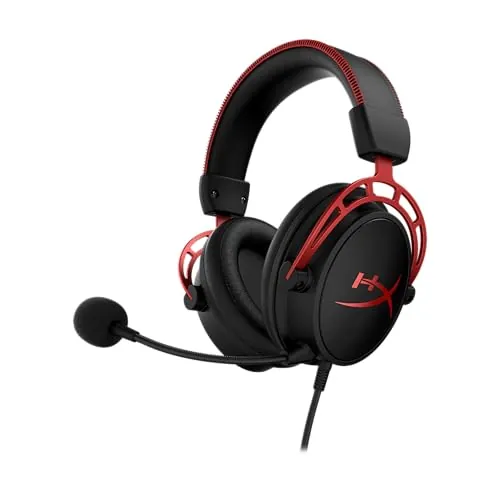
HyperX Cloud III Wired vs Cloud Alpha Wired: Ports, Adapters and Controls
The black HyperX Cloud III Wired (727A8AA) has documented USB-C, USB-A via its included adapter, and 3.5mm connection options, with USB NGENUITY features on supported Windows PCs. The Black-Red Cloud Alpha Wired (4P5L1AA#ABL) is documented around a 3.5mm connection and includes a detachable headset cable, inline controls, and a PC extension cable. Check the port and cable you will actually use before choosing; this guide compares setup features, not sound or comfort results.
Read comparison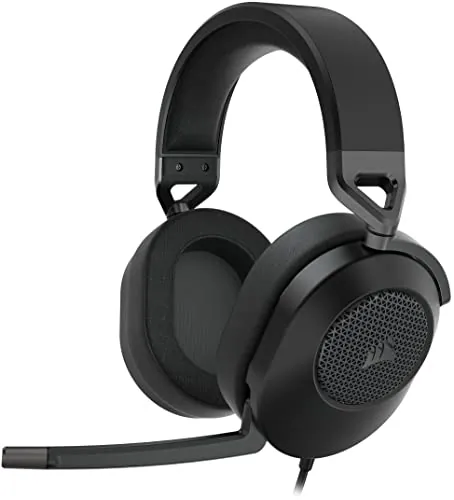
Corsair HS65 Surround vs HyperX Cloud III: Ports, PC Features and Mic Controls
Both wired headsets can connect over 3.5 mm, but their USB paths differ: the exact Corsair HS65 adds an included adapter for iCUE SoundID/Dolby features, while the exact black Cloud III includes a USB dongle and USB-A adapter and lists NGENUITY access on supported Windows PCs. The HS65 boom stays attached and flips to mute; Cloud III's mic detaches and its mute LED shows state.
Read comparison