
Products compared
Dell
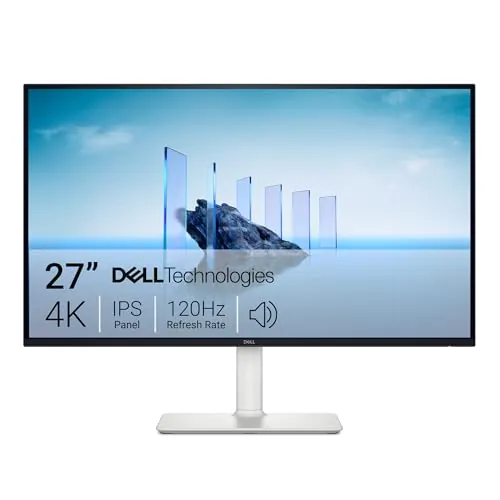
Dell 27 Monitor S2725QS, Ash White
Dell's U.S. product page identifies the S2725QS and lists a 27-inch 3840 × 2160 display at 120Hz. Its two HDMI 2.1 inputs and one DisplayPort 1.4 input are each specified for up to UHD 3840 × 2160 at 120Hz. Use that as a host-and-cable checklist, not a guarantee of the mode from every connected computer.
Model S2725QS
Amazon ASIN B0F1GF1KFC
ASUS
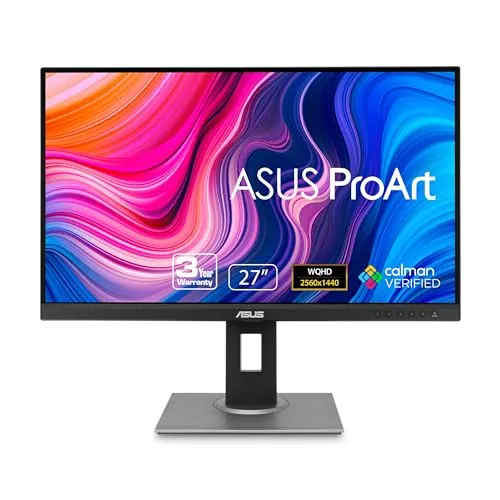
ASUS ProArt Display PA278QV 27-inch QHD Monitor
ASUS identifies PA278QV as a 27-inch 2560 × 1440 monitor with a maximum 75Hz refresh rate. The U.S. specifications list HDMI 1.4, DisplayPort 1.2, Mini DisplayPort and Dual-Link DVI, plus four USB 3.2 Gen 1 Type-A ports. The manual says the USB ports are enabled through a USB Type-B upstream cable; check whether the exact offer includes the cable you need.
Model PA278QV
Amazon ASIN B088BC5HMM
Differences that matter
What matters most to you?
Choose a priority to see what it changes.
Sources for Native resolution and listed refresh maximum
Sources for Video-input match
Sources for Stand adjustment and mounting check
Start with the mode your computer can drive
The Dell S2725QS and ASUS PA278QV are both listed as 27-inch monitors, but their native formats differ: Dell lists 3840 × 2160 at 120Hz, while ASUS lists 2560 × 1440 at up to 75Hz. If your deciding factor is the larger published pixel grid or higher listed refresh ceiling, Dell is the fit on paper—but only if the exact computer output and cable support the mode you intend to use.
ASUS lists 109 pixels per inch and Dell lists 163. Those are published pixel-density figures, not a test of how sharp, accurate or comfortable either display will look in your room.
Map each device to an actual input
Dell's page names two HDMI 2.1 ports and one DisplayPort 1.4 input, and specifies up to UHD 3840 × 2160 at 120Hz for both input types. ASUS's PA278QV list includes HDMI 1.4, DisplayPort 1.2, Mini DisplayPort and Dual-Link DVI. That makes ASUS worth considering when a device you already own needs one of those exact named connectors.
Before ordering, make a small connection map: computer or dock output → cable or adapter → monitor input → target resolution and refresh rate. A connector being present on the monitor does not prove the source can send the mode you want.
Treat the ASUS USB hub as a second connection path
The ASUS has four USB Type-A hub ports for peripherals. Its manual says a USB Type-B upstream cable must connect the monitor to the computer to enable those ports, so include that connection in your plan and verify the cable in the offer. USB-A devices plug into the monitor; video still travels through one of the separate display inputs.
Dell's reviewed U.S. product listing documents its display inputs and lists a power cable plus an HDMI cable in the package contents; it does not document a USB hub on that exact page. This is a source-scoped comparison, not a claim about unlisted configurations.
Check the stand, arm and cable box before checkout
Both manufacturers list a 100 × 100mm VESA mount pattern. Both also document height adjustment, pivot, swivel and tilt on the included stand. ASUS states that its VESA wall-mount kit is purchased separately; the exact package can vary by region, so verify the selected offer's cables and mounting hardware rather than assuming everything is in the box.
For desk placement, compare your actual available width and depth with the stand or arm you will use. Dell publishes a 7.89-inch stand depth and a 15.30–20.42-inch stand-height range; ASUS publishes up to 150mm of stand height adjustment. Those source measurements are presented differently, so measure your own setup instead of treating them as a standardized footprint test.
Product details
Dell 27 Monitor S2725QS, Ash White
- Published display mode
- 27-inch, 3840 × 2160; Dell lists 120Hz and 163 pixels per inch. Source
- Video inputs
- Two HDMI 2.1 ports and one DisplayPort 1.4 port; Dell specifies up to UHD 3840 × 2160 at 120Hz for these video ports. Source
- Stand and mount
- Height-adjustable stand with pivot, swivel and tilt; 100 × 100mm VESA mount compatibility. Source
ASUS ProArt Display PA278QV 27-inch QHD Monitor
- Published display mode
- 27-inch, 2560 × 1440, maximum 75Hz; ASUS lists 109 pixels per inch. Source
- Video inputs
- DisplayPort 1.2, Mini DisplayPort, HDMI 1.4 and Dual-Link DVI. Source
- USB hub and stand
- Four USB 3.2 Gen 1 Type-A ports; USB Type-B upstream connection enables the hub. Stand adjusts up to 150mm and the monitor has 100 × 100mm VESA mounting. Source
Before you buy
Community discussions
Trying the text scale on a Mac
ASUS ProArt Display PA278QV 27-inch QHD Monitor
A PA278QV owner using a Mac found the text looked soft in their setup and asked about scaling settings.
What to check
Compare the two resolutions using the same Mac and apps. Set a text size you can read comfortably before comparing how much fits.
Common questions
Will the Dell S2725QS always run at 4K and 120Hz from my computer?
Not necessarily. Dell lists the monitor's maximum mode as 3840 × 2160 at 120Hz on HDMI 2.1 and DisplayPort 1.4, but the computer, dock, adapter and cable must also support the combination. Check the source device's manual for its supported output modes.Dell S 27 Inch 4K Computer Monitor - S2725QS | Dell USA
Can I use the ASUS PA278QV's USB ports without connecting another cable to my computer?
ASUS's manual says the monitor's USB Type-A ports are enabled through a USB Type-B upstream cable to the computer. Check whether that cable is included with the specific offer, since ASUS says accessories vary by region.PA278QV/PA278QEV Series LCD Monitor User GuideProArt Display PA278QV - Tech Specs | Monitors | ASUS USA
Does the ASUS have more display inputs than the Dell?
The ASUS lists HDMI, DisplayPort, Mini DisplayPort and Dual-Link DVI. Dell lists two HDMI 2.1 and one DisplayPort 1.4 input. Match the connector and mode you need to the exact computer or dock output; an input list does not confirm compatibility with every host.ProArt Display PA278QV - Tech Specs | Monitors | ASUS USADell S 27 Inch 4K Computer Monitor - S2725QS | Dell USA
Can either monitor use a standard 100 × 100mm VESA mount?
Both manufacturers list 100 × 100mm VESA mounting for these models. ASUS says the VESA wall-mount kit is sold separately. Check the mount's compatibility and the exact box before buying hardware.Dell S 27 Inch 4K Computer Monitor - S2725QS | Dell USAProArt Display PA278QV - Tech Specs | Monitors | ASUS USAPA278QV/PA278QEV Series LCD Monitor User Guide
Sources and scope
This guide compares manufacturer-published specifications and setup paths, not measured image quality, color accuracy, response behavior, comfort, gaming performance or computer compatibility tests. A monitor's published maximum mode does not guarantee a particular computer, dock, cable or application can output it. ASUS notes that specifications and supplied accessories can vary by region; confirm the exact seller box, especially if you need a USB-B upstream cable or a particular video cable. The USB hub is a peripheral connection, not an additional video input.
Related comparisons
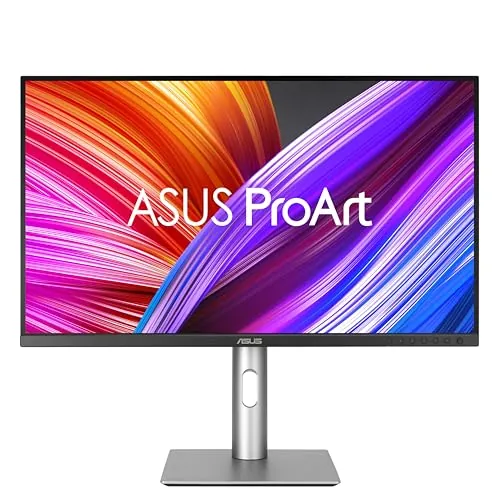
ASUS ProArt PA279CRV vs PA278QV: 4K USB-C or QHD Legacy Inputs?
Both are 27-inch ASUS ProArt IPS monitors, but they solve different desk problems. PA279CRV is 3840×2160 (4K) and its USB-C input supports DisplayPort Alt Mode and up to 96 W Power Delivery; with a compatible laptop it can carry video and USB data through one cable while connecting the monitor's hub. PA278QV is 2560×1440 (QHD), lists HDMI, DisplayPort, Mini DisplayPort and dual-link DVI-D, and has a four-port USB-A hub that needs a separate USB-B upstream connection. Before buying, check the laptop's USB-C video support and power needs, or check which legacy video port your desktop uses. ASUS lists different color-space coverage on the two models; these manufacturer specifications do not predict a user's calibrated result.
Read comparisonDell S2725QS vs ASUS ProArt PA279CRV: Pick the Right Laptop Connection
Both are 27-inch 4K monitors, but their port layouts answer different desk needs. Dell S2725QS lists two HDMI 2.1 inputs and DisplayPort 1.4, with supported signals up to 120 Hz. ASUS PA279CRV supports 60 Hz and adds USB-C DisplayPort video with up to 96 W power delivery, a USB hub and DisplayPort daisy-chain output. Check your computer's ports and charging needs before buying; a retailer listing title that calls the S2725QS USB-C is not supported by Dell's exact-model port list.
Read comparison