
Products compared
Dell
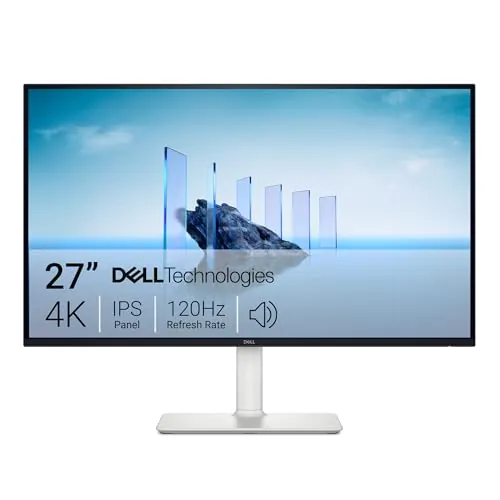
Dell S 27 4K Monitor
27-inch US Dell S2725QS; Dell identifies the Ash White version as manufacturer part T4CNF. Official inputs are HDMI and DisplayPort; the manufacturer's port list does not document USB-C video, USB hub or USB-C charging for this model.
Model S2725QS
Amazon ASIN B0F1GF1KFC
ASUS
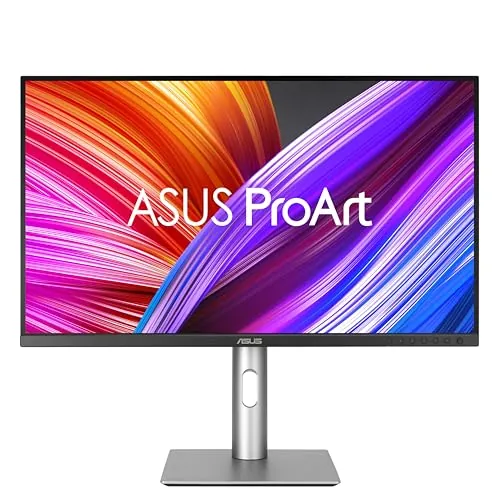
ASUS ProArt Display PA279CRV
27-inch 4K ProArt monitor. ASUS documents USB-C DisplayPort Alt Mode with up to 96 W power delivery, USB data/hub ports, two HDMI 2.0 ports and DisplayPort 1.4 daisy-chain input/output. ASUS specifies a maximum 60 Hz refresh rate.
Model PA279CRV
Amazon ASIN B0BQPSX5CR
Differences that matter
What matters most to you?
Choose a priority to see what it changes.
Sources for Video input and refresh target
Sources for USB-C laptop charging and data
Sources for USB peripherals and second-monitor wiring
Sources for Exact model and listing check
Start with the computer, not the monitor label
Write down the exact computer model and the port you will use. For the Dell S2725QS, plan for HDMI or DisplayPort; Dell's official list names two HDMI 2.1 and one DisplayPort 1.4 input, not USB-C video. Dell's S2725QS user guide shows the same ports. The product listing title's USB-C wording should not override the exact Dell model documentation.
For the ASUS, its USB-C input carries DisplayPort video and up to 96 W power delivery while the monitor also supplies USB data ports. That one-cable arrangement only fits when the laptop port supports video and the laptop can operate within the monitor's charging capacity. The maximum rating is not a guarantee that every laptop will charge at full performance.
Make a cable and refresh-rate check before checkout
If your target is 120 Hz, Dell lists that mode over its HDMI 2.1 and DisplayPort 1.4 inputs. ASUS lists a 60 Hz maximum. Check the computer's graphics output, selected resolution, cable and monitor input as one signal path; a monitor rating cannot upgrade a host that lacks the needed output mode.
If you plan to daisy-chain screens through ASUS, trace the cable path from the host's DisplayPort output to the PA279CRV and from its DisplayPort chain output to the next display. Check the host's MST support and the second monitor's accepted input and mode. If using Dell, plan a dock or separate GPU output when adding displays or USB peripherals requires more connections.
What this comparison does not establish
This guide compares documented ports, supported signal modes and charging/hub features. It does not infer pixel response, input lag, color accuracy, editing suitability or visual quality from the specifications. Choose the connection workflow that matches your computer and verify the exact model on the listing before ordering.
Product details
Dell S 27 4K Monitor
The S2725QS is the fit when the computer or dock already supplies a compatible HDMI/DisplayPort connection and a higher refresh signal is a priority. Plan for a separate dock or hub if your desk needs monitor-side USB peripherals or laptop charging.
ASUS ProArt Display PA279CRV
The PA279CRV can consolidate display, USB data and laptop power over its USB-C connection when the host supports the needed video and power features. Its listed 96 W is a maximum capability, not a guarantee that it replaces every laptop's power adapter.
Before you buy
Community discussions
Sharing the desk between a Windows workstation and a laptop
ASUS ProArt Display PA279CRV
An ASUS PA279CRV owner considering a second display described long workdays in design and photo apps on Windows, plus occasional use with a MacBook Air. They wanted to move their current monitor to the side of the desk.
What to check
Check if your laptop can send video and draw power over the same cable. Count the cables for both monitors if you switch between a laptop and a tower.
Using a 27-inch 4K monitor for CAD and editorial work
Dell S 27 4K Monitor
A shopper considering the ASUS PA279CRV and Dell S2725QS worked mostly in sRGB, with a desktop PC using DisplayPort. They put long-session viewing and panel uniformity ahead of USB-C charging and hub features.
What to check
If your PC will stay on DisplayPort, compare the refresh mode and the color preset you need. You may place less weight on a USB-C hub for that setup.
Common questions
Does the Dell S2725QS have USB-C?
Dell's exact-model page lists two HDMI 2.1 and one DisplayPort 1.4 video input, and its user guide's port diagram shows those same video ports. Dell does not list USB-C video, USB hub or USB-C power delivery for the S2725QS. The listing title's USB-C wording appears to be a metadata conflict; check the exact model code and do not confuse it with S2725QC.Dell 27 Plus 4K Monitor S2725QS (US product page)Dell S 27 4K Monitor S2725QS User's Guide
Can the ASUS PA279CRV charge any laptop over USB-C?
ASUS specifies USB-C DisplayPort Alt Mode and up to 96 W power delivery. The laptop must support video over that port, and whether 96 W is enough depends on the laptop's own requirements. Check the laptop documentation and retain its charger if the monitor's maximum is not a confirmed match.ASUS ProArt Display PA279CRV Tech SpecsASUS PA279CRV User Guide
Which model supports a 120 Hz signal?
Dell lists up to 120 Hz at 3840 × 2160 through HDMI 2.1 and DisplayPort 1.4. ASUS lists 60 Hz maximum. The host computer, output, cable, resolution and settings must also support the target mode.Dell 27 Plus 4K Monitor S2725QS (US product page)ASUS ProArt Display PA279CRV Tech Specs
Can I connect a second monitor through the ASUS?
ASUS lists two DisplayPort 1.4 connections with daisy-chain capability. Confirm that the computer supports the required DisplayPort MST mode and that the second monitor is compatible with the planned resolution and refresh settings.ASUS ProArt Display PA279CRV Tech SpecsASUS PA279CRV User Guide
Sources and scope
This comparison covers the exact US Dell S2725QS (selected ASIN B0F1GF1KFC) and ASUS ProArt PA279CRV (B0BQPSX5CR). listing title metadata for Dell includes USB-C language that conflicts with Dell's exact-model official port diagram and specifications; those official sources list two HDMI 2.1 and one DisplayPort 1.4 input, and no USB-C or USB hub. ASUS lists 96 W maximum USB-C power delivery; actual laptop compatibility, charging behavior and refresh support depend on the host, cable, settings and configuration. No latency, color-quality or overall performance winner is claimed.
Related comparisons
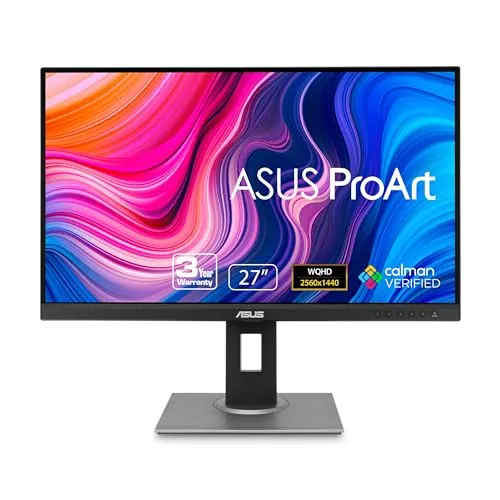
ASUS ProArt PA279CRV vs PA278QV: 4K USB-C or QHD Legacy Inputs?
Both are 27-inch ASUS ProArt IPS monitors, but they solve different desk problems. PA279CRV is 3840×2160 (4K) and its USB-C input supports DisplayPort Alt Mode and up to 96 W Power Delivery; with a compatible laptop it can carry video and USB data through one cable while connecting the monitor's hub. PA278QV is 2560×1440 (QHD), lists HDMI, DisplayPort, Mini DisplayPort and dual-link DVI-D, and has a four-port USB-A hub that needs a separate USB-B upstream connection. Before buying, check the laptop's USB-C video support and power needs, or check which legacy video port your desktop uses. ASUS lists different color-space coverage on the two models; these manufacturer specifications do not predict a user's calibrated result.
Read comparison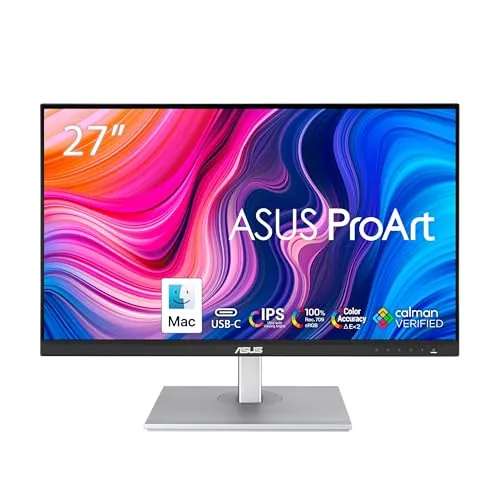
ASUS ProArt PA278CV vs PA279CRV: QHD or 4K for Your Desk?
Both are 27-inch ProArt IPS monitors with factory calibration claims, USB-C video, and daisy-chain connections. The PA278CV is 2560×1440 at 109 PPI, rated up to 75Hz, and lists 100% sRGB/100% Rec.709 with 65W USB-C power. The PA279CRV is 3840×2160 at 163 PPI, 60Hz, and lists 99% Adobe RGB and 99% DCI-P3 with 96W USB-C power. Choose by your deliverable color space, laptop charging needs, and host support for multi-display output.
Read comparison