
Products compared
Logitech
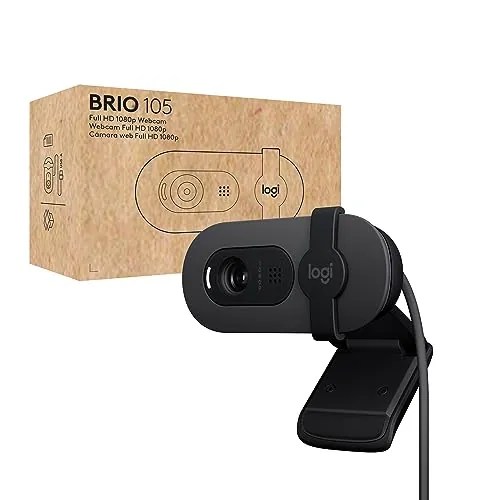
Logitech Brio 105 Full HD Business Webcam - Graphite
U.S. Graphite Brio 105. Fixed-focus 1080p camera with attached USB-A cable, integrated sliding privacy shutter and monitor/laptop clip.
Model 960-001579
Amazon ASIN B0CGZJR7WK
Logitech
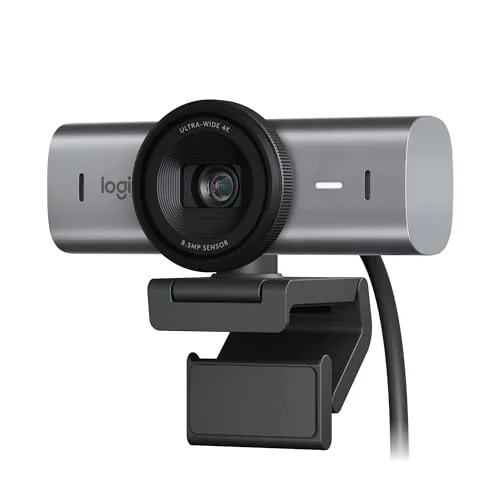
Logitech MX Brio Ultra HD 4K Webcam - Graphite
U.S. Graphite MX Brio. Supports published 4K/30 and 1080p/60 modes; requires a USB-C port supporting USB 3.0 for its stated setup.
Model 960-001545
Amazon ASIN B0BFJ4CRKD
Differences that matter
What matters most to you?
Choose a priority to see what it changes.
Sources for Published video modes and focus
Sources for Computer port and cable path
Sources for Camera controls and software availability
Sources for Privacy shutter and showing desk work
Pick the mode your actual app can use
Brio 105 is a 1080p/30 camera with fixed focus. MX Brio adds published 4K/30 and 1080p/60 modes, but those are capability ceilings rather than a guarantee that a video call will use them. The application, its settings and the computer's connection path all need to support the selected mode.
If your recurring job is ordinary 1080p/30 meetings, Brio 105 covers that listed mode. Consider MX Brio when a recording workflow needs its higher modes, when you will use the adjustable controls, or when sharing a desk view is part of calls.
Match the camera cable to the work computer
Brio 105's cable is attached and ends in USB-A. MX Brio uses a USB-C-to-USB-C connection and Logitech specifies a USB-C host port that supports USB 3.0. Check the computer or dock's actual port specification; connector shape alone does not establish that it meets the documented USB requirement.
MX Brio's listed camera modes and software controls are separate checks. Logitech documents basic UVC operation on ChromeOS/Linux but Logitech software support on Windows/macOS. On Brio 105, Logi Tune color and brightness adjustments are for Windows/macOS and are not available on ChromeOS.
Plan privacy and desk framing
Both webcams have a built-in physical shutter: Brio 105 slides across the lens, while MX Brio rotates its shutter. Brio 105's attached clip is listed for monitors, LCD displays and laptops. MX Brio can tilt down into Show Mode to share notes or sketches on the desk during a call.
These setup features answer different needs from image quality. Choose Show Mode for a presentation workflow; otherwise compare the fixed mounting position and the camera framing you can set in your own app. Logitech's specifications do not establish which camera will look better in your lighting or room.
Product details
Logitech Brio 105 Full HD Business Webcam - Graphite
Pick Brio 105 when 1080p/30 is enough and you want to plug its attached USB-A cable into the computer or dock. Its fixed focus, narrower stated framing and simple physical setup suit a fixed desk position; Logitech documents Logi Tune image adjustments on Windows/macOS, not ChromeOS.
- Published video modes and focus
- 1080p/30 fps or 720p/30 fps; fixed focus; 58° diagonal field of view Source
- Cable and mounting
- Attached 5 ft (1.5 m) USB-A cable; attached clip fits monitors, LCD displays and laptops Source
- Privacy and adjustments
- Integrated sliding shutter; Logi Tune can adjust color and brightness on Windows and macOS, but is not available on ChromeOS Source
Logitech MX Brio Ultra HD 4K Webcam - Graphite
Choose MX Brio if you have a USB-C 3.0 host and a meeting or recording app that can use 4K/30 or 1080p/60, or if you will use its tilt-down Show Mode and deeper camera settings. Its built-in shutter rotates to cover the camera. On ChromeOS or Linux, Logitech documents basic UVC webcam support but no Logitech camera software.
- Published video modes
- Up to 4K/30 fps or 1080p/60 fps; app and host support still need to be checked Source
- Host connection
- Wired USB-C to USB-C connection; Logitech specifies a host USB-C port supporting USB 3.0 Source
- Framing, presentation and camera controls
- Tilt-down Show Mode shares a desk view; Logitech lists fine controls in Logi Options+ and G HUB for lighting, white balance and other image settings Source
- Software by host system
- Logitech software is supported on Windows and macOS; ChromeOS/Linux have basic UVC webcam support without Logitech software Source
Before you buy
Community discussions
Checking controls on a managed work laptop
Logitech MX Brio Ultra HD 4K Webcam - Graphite
An MX Brio owner could use the camera on a work laptop but could not install Options+ to adjust its settings.
What to check
Ask which applications are allowed and check the camera controls in your meeting app. If you need a manual crop, test it before buying.
Common questions
Will MX Brio always deliver 4K in a video call?
No such guarantee is established by the camera specification. Logitech lists a maximum of 4K/30, but the application, USB-C 3.0 host path and selected app settings also matter. Check those with the computer and app you will use.Logitech MX Brio Graphite Webcam, U.S. product pageSpecification - MX BRIO
Can both webcams physically cover the lens between calls?
Yes. Logitech documents an integrated sliding shutter on Brio 105 and a built-in rotating shutter on MX Brio.Brio 105 DatasheetLogitech MX Brio Graphite Webcam, U.S. product page
Do I need Logitech software for the MX Brio to work on ChromeOS or Linux?
Logitech's support specification lists basic UVC webcam support for ChromeOS and Linux, but says Logitech software is not supported on those systems. Confirm the controls available in your own app before choosing it for settings that depend on Logitech software.Specification - MX BRIO
Sources and scope
This guide compares Logitech-published specifications and setup features. It does not test image quality, low-light results, microphone sound or application behavior. Published maximum modes do not guarantee that a particular meeting or recording app exposes them. The exact assigned U.S. variants are Brio 105 Graphite 960-001579 and MX Brio Graphite 960-001545; the MX Brio source is its model-specific Graphite product route plus model-family support specifications.
Related comparisons
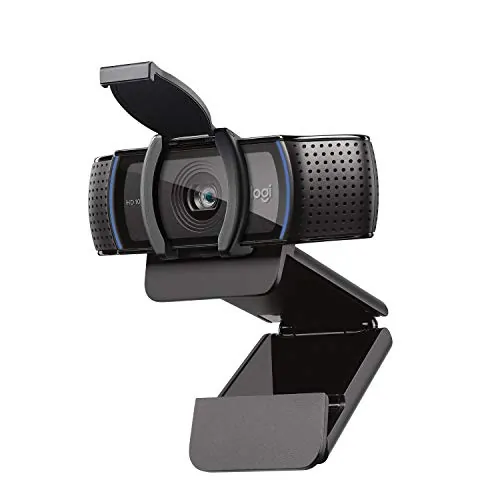
Logitech Brio 105 vs C920s: Camera Modes, Mounting and Privacy
Both webcams list 1080p/30 and 720p/30 video over an attached USB-A cable. Brio 105 uses fixed focus, a 58° diagonal view and an integrated sliding shutter; C920s lists autofocus, a diagonal 78° view, a separate attachable shutter and a ¼-inch tripod thread. Compare the exact desk, privacy and workplace-management needs before choosing.
Read comparison
Elgato Facecam 4K vs Logitech MX Brio: Frame Rates, Focus and Desk Use
Elgato Facecam 4K can output 4K60, but only as MJPG over USB 3.0; USB 2.0 tops out at 1080p60. Logitech MX Brio's published maximum is 4K30 or 1080p60 and requires USB-C with USB 3.0 support. The Elgato uses fixed focus and has no built-in mic; MX Brio adds autofocus, dual mics and a rotating privacy shutter.
Read comparison