
Products compared
Logitech G
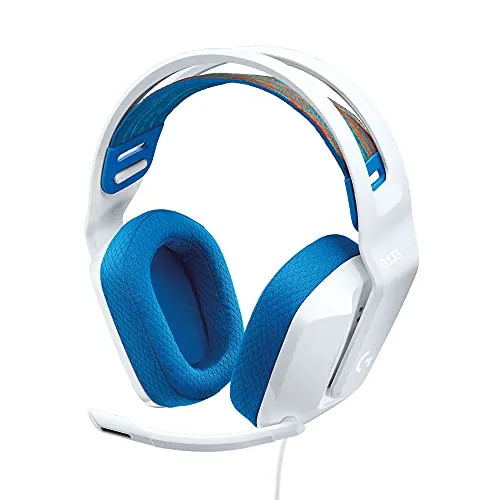
Logitech G335 Wired Gaming Headset
The white Logitech G335 compared here uses a 3.5 mm audio connection. Logitech’s setup guide shows connecting it to a PC or an Xbox or PlayStation controller; the earcup has a volume control and raising the mic boom mutes it. If your computer has separate microphone and headphone jacks, check the exact offer for any needed PC splitter before assuming both paths are covered.
Model 981-001017
Amazon ASIN B08KKZ8S36
Logitech
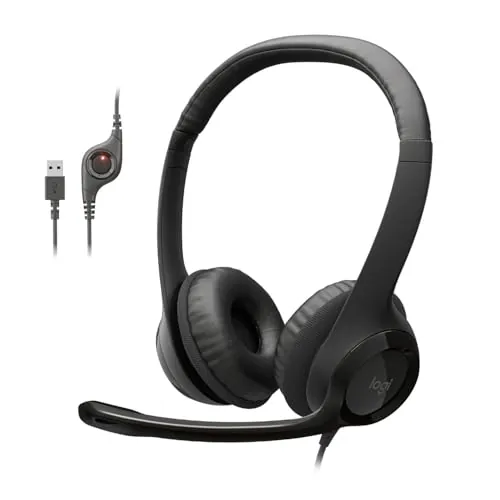
Logitech H390 USB Computer Headset
The selected H390 is the black 981-000014 USB-A variant. Logitech's USB-A setup guide shows plugging it into a computer USB port; the center cable button mutes/unmutes, plus and minus buttons change volume, and the light flashes red when muted. The guide treats boom movement as positioning rather than the mute control.
Model 981-000014 (Black, USB-A)
Amazon ASIN B000UXZQ42
Differences that matter
What matters most to you?
Choose a priority to see what it changes.
Sources for Where mute and volume live
Sources for Microphone positioning while working or gaming
Start with the port you actually have
The white G335 981-001017 is the 3.5 mm option. Logitech's setup guide shows plugging it into a PC or an Xbox/PlayStation controller. If the PC separates microphone and headphone input, check whether the exact seller package supplies the required splitter; do not assume the connector alone solves a two-jack setup.
The black H390 981-000014 is the USB-A option. Logitech distinguishes the USB-A and USB-C H390 variants, and this part number identifies the USB-A model. Its setup guide shows the plug connected to a computer USB port. A USB-C-only device or a console USB socket needs a separate adapter and host check; the headset guides do not certify every adapter or device combination.
Choose the mute action you want to reach
G335 combines mute with microphone movement: lift the boom to mute, then use the roller on the earcup for volume. H390 separates those actions: leave the boom positioned near the mouth, press the center button on the inline control to mute or unmute, and use plus/minus for volume. Its setup guide says flashing red means muted and steady red means unmuted.
This matters most when you need to mute quickly while your hands are at the computer or controller. Decide whether raising the microphone or reaching down the cable is the action that fits your routine. Logitech's control diagrams do not establish comparative microphone pickup or how easy either action is for every desk layout.
Verify the exact variant and any adapter
This comparison uses the white G335, 981-001017 / B08KKZ8S36, and black H390 USB-A, 981-000014 / B000UXZQ42. H390 is also sold in USB-C and other color variants, so check the model or part number on the offer rather than relying on the family name alone.
Before paying, compare the selected offer's connector, included accessories and the host's sockets. For G335, verify an included or separately sourced splitter if the computer has distinct mic and headphone jacks. For H390, verify a USB-A connection or an adapter plus host support if only USB-C is available. The cited headset documentation does not promise compatibility for unlisted adapters.
Product details
Logitech G335 Wired Gaming Headset
Logitech H390 USB Computer Headset
Before you buy
Community discussions
Check the microphone path on the computer you call from
Logitech H390 USB Computer Headset
An H390 owner who makes client calls had trouble using its microphone when they connected the headset to a MacBook Air through a USB-C adapter.
What to check
Check what audio and USB ports your computer has. If you need an adapter, verify the connection supports both headphones and microphone for your setup.
Common questions
Will both headsets connect to any gaming console?
The G335 setup guide shows a 3.5 mm connection to an Xbox or PlayStation controller. The selected H390 guide documents a USB-A connector plugged into a computer USB port; it does not establish compatibility with every console USB port. Check the console maker's headset support and the actual controller/USB path before choosing H390 for a console.G335 Wired Gaming Headset setup guide — Logitech GH390 USB-A headset setup guide — Logitech
Does lifting the H390 boom mute it?
Use the H390 inline center button to mute or unmute. Its USB-A guide describes moving the boom to position it or rotate it out of the way. G335's guide is the one that explicitly assigns mute to raising the boom.G335 Wired Gaming Headset setup guide — Logitech GH390 USB-A headset setup guide — Logitech
What does the H390 mute light show?
On the USB-A guide, flashing red means mute is on and solid red means mute is off. The inline center button toggles mute/unmute.H390 USB-A headset setup guide — Logitech
Which adapter should I check before buying?
For the G335, check whether your computer has one combined headset jack or separate microphone and headphone jacks, then confirm whether the exact offer includes any needed splitter. For the H390 USB-A, check for USB-A or verify that an adapter is supported by your specific host. The available guides do not establish every adapter and device combination.G335 Wired Gaming Headset, White model 981-001017 — Logitech G U.S. product pageG335 Wired Gaming Headset setup guide — Logitech GH390 USB Computer Headset, Black USB-A model 981-000014 — Logitech U.S. product pageH390 USB-A headset setup guide — Logitech
Sources and scope
This guide compares the white Logitech G335, model 981-001017 / ASIN B08KKZ8S36, with the black Logitech H390 USB-A, model 981-000014 / ASIN B000UXZQ42. Logitech also sells a separate USB-C H390; this guide applies only to the USB-A model. The manufacturer documents the G335’s 3.5 mm connection and flip-up mute, and the H390 USB-A’s computer connection and cable controls. Confirm the exact seller offer and any needed splitter or adapter before checkout; package contents and third-party adapter behavior are not assumed. No sound, microphone clarity, noise isolation, comfort, latency or gaming-performance ranking is claimed.
Related comparisons
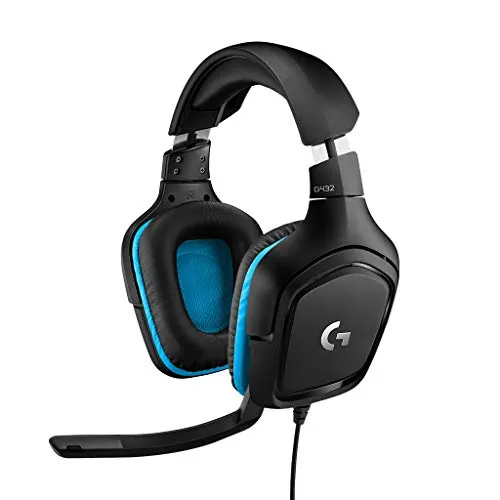
Logitech G335 vs G432: 3.5 mm Simplicity or USB DAC Setup?
Both assigned headsets are wired and use a flip-up boom mic to mute. The Logitech G335 is documented around a 3.5 mm connection and adjustable suspension strap. The G432 adds an included USB audio adapter for Logitech's listed PC, PS4 and docked Nintendo Switch setup, plus a 3.5 mm route for consoles or mobile devices. Its DTS Headphone:X 2.0 and EQ presets require Windows and Logitech G HUB; the adapter is also required to enable surround in G HUB. Match your host's ports and the features you actually plan to use before choosing.
Read comparison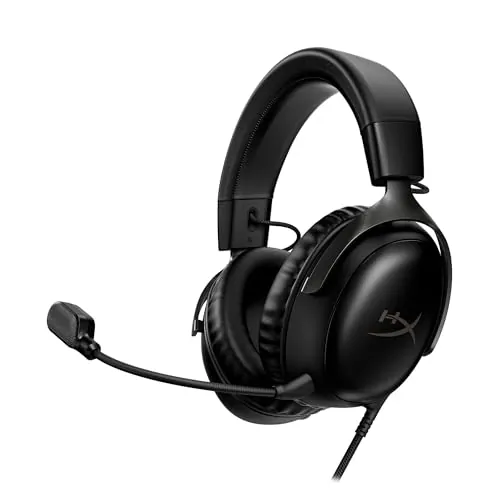
Logitech G335 vs HyperX Cloud III Wired: Ports, PC Setup and Mic Controls
The white Logitech G335 (981-001017) is a 3.5 mm headset with a supplied PC splitter for separate headphone and microphone jacks. The black wired HyperX Cloud III (727A8AA) adds a USB audio path, USB-C-to-USB-A adapter and a detachable mic. On Xbox, plan to use either headset through a compatible controller’s 3.5 mm jack: HyperX says its included USB adapter does not work on Xbox. The other clear choice is physical mute style: raise the G335 boom or press the Cloud III earcup button.
Read comparison