
Products compared
Logitech
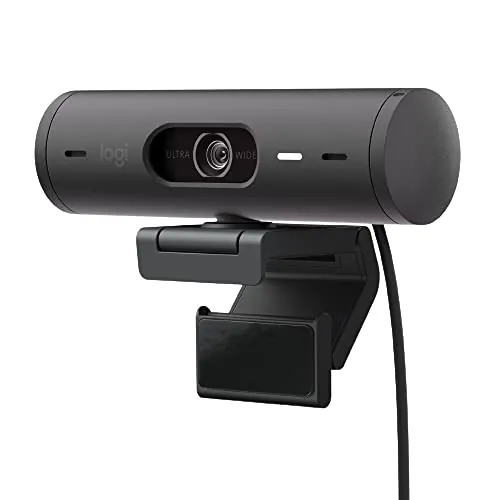
Logitech Brio 501 Full HD Webcam (for Amazon)
The exact selected listing is the black Brio 501 model 960-001514. Logitech's model-specific page calls it BRIO 501 for Amazon. It supports 1080p/30fps or 720p/60fps and has an attached USB-C cable. Its included monitor clip has a removable mount adapter; the setup guide also documents a 1/4-inch tripod thread on the universal clip. Do not confuse this ASIN with Brio 500 listings or the MX Brio Business model.
Model 960-001514
Amazon ASIN B09WHTMF23
Logitech
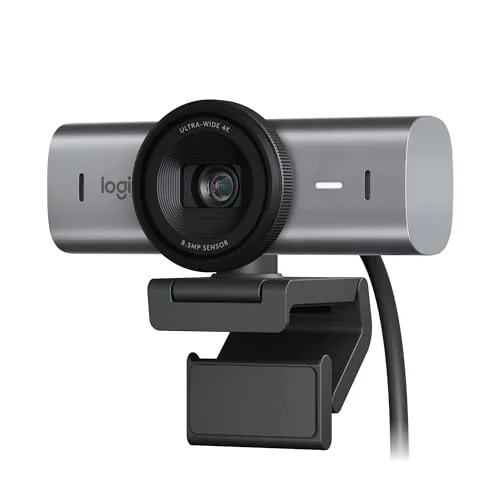
Logitech MX Brio 4K Webcam, Graphite (consumer model)
The exact selected offer is the consumer MX Brio in Graphite, part 960-001545, not MX Brio Business. Logitech lists 4K/30fps and 1080p/60fps; its support specification requires a USB-C port supporting USB 3.0. Logitech's cable support article says the included USB-C-to-C cable supports USB 3.0. The camera tilts down for Show Mode and exposes fine controls in Logi Options+ and G HUB; the 1/4-inch-thread magnetic mount is described in Logitech's setup guide.
Model 960-001545
Amazon ASIN B0BFJ4CRKD
Differences that matter
What matters most to you?
Choose a priority to see what it changes.
Sources for Capture mode ceiling listed by Logitech
Sources for USB port and cable check
Sources for Framing adjustments and software
Sources for Show Mode, monitor placement and tripod mounting
Sources for Listed camera dimensions and cable reach
Set the capture requirement before choosing a camera
The exact Brio 501 offer here is model 960-001514, the BRIO 501 for Amazon. Logitech lists 1080p at 30fps or 720p at 60fps. The assigned MX Brio is the consumer Graphite part 960-001545, not the Business model; Logitech lists 4K at 30fps or 1080p at 60fps.
Choose from the output you actually need. If a specific recording project needs 4K30 or 1080p60 and your host and app support it, MX Brio offers those modes. If your meetings fit Brio 501's listed modes, the MX capture ceiling may go unused. No image-quality comparison test is available here, so the higher modes should not be read as proof of a better-looking call in your conditions.
Check the USB path and app settings together
Brio 501 has an attached 5 ft USB-C cable and requires an available USB-C port. Logitech specifies that MX Brio needs a USB-C port supporting USB 3.0; it ships with a USB-C-to-C cable supporting USB 3.0. The company warns that another cable without USB 3.0 may prevent 4K or proper operation.
A capable camera does not force the application to expose every capture mode. Logitech's Brio 500/501 troubleshooting page says the conferencing app may cap output and points readers to application settings, USB bandwidth and computer load. Its MX Brio support article gives similar guidance for 4K and 1080p. If a call remains at a lower setting, check those requirements before replacing the webcam.
Settings depend on the host operating system
Brio 501's exact support page lists Logi Tune settings and says Logi Tune is not available on ChromeOS. The MX Brio specification names Options+ and G HUB; for ChromeOS and Linux it describes basic UVC webcam support only and says Logitech software is not available for those systems.
If field-of-view changes, auto-framing or manual image controls are purchase-critical, verify the current software download and OS support on the computer that will use the camera. Basic USB webcam recognition is not the same as software-control access. Logitech's listed software and OS information can change over time.
Mounting and desk presentation are not MX-only
The Brio 501 setup guide lists a mount clip with removable adapter and shows the camera attaching magnetically. It documents Show Mode by tilting down to present sketches or objects and identifies a 1/4-inch thread on the universal clip for tripod use. The MX Brio setup guide describes a magnetic mount with a 1/4-inch thread for third-party mounts, and its U.S. product page also describes tilt-down Show Mode.
So both documents support a desk-presentation workflow; it is not by itself a reason to upgrade. Compare the monitor bezel and stand, mount clip geometry, tripod position and available cable reach. The manufacturer diagrams cannot tell you whether either camera will sit securely on your particular display or whether its angle will frame your desk as you expect.
Measure the mount area and follow the camera indicator
Logitech lists Brio 501 at 110 × 31.5 × 31.5 mm without its mount clip, and 110 × 51.5 × 45 mm with the clip. MX Brio is listed at 61.6 × 98.0 × 52.2 mm; its published 234.3 g includes mount clip and cable. Both list a 1.5 m cable length. These numbers help estimate the desk and cable layout, but they do not include your monitor's bezel, the angle needed for Show Mode or every cable bend.
Both models have a physical privacy shutter described in Logitech materials. If the camera will stay mounted, review the exact guide's clip placement and keep the host cable within reach. Do not assume the clip dimensions alone establish compatibility with a curved, unusually thick or tightly recessed monitor.
Product details
Logitech Brio 501 Full HD Webcam (for Amazon)
- Supported capture modes
- 1080p at 30fps or 720p at 60fps, per Logitech's BRIO 501 for Amazon specification. Source
- Host connection and included cable
- USB-C required; 5 ft (1.5 m) cable is attached to the webcam. The guide does not state that every USB-C adapter or hub will provide a particular mode. Source
- Field of view and adjustable settings
- Logitech lists 90°, 78° and 65° fields of view, plus zoom and image adjustments in Logi Tune. Logi Tune is not available for ChromeOS according to the exact model page. Source
- Mount and privacy controls
- Included mount clip with removable adapter; the setup guide documents magnetic camera attachment, tilt for Show Mode, a 1/4-inch tripod thread on the universal clip, and a physical privacy-shutter dial. Source
Logitech MX Brio 4K Webcam, Graphite (consumer model)
- Supported capture modes
- 4K at 30fps or 1080p at 60fps, according to Logitech's consumer MX Brio page and model-specific support article. Source
- Host port and cable requirement
- Logitech specifies a USB-C port supporting USB 3.0. The included USB-C-to-C cable supports USB 3.0; Logitech warns that another cable without USB 3.0 may prevent 4K or proper operation. Source
- Software and basic UVC support
- The support specification lists Options+ / G HUB and says ChromeOS/Linux have basic UVC webcam support only, with no Logitech software for those systems. Check current OS and application support before relying on fine controls. Source
- Physical size and mount
- Webcam listed at 61.6 × 98.0 × 52.2 mm; Logitech specifies 5 ft (1.5 m) cable and gives 234.3 g including mount clip and cable. Setup guide describes a magnetic mount with 1/4-inch thread for third-party mounts. Source
Before you buy
Community discussions
Testing a high-resolution webcam mode
Logitech MX Brio 4K Webcam, Graphite (consumer model)
An MX Brio owner reported a momentary freeze and a settings warning after selecting 4K or 1080p at 60 frames per second.
What to check
Check the USB path and whether the modes you want appear in your app. Try the camera on the exact port and cable you plan to use.
Common questions
Does MX Brio guarantee that my calls will be in 4K?
No. Logitech lists 4K/30fps as a supported MX Brio mode, but its support guidance says the video application must support that output and that USB bandwidth and system conditions can matter. Check the exact app's settings and requirements before buying for 4K.I'm not seeing 4K resolution with MX Brio
What cable and port does MX Brio need for 4K?
Logitech specifies a USB-C port supporting USB 3.0 and says the included USB-C-to-C cable supports USB 3.0. Its cable guidance warns that a different cable without USB 3.0 may prevent 4K or proper operation. Verify your actual port, cable path and app; this does not guarantee output on every dock or hub.Specification - MX BRIOCan I use any type of cable to connect my MX Brio?
Can Brio 501 also show objects on my desk?
Yes. Logitech's exact BRIO 501 setup guide calls this Show Mode and describes tilting the camera down to present sketches, objects or work in progress. MX Brio's consumer product page also documents tilt-down Show Mode, so desk presentation alone does not distinguish them.BRIO 501 Setup GuideMX Brio 4K webcam, Graphite (960-001545)
Do both include a tripod mount?
The Brio 501 setup guide describes a 1/4-inch thread on its universal mounting clip, and the MX Brio guide describes a magnetic mount with a 1/4-inch thread for third-party mounts. Check the exact offer and your tripod's mounting interface; the instructions do not establish fit for every stand or monitor.BRIO 501 Setup GuideMX Brio Setup Guide
Can I use Logitech's fine controls on ChromeOS or Linux?
Do not assume so. Logitech's MX Brio specifications describe basic UVC webcam support on ChromeOS/Linux and say Logitech software is not available for those systems. The exact Brio 501 specification says Logi Tune is unavailable on ChromeOS. Check current Logitech software support for your OS and the exact camera before relying on settings controls.Specification - MX BRIOSpecification - BRIO 501 for Amazon
Sources and scope
This guide uses Logitech's exact BRIO 501 for Amazon page and manual for model 960-001514, plus the consumer MX Brio Graphite page for part 960-001545 and its specifications/support. It does not transfer claims from Brio 500 without an explicit BRIO 500/501 source, MX Brio Business, or the older Brio 4K. earlier product-page information ceilings are not image-quality test results and do not guarantee an application's available mode. Logitech's support pages say application settings and USB/CPU conditions can limit earlier product-page information. The MX support specification describes basic UVC camera use on ChromeOS/Linux but Logitech customization software for Windows/macOS; software support can change, so check the current app requirements. Listed dimensions and mount designs do not guarantee fit or stability on a specific monitor, stand or tripod. This guide did not test image quality, autofocus, low-light performance, audio, compatibility or reliability.
Related comparisons
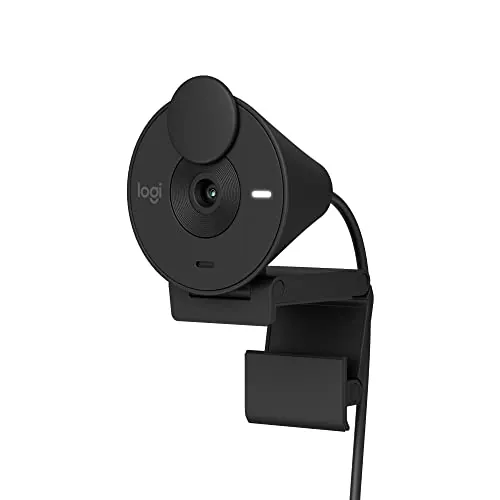
Logitech Brio 501 vs Brio 301: Framing Controls, USB-C and IT Fit
The Brio 501 guide documents autofocus, auto-framing, Show Mode and Logi Tune field-of-view choices of 90°, 78° or 65°. Logitech lists the Brio 301 with fixed focus and a 70° diagonal view, plus explicit Windows, macOS and ChromeOS support and certifications for Teams, Zoom, Google Meet and Works With Chromebook. Both documented setups use attached USB-C cables and physical privacy shutters. The 301’s certification list is documented; the 501 guide reviewed here does not establish an equivalent platform or certification list, so verify that exact requirement with Logitech or your IT team before deployment. This is a feature and setup comparison, not an image-quality test.
Read comparison
Elgato Facecam 4K vs Logitech MX Brio: Frame Rates, Focus and Desk Use
Elgato Facecam 4K can output 4K60, but only as MJPG over USB 3.0; USB 2.0 tops out at 1080p60. Logitech MX Brio's published maximum is 4K30 or 1080p60 and requires USB-C with USB 3.0 support. The Elgato uses fixed focus and has no built-in mic; MX Brio adds autofocus, dual mics and a rotating privacy shutter.
Read comparison