
Products compared
Logitech
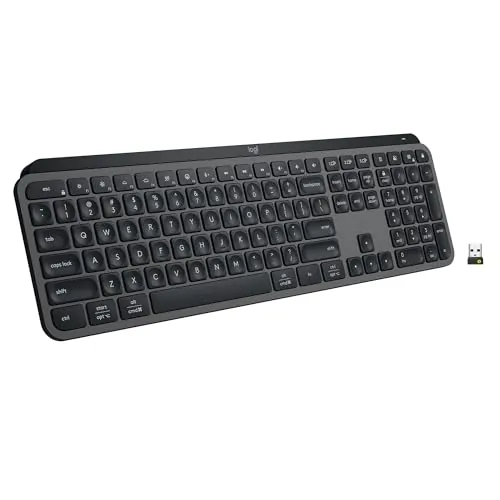
Logitech MX Keys S Wireless Keyboard
Graphite US listing. Logitech identifies the exact product page as MX Keys S in Graphite; its support guide covers MX Keys S setup and charging.
Model 920-011558
Amazon ASIN B0BKW3LB2B
Logitech
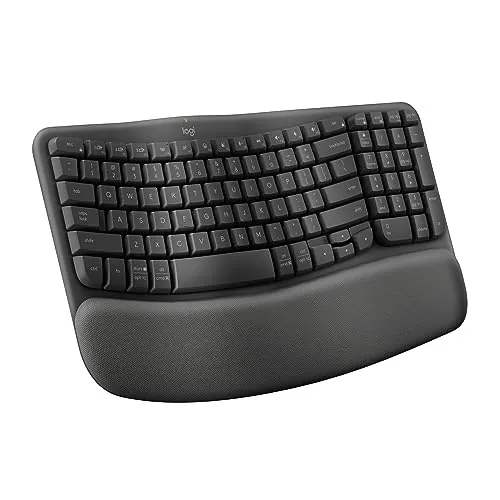
Logitech Wave Keys Ergonomic Wireless Keyboard
Graphite US listing. Logitech identifies the exact product page as Wave Keys Graphite and describes a compact wave-shaped layout with a cushioned palm rest.
Model 920-011898
Amazon ASIN B0BTNY72VD
Differences that matter
What matters most to you?
Choose a priority to see what it changes.
Sources for Backlighting and dim-room use
Sources for Device switching and receiver setup
Sources for OS layout and customization mode
Sources for Power and charging routine
Start with what the keyboard must do at your desk
This pair is best decided by four routine questions: Do you need illuminated keys? Which key surface and palm-rest arrangement do you want? What hosts will you switch between? Do you want USB-C recharging or replaceable AAA batteries? Both support Bluetooth and include Logitech's Bolt receiver, so connectivity is a shared capability rather than the headline distinction.
For a dim work area, MX Keys S is the documented fit because Logitech describes adaptive backlighting and Options+ controls for brightness and duration. Wave Keys uses a different physical design: Logitech describes a wave-shaped keyboard with an integrated cushioned palm rest. Its product FAQ says the keys are not backlit. These features let you choose a layout preference; they do not show that one model is more comfortable or healthier for you.
Plan switching and software around your actual devices
Make a short list of the devices you will move between. Logitech's MX Keys S guide describes pairing up to three computers with Easy-Switch; the Wave Keys page describes switching among a laptop, tablet or phone. On both, choose Bluetooth or use the included Logi Bolt receiver in a host USB port. If one of your devices lacks a suitable USB port, Bluetooth may be the simpler connection path.
The key-layout setup is not identical in the instructions. MX Keys S documentation shows Universal and Mac layout variants. Wave Keys documentation gives three-second Fn shortcuts for selecting Mac, Chrome or Windows layout during Logi Bolt setup. Logitech lists broad basic keyboard compatibility for each model, while Logi Options+ is listed for Windows and Mac. Do not assume app customization is available on every system that accepts ordinary keystrokes.
Choose the power routine, not a battery-life claim
MX Keys S has a USB-C port; its support guide says you can continue typing while it charges. Wave Keys comes with two AAA batteries and its guide shows a battery compartment. If you prefer charging a built-in battery over keeping replacement cells available, that points toward MX Keys S; if replaceable cells fit your routine, Wave Keys has the documented battery setup.
Logitech's pages describe battery life in different terms and conditions, so this comparison does not rank runtime. The practical question is whether you would rather plug in a USB-C cable or replace AAA cells when needed.
Product details
Logitech MX Keys S Wireless Keyboard
- Lighting
- Adaptive backlit keys; Logitech says brightness and backlight duration can be controlled in Logi Options+. Source
- Connection
- Bluetooth or the included Logi Bolt receiver; Easy-Switch pairs up to three computers. Source
- Power
- USB-C charging; Logitech says typing can continue while the keyboard is charging. Source
Logitech Wave Keys Ergonomic Wireless Keyboard
- Layout
- Wave-shaped design with a cushioned palm rest; Logitech describes the rest as part of the keyboard design. Source
- Connection
- Bluetooth or the included Logi Bolt receiver; Logitech presents Easy-Switch for laptop, tablet and phone workflows. Source
- Power
- Two included AAA batteries; Logitech identifies a battery compartment in its support overview. Source
Before you buy
Community discussions
Activating the backlight while charging
Logitech MX Keys S Wireless Keyboard
An MX Keys S owner said they could trigger the backlight by moving a hand near the keyboard on battery, but needed a keypress when they kept the cable connected.
What to check
Check what turns the MX Keys S backlight on during your usual charging and typing routine. Try the keys under the light you use at night.
Common questions
Do both keyboards include a wireless receiver?
Logitech documents an included Logi Bolt receiver for both models, as well as Bluetooth. Check the retailer listing still matches the exact assigned model and package.Getting Started - MX Keys S | Logitech Support USWave Keys Ergonomic Wireless Keyboard | Logitech US
Can I switch between multiple devices?
Yes. MX Keys S support documents Easy-Switch for up to three computers. Wave Keys product copy describes switching among a laptop, tablet or phone. Both support Bluetooth and Logi Bolt, so compare the host devices and connection method you will use.Getting Started - MX Keys S | Logitech Support USWave Keys Ergonomic Wireless Keyboard | Logitech US
Does Wave Keys have backlit keys?
Logitech's consumer FAQ says no. Its current page displays the FAQ question, but the answer was not exposed in the page text fetched for this review; verify the exact product page if this is a deciding requirement. MX Keys S has adaptive backlighting documented by Logitech.Wave Keys Ergonomic Wireless Keyboard | Logitech USBuy MX Keys S Keyboard | Logitech US
Does Logi Options+ work on every compatible operating system?
No. Logitech's two support guides list broader basic keyboard compatibility than app compatibility. Options+ is listed for Windows and Mac; confirm host support before relying on software customization.Getting Started - MX Keys S | Logitech Support USGetting Started - Wave Keys | Logitech Support US
Can Wave Keys charge over USB-C?
The reviewed Logitech product page identifies two included AAA batteries, and its support guide shows a battery compartment. It does not document USB-C charging for Wave Keys. MX Keys S support explicitly documents USB-C charging and typing while charging.Wave Keys Ergonomic Wireless Keyboard | Logitech USGetting Started - Wave Keys | Logitech Support USGetting Started - MX Keys S | Logitech Support US
Sources and scope
This guide compares Logitech's exact US Graphite product pages and the corresponding Logitech support guides. It is not a hands-on typing, comfort, ergonomic or reliability test. Product shape, palm-rest construction and ergonomic certification do not establish an individual health or comfort outcome. Logitech's current Wave Keys page displays the consumer FAQ question about backlighting but does not answer the question in its product information; the no-backlight detail is retained from the exact-SKU FAQ observation in the upstream reviewed source record (). No typing-speed, noise, durability or battery-life superiority is claimed. Verify the selected listing's exact model and layout before purchase.
Related comparisons
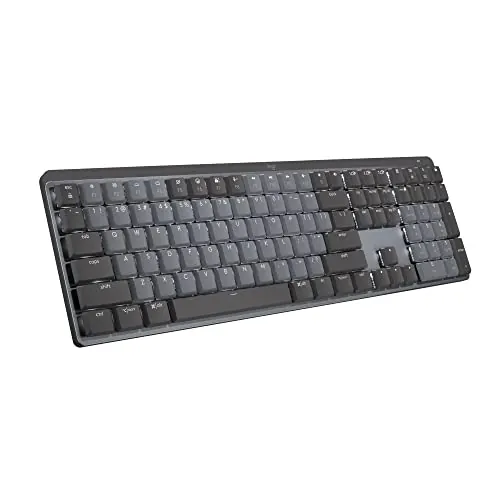
Logitech MX Keys S vs MX Mechanical: Scissor or Tactile Quiet?
The Graphite MX Keys S uses scissor keys; the assigned full-size MX Mechanical is the Tactile Quiet low-profile mechanical version. Logitech lists 1.8 mm total travel for MX Keys S and 3.2 mm for MX Mechanical. Both support lighting, Bluetooth LE or a Logi Bolt receiver, and switching among up to three devices. Choose by a typing style you already know you want; these specifications do not establish typing speed, comfort or sound superiority.
Read comparison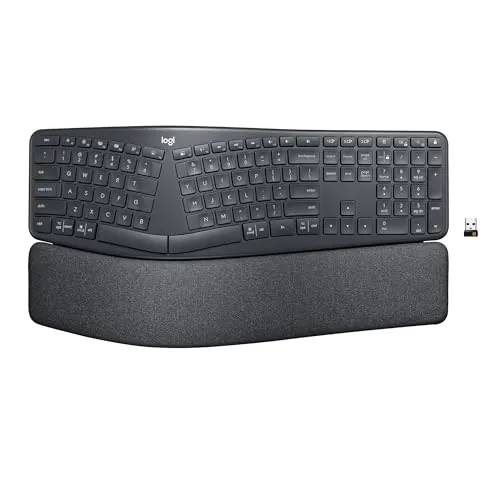
Logitech ERGO K860 vs Wave Keys: Layout, Receiver, and Desk Fit
The Graphite Logitech ERGO K860 (920-009166) and Wave Keys (920-011898) both include an integrated palm-rest area, Bluetooth, three-device switching, and two AAA batteries. The K860 has a curved split keyframe, adjustable palm lift, and a Unifying receiver path; Wave Keys has a compact wave-shaped layout and an included Logi Bolt receiver. The receiver families do not pair with one another, so match the keyboard to the receiver already used by your computer or use Bluetooth where supported. This is a layout and setup comparison, not a medical or measured comfort result.
Read comparison