Products compared
OBSBOT
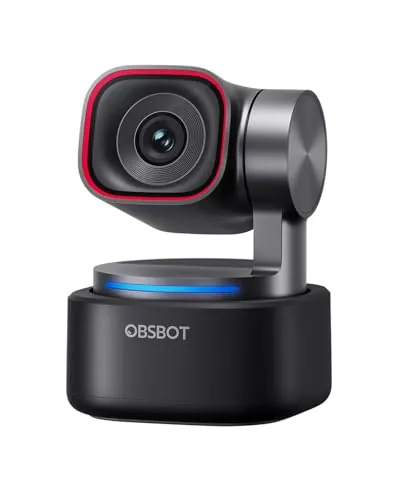
OBSBOT Tiny 3
The product listing identifies this model as OBSBOT Tiny 3 AI-Powered Spatial Audio 4K Webcam.
Model Tiny 3
Amazon ASIN B0G636CXQM
Insta360
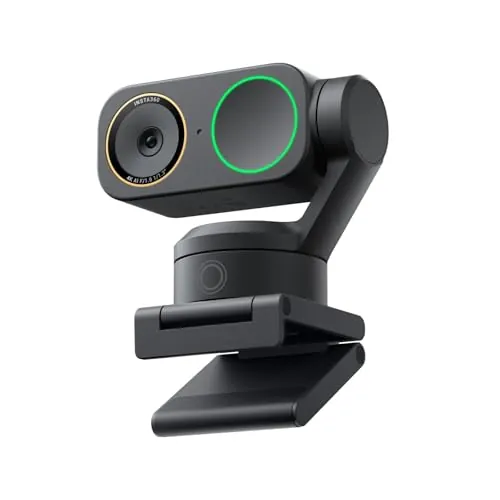
Insta360 Link 2 Pro, Graphite Black
The retailer offer identifies this as the Insta360 Link 2 Pro in Graphite Black; CINSABPA-S-B is the listed part number.
Model CINSABPA-S-B
Amazon ASIN B0G3T1QKWL
Differences that matter
What matters most to you?
Choose a priority to see what it changes.
Sources for Listed resolution and frame-rate modes
Sources for Monitor and desk mounting
Confirm the capture mode in your actual app
OBSBOT lists Tiny 3 at 4K/30 fps or 1080p/120 fps. Insta360’s Link 2 Pro table lists landscape 4K at 24/25/30 fps and 1080p up to 60 fps, with a separate portrait-mode list. The manufacturers’ charts do not compare video quality; they tell you which mode to check against your intended workflow.
Both connect to a computer. Tiny 3’s manual specifies Windows 10 64-bit or later and macOS 11 or later, and gives recommended computer hardware for 4K and 1080p/120. Link 2 Pro can work through Link Controller or directly in third-party software; on Linux, Insta360 lists UVC/UAC support but no Link Controller. Its Virtual Camera path does not currently support 50/60 fps. Before buying, test the capture mode against the platform, USB path and computer you plan to use.
Match the controls and microphone path to your desk
Tiny 3 documents voice commands for powering the webcam, tracking, zoom and presets, plus gestures. Link 2 Pro documents a gimbal touch key that toggles tracking with a single tap and recenters with a double tap. It also supports a phone as a remote through Link Controller on a computer, with phone and computer on the same Wi-Fi. Choose the control you will reach for during a presentation; these source descriptions do not measure response or recognition reliability.
Both list built-in microphones. For a separate mic, OBSBOT documents direct, receiverless pairing for the optional Vox SE; its store sells the Tiny 3 Pack separately from a combo that adds Vox SE. Insta360’s Link 2 Pro instructions instead connect an external mic to the computer and select it in software; the camera’s USB-C port is not an external-mic input. Do not read that as proof that Tiny 3 cannot use a microphone selected at the computer.
Check mounting pieces and the idle privacy behavior
The Tiny 3 manual shows its adjustable stand on a monitor, direct desktop placement and a 1/4-20 tripod mount. OBSBOT’s official Tiny 3 Pack list includes the adjustable mount, USB-C cable, USB-C-to-USB-A adapter and case. Insta360’s Link 2 Pro manual lists a magnetic mount, USB-C cable, USB-C-to-USB-A adapter and whiteboard markers, and identifies a magnetic base and tripod screw hole. Verify the exact marketplace bundle against these maker lists.
For privacy, OBSBOT describes tilting Tiny 3’s lens down as a physical cover and offers an inactivity sleep timer through software; the manual does not say its built-in mic is disabled in sleep. Insta360 documents a Link 2 Pro 90-degree gimbal tilt into Privacy Mode and says camera and mic functions are disabled; it also enters a downward sleep state after 10 seconds when no platform is using it. This compares documented controls only, not a guarantee about every app or recording state.
Product details
OBSBOT Tiny 3
Tiny 3 connects to a Windows or Mac computer over USB. The exact-model manual describes monitor, desktop and tripod placement; the official store distinguishes the basic Pack from microphone and remote combos.
- Manufacturer-listed camera modes
- 4K at 30 fps and 1080p at 120 fps; the manual recommends specific computer hardware for 4K/1080p120 use. Verify the target app exposes the required mode. Source
- Host and controls
- USB computer connection; Windows 10 (64-bit) or later and macOS 11 or later. OBSBOT Center adds advanced camera controls; Tiny 3 also documents voice commands and gestures. Source
- Mount/package check
- The official Tiny 3 Pack lists an adjustable mount, USB-C cable, USB-C-to-USB-A adapter and storage case; confirm the marketplace offer uses that package. Source
- Privacy behavior
- The maker describes tilting the lens down for a physical cover and configurable auto-sleep; the manual does not establish that sleep disables the microphone. Source
Insta360 Link 2 Pro, Graphite Black
The exact Link 2 Pro manual distinguishes this gimbal camera from Link 2C Pro, which has a privacy switch instead of the Pro gimbal’s magnetic base. Link 2 Pro external-microphone instructions route the mic through the computer, not its camera USB-C port.
- Manufacturer-listed camera modes
- Landscape: 4K at 24/25/30 fps and 1080p up to 60 fps; portrait modes are separately listed. Insta360 says its Virtual Camera does not currently support 50 or 60 fps. Source
- Host and software
- The camera can be used with Link Controller or directly with supported third-party computer software; Link Controller requirements and advanced-feature support vary by OS and host hardware. Linux support is UVC/UAC only; there is no Linux Link Controller. Source
- Mount and box items
- The Link 2 Pro manual lists a magnetic mount, USB-C cable, USB-C-to-USB-A adapter and whiteboard recognition markers; the camera has a magnetic base and 1/4-inch screw hole. Source
- Privacy behavior
- The model manual says tilting the gimbal down 90 degrees enters Privacy Mode and disables camera and microphone functions; it also tilts down after 10 seconds when no platform is using it. Source
Before you buy
Community discussions
Checking webcam position behind a teleprompter
Insta360 Link 2 Pro, Graphite Black
A podcaster using a Link 2 Pro and Neewer X11 asks how to position the camera behind the prompter.
What to check
Measure clearance around the lens and mount. Check whether the camera can move as needed without the prompter blocking the view.
Common questions
Does Tiny 3’s 1080p/120 fps listing mean it will give better video in a meeting?
No comparative video result follows from the spec. OBSBOT lists 1080p/120 fps and 4K/30 fps for Tiny 3; Insta360 lists Link 2 Pro landscape up to 1080p/60 fps and 4K/30 fps. The selected app, host and capture path still determine which modes are usable.OBSBOT Tiny 3 Series — AI-Powered Spatial Audio 4K PTZ WebcamInsta360 Link Series Photo & Video SpecificationsInsta360 Link 2 Pro Compatibility and Computer Requirements
Does the Tiny 3 standard pack include the Vox SE microphone?
OBSBOT lists the Tiny 3 Pack separately from a Microphone Combo containing Vox SE, and lists Vox SE as an accessory. Check the exact marketplace offer rather than assuming direct-pair compatibility means the microphone is in the box.OBSBOT Tiny 3 Official Store — Pack and Combo ContentsOBSBOT Vox SE Wireless Microphone — Compatibility and Pairing
How does Link 2 Pro privacy mode affect the microphone?
Insta360’s Link 2 Pro manual says tilting the gimbal down 90 degrees enters Privacy Mode and disables both camera and microphone functions. The manual identifies a privacy switch on Link 2C Pro, not Link 2 Pro; do not transfer that switch description to this model.Insta360 Link 2C Pro & Link 2 Pro User ManualInsta360 Link Series: Privacy Mode
Can I use an external microphone with Link 2 Pro?
Insta360’s connection instructions say to connect the external microphone to the computer and select it in the app or other host software; the camera’s USB-C port is not the external-mic input. That is Link 2 Pro’s documented route and does not establish that Tiny 3 cannot use a computer-selected mic.Insta360 Link Series: Connecting External Devices
Sources and scope
This is a manufacturer-documentation comparison, not a webcam image, autofocus, tracking, audio or privacy test. Published resolution/frame-rate options do not guarantee that a particular host, conferencing app, USB path or software mode will expose that combination. Verify your required mode and platform against current software requirements. OBSBOT’s official Tiny 3 Pack and Insta360’s Link 2 Pro manual list different box contents; confirm that the exact marketplace offer matches the intended package. A downward-facing lens or software privacy state is described only as the manufacturer documents it, not as a broader privacy guarantee.
- OBSBOT Tiny 3 Series — AI-Powered Spatial Audio 4K PTZ Webcam
- OBSBOT Tiny 3 User Manual, English v1.0
- OBSBOT Tiny 3 Official Store — Pack and Combo Contents
- OBSBOT Vox SE Wireless Microphone — Compatibility and Pairing
- Insta360 Link 2 Pro Product Page
- Insta360 Link 2C Pro & Link 2 Pro User Manual
- Insta360 Link Series Photo & Video Specifications
- Insta360 Link 2 Pro Compatibility and Computer Requirements
- Insta360 Link Series: Connecting External Devices
- Insta360 Link Series: Privacy Mode
Related comparisons
Insta360 Link 2 Pro vs Link 2C Pro: Gimbal, Framing and Desk Setup
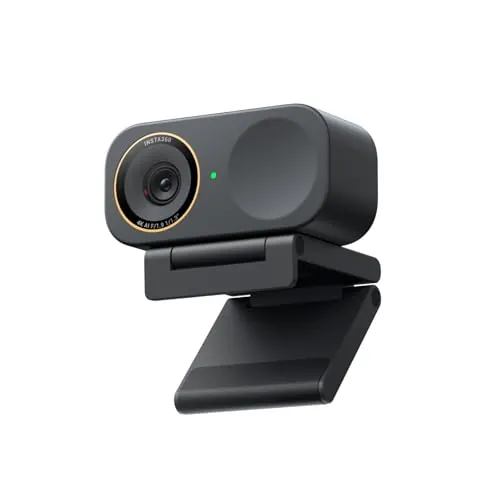
Link 2 Pro uses a two-axis gimbal for physical pan and tilt; Link 2C Pro stays fixed and uses digital zoom and cropping for Auto Framing. Both list the same 4K frame-rate options, HDR support and included mounting accessories. Choose by whether you need the lens to move, how you want to aim DeskView, and which privacy/microphone routine suits your calls.
Read comparison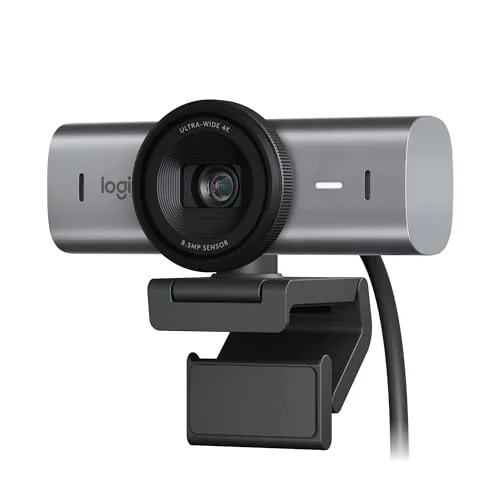
Insta360 Link 2 Pro vs Logitech MX Brio: Gimbal or Desk-First Control?
Both manufacturers list 4K at 30 fps and 1080p at 60 fps, so those headline modes do not decide this comparison. The Link 2 Pro’s two-axis gimbal physically pans and tilts, with configurable tracking and pause-track areas. MX Brio’s documented Show Mode uses a manual downward tilt for desk notes or sketches, and its Logitech apps expose Fine Controls. Pick by the physical framing and software workflow you will use; the cited sources are not image-quality or tracking tests.
Read comparison