
Products compared
TP-Link
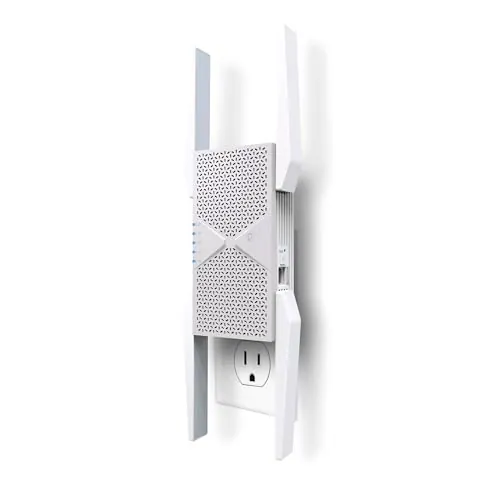
TP-Link RE653BE BE10000 Tri-Band Wi-Fi 7 Range Extender
White U.S. RE653BE listed variants. TP-Link's U.S. product page identifies the RE653BE, its 2.4/5/6 GHz radios, 2.5 Gbps LAN port, Range Extender and Access Point modes, EasyMesh compatibility, WPS and Tether setup.
Model RE653BE
Amazon ASIN B0DXTMXKBL
TP-Link
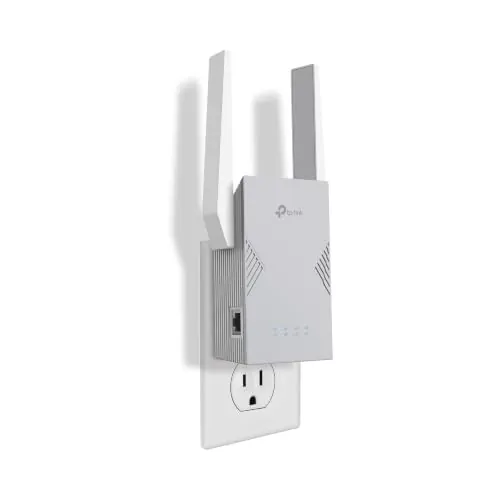
TP-Link RE223BE BE3200 Dual-Band Wi-Fi 7 Range Extender
White U.S. RE223BE listed variants. TP-Link's U.S. product page identifies the RE223BE, its 2.4/5 GHz radios, Gigabit Ethernet port, Range Extender and Access Point modes, EasyMesh compatibility, WPS/Tether setup and placement guidance.
Model RE223BE
Amazon ASIN B0FH4MBRTK
Differences that matter
What matters most to you?
Choose a priority to see what it changes.
Sources for Radio bands and client support
Sources for Ethernet link for a wired device
Sources for Range Extender or Access Point mode
Sources for EasyMesh and router compatibility
Sources for Placement and setup
Match the radios to your router and clients
The RE653BE lists three bands: 2.4, 5 and 6 GHz. The RE223BE lists 2.4 and 5 GHz only. That difference is useful only when the router/client arrangement and the devices you plan to connect support the band and Wi-Fi features you intend to use.
TP-Link notes that corresponding client support is required for Wi-Fi 7 features and that wider channels can be restricted in some regions. Check the exact router and client specifications; do not treat a Wi-Fi 7 label or the advertised combined band rate as a result you will achieve in a room.
Decide whether you need an Ethernet endpoint or a wired access point
Both extenders list Range Extender and Access Point modes. In Range Extender mode, the device connects back to your existing router wirelessly and can serve an Ethernet endpoint through its LAN port. In Access Point mode, TP-Link describes a wired connection from the extender to a router as the backhaul that creates Wi-Fi at that location.
RE653BE has one 2.5 Gbps LAN port; RE223BE has one Gigabit Ethernet port. Check the wired endpoint, cable and upstream network equipment before paying for a faster port. Neither port rating guarantees end-to-end Internet speed or wireless throughput.
Verify mesh compatibility and placement before checkout
Both pages list EasyMesh compatibility. To use EasyMesh, pair the extender with a compatible router; TP-Link cautions that cross-vendor firmware conflicts may affect connections and that these products are not Wi-Fi EasyMesh certified. The product pages do not support assuming that either will integrate with every mesh system.
For RE223BE, TP-Link says to install it between the router and target room where it can still receive a strong router signal, then configure by Tether app or WPS. For RE653BE, TP-Link describes WPS setup and relocating the extender using its smart signal indicator; its Tether app also guides placement. Those steps help plan the setup, but they are not a coverage test for your home.
Product details
TP-Link RE653BE BE10000 Tri-Band Wi-Fi 7 Range Extender
TP-Link RE223BE BE3200 Dual-Band Wi-Fi 7 Range Extender
- Radio bands
- Dual-band Wi-Fi 7: 2.4 GHz and 5 GHz; no 6 GHz radio is listed. Source
- Ethernet and modes
- One Gigabit Ethernet port; Range Extender and Access Point modes. Source
- Mesh and placement
- EasyMesh-compatible; U.S. FAQ says place it between the router and target room where it can still receive a strong router signal, then set up with Tether or WPS. Source
Before you buy
Community discussions
RE653BE account management in wired access point mode
TP-Link RE653BE BE10000 Tri-Band Wi-Fi 7 Range Extender
An RE653BE owner says the device would not bind to their TP-Link account while they used it as a wired access point. The post does not identify the unit's hardware revision.
What to check
If account-based management matters for your wired access point setup, check the current setup and management options for the unit's revision before choosing.
Common questions
Does RE223BE support 6 GHz?
No. TP-Link's U.S. RE223BE specifications list 2.4 GHz and 5 GHz only and explicitly state that this model does not support 6 GHz. RE653BE lists 2.4, 5 and 6 GHz; use of Wi-Fi features still depends on compatible clients and local availability.TP-Link RE223BE U.S. product page, FAQ and specificationsTP-Link RE653BE U.S. product page and specifications
Can either extender work as an access point?
Both U.S. product pages list Range Extender and Access Point modes. TP-Link describes Access Point mode as using an Ethernet connection from the extender to a router to create Wi-Fi; plan a wired path if that is how you intend to install it.TP-Link RE653BE U.S. product page and specificationsTP-Link RE223BE U.S. product page, FAQ and specifications
Will EasyMesh work with my current mesh router?
Both products are listed as EasyMesh-compatible, but the router must also support EasyMesh. TP-Link says cross-vendor firmware conflicts can affect connections and that its devices have not received Wi-Fi EasyMesh certification. Verify the exact router model and firmware before relying on mesh pairing.TP-Link RE653BE U.S. product page and specificationsTP-Link RE223BE U.S. product page, FAQ and specifications
Where should I place an extender?
TP-Link says to put RE223BE between the router and target room where it can still receive a strong router signal. For RE653BE, TP-Link describes setting it up and then using its smart signal indicator and Tether app to help relocate it. These guides do not guarantee coverage at a particular address.TP-Link RE653BE U.S. product page and specificationsTP-Link RE223BE U.S. product page, FAQ and specifications
Does the 2.5 Gbps LAN port mean the RE653BE will deliver 2.5 Gbps Wi-Fi?
No. It is the wired port's link rating, not a promise of end-to-end or wireless throughput. TP-Link says actual network speed and coverage depend on the client, cable, network ports, ISP, traffic, building materials and location.TP-Link RE653BE U.S. product page and specifications
Sources and scope
This is a specification and setup-fit guide, not a range, throughput, latency, interference or coverage test. Advertised link ratings do not predict the result in a home. EasyMesh compatibility requires a compatible router; TP-Link notes that cross-vendor firmware conflicts can affect connections and that EasyMesh certification is not obtained for these products. Check the current router model and firmware before relying on a unified mesh setup.
Related comparisons
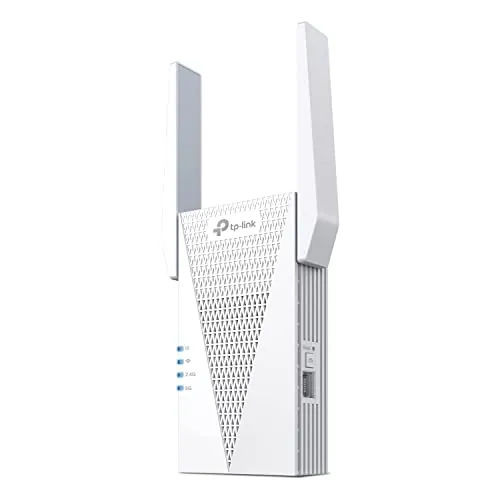
TP-Link RE653BE vs RE715X: Wi-Fi 7, Bands, and Ethernet
The RE653BE adds a 6 GHz Wi-Fi 7 radio and a 2.5GbE port; the RE715X covers 2.4/5 GHz Wi-Fi 6 and Gigabit Ethernet. Choose by a feature your router, client, or wired path can actually use. A model name or advertised rate cannot tell you which extender will cover a particular room better.
Read comparison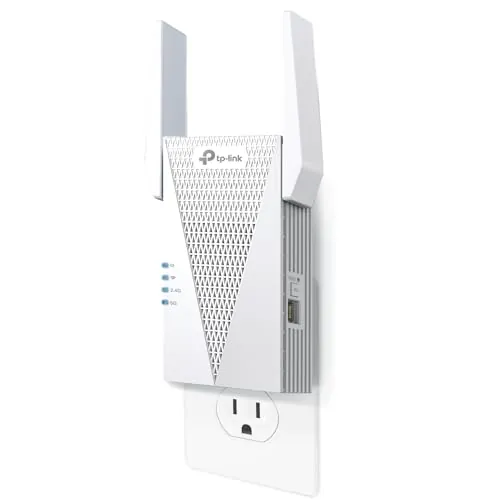
TP-Link RE223BE vs RE615X: Wi-Fi generation, Ethernet and router fit
The TP-Link RE223BE is a dual-band Wi-Fi 7 extender listing MLO; the RE615X is a dual-band Wi-Fi 6 extender. TP-Link lists 2.4 and 5 GHz for both. Each has one Gigabit Ethernet port and range-extender/access-point modes, so a wired access point is a shared option. Verify your router, client features, EasyMesh support and exact hardware revision before buying.
Read comparison