Pickagu

All comparisons

Search by model or browse by category and brand pairing.

2,994 comparisons

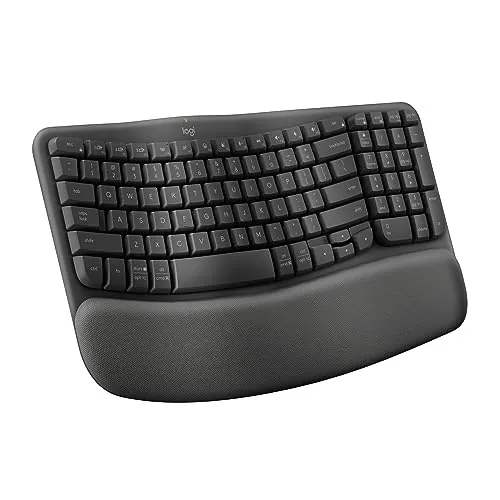
Logitech Wave Keys Ergonomic Wireless Keyboard — Graphite · 920-011898
Logitech Wave Keys Ergonomic Wireless Keyboard — Graphite
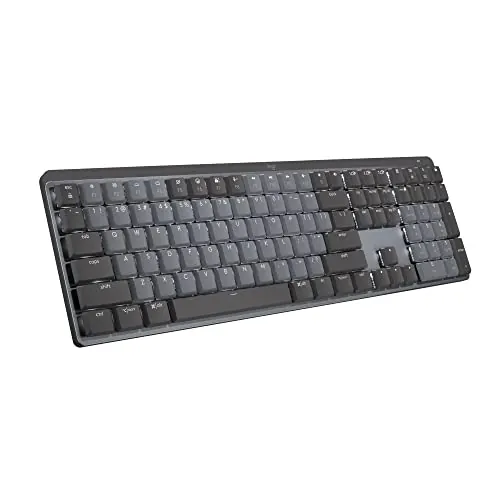
Logitech MX Mechanical Wireless Illuminated Keyboard, Tactile Quiet — Graphite · 920-010547
Logitech MX Mechanical Wireless Illuminated Keyboard, Tactile Quiet — Graphite

Keyboards

Logitech Wave Keys vs MX Mechanical: Layout, Receiver, and Charging

The Graphite Logitech Wave Keys (920-011898) uses a compact wave-shaped plunger layout with a cushioned palm rest and two replaceable AAA batteries. The Graphite MX Mechanical Tactile Quiet (920-010547) is a wider, full-size low-profile mechanical keyboard with a numpad, a rechargeable battery, white smart backlighting, and a USB-C charging cable. Logitech lists a Logi Bolt USB receiver and Bluetooth for both. Pick by the layout and maintenance routine you actually want; the manufacturer battery estimates use different test conditions and do not prove one lasts longer in comparable use.

Read comparison
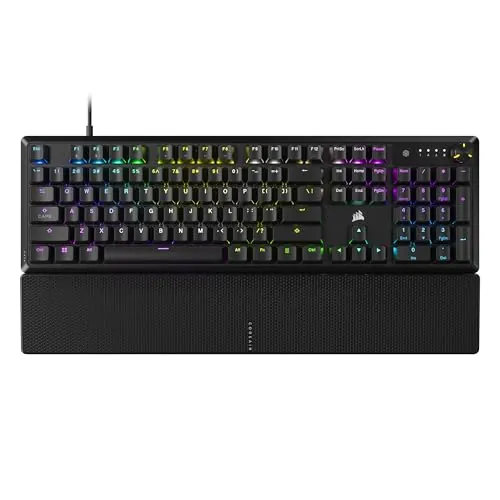
Corsair K70 CORE RGB Mechanical Gaming Keyboard with Palm Rest — Black · CH-910981E-NA
Corsair K70 CORE RGB Mechanical Gaming Keyboard with Palm Rest — Black
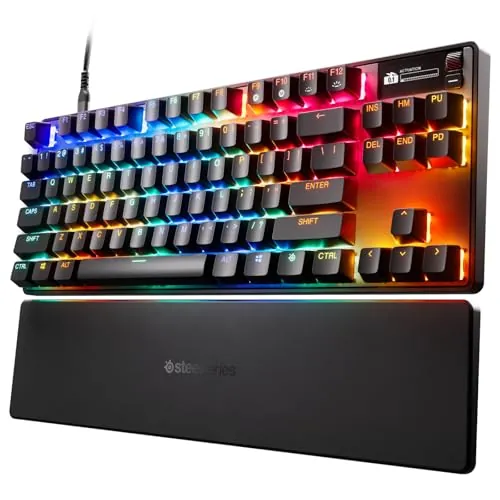
SteelSeries Apex Pro TKL Gen 3 Gaming Keyboard — Black, Wired U.S. English · 64740
SteelSeries Apex Pro TKL Gen 3 Gaming Keyboard — Black, Wired U.S. English

Keyboards

Corsair K70 CORE vs SteelSeries Apex Pro TKL Gen 3: Layout, Switches, and Setup

The Corsair K70 CORE (CH-910981E-NA) is the straightforward pick if your routine depends on a full-size 104-key layout and linear MLX Red v2 switches. The SteelSeries Apex Pro TKL Gen 3 (64740) removes the dedicated numpad and adds adjustable actuation on 61 OmniPoint 3.0 keys through SteelSeries GG. Its other listed keys use regular Red switches, so the adjustable behavior does not apply to every key. Decide by the layout and key-level configuration you will actually use; the cited sources do not establish a typing or gaming-performance winner.

Read comparison
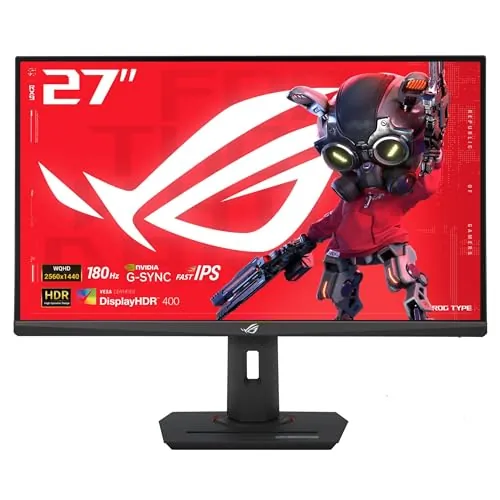
ASUS ROG Strix XG27ACS Gaming Monitor, Black · XG27ACS
ASUS ROG Strix XG27ACS Gaming Monitor, Black
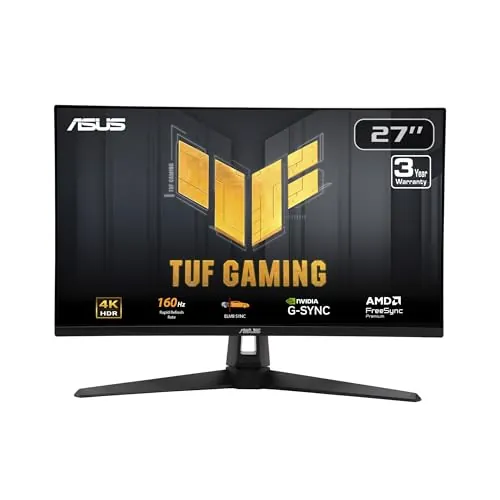
ASUS TUF Gaming VG27UQ1A Gaming Monitor, Black · VG27UQ1A
ASUS TUF Gaming VG27UQ1A Gaming Monitor, Black

Monitors

ASUS XG27ACS vs VG27UQ1A: Check Your Input and Desk Setup

These black 27-inch ASUS monitors differ in resolution, input-specific refresh ceilings, VRR menu options, and included-stand movement. The XG27ACS is 2560×1440 and lists up to 180Hz over DisplayPort or USB-C DisplayPort Alt Mode, with HDMI listed up to 144Hz. The VG27UQ1A is 3840×2160, with up to 160Hz listed and HDMI 2.1 inputs; ASUS describes 4K/120Hz console use over HDMI 2.1. Check the exact source output, cable path, and whether the VG27UQ1A's fixed-height stand fits your desk. These are manufacturer specifications, not paired performance tests.

Read comparison
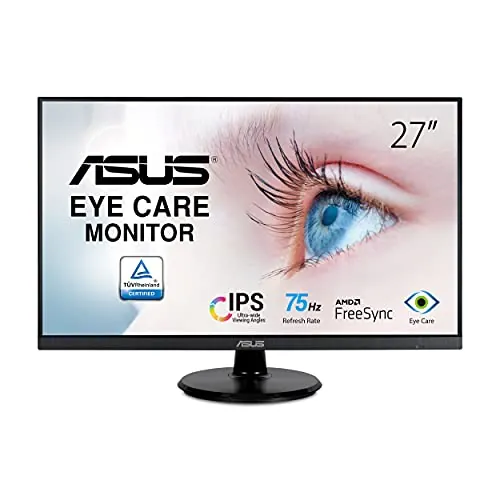
ASUS VA24DQ 23.8-inch Full HD Monitor, Black · VA24DQ
ASUS VA24DQ 23.8-inch Full HD Monitor, Black
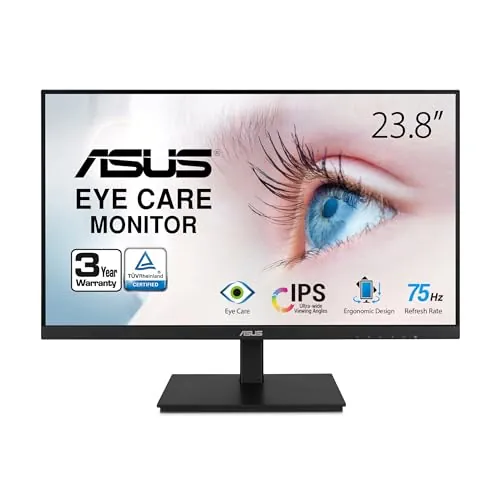
ASUS VA24DQSB 23.8-inch Full HD Monitor, Black · VA24DQSB
ASUS VA24DQSB 23.8-inch Full HD Monitor, Black

Monitors

ASUS VA24DQ vs VA24DQSB: Stand Movement, USB Hub and Display Modes

These two 23.8-inch Full HD ASUS monitors share a 1920 × 1080 panel class, HDMI, DisplayPort, VGA and up-to-75Hz manufacturer ratings. The practical difference is the stand and peripheral routing: VA24DQ only tilts and has no USB 2.0 ports, while VA24DQSB adds height, swivel, portrait pivot and a two-port USB hub that needs a separate upstream cable to the computer. The manuals disagree on VA24DQ's maximum upward tilt (+20° versus +23°), so this guide does not use that angle to decide between them.

Read comparison
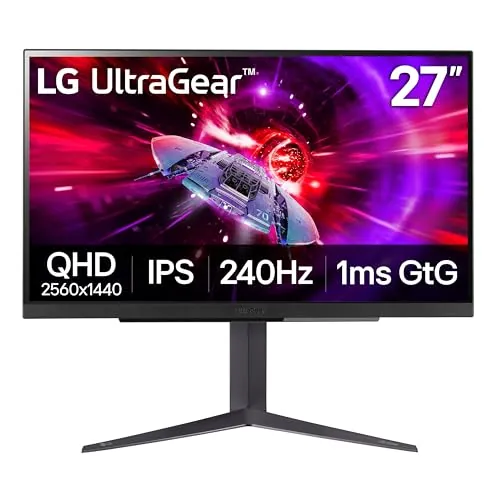
LG 27GR83Q-B 27-inch UltraGear QHD Gaming Monitor · 27GR83Q-B.AUS
LG 27GR83Q-B 27-inch UltraGear QHD Gaming Monitor
ASUS TUF Gaming VG27UQ1A 27-inch 4K Gaming Monitor · VG27UQ1A
ASUS TUF Gaming VG27UQ1A 27-inch 4K Gaming Monitor

Monitors

LG 27GR83Q-B vs ASUS VG27UQ1A: Resolution, Port Modes and Stand Fit

Both are 27-inch gaming monitors, but the LG 27GR83Q-B.AUS is QHD (2560×1440) with a listed 240Hz maximum, while the ASUS TUF VG27UQ1A is 4K (3840×2160) with a listed 160Hz maximum. Both offer HDMI 2.1 and DisplayPort inputs, but the source device, port and supported mode must match: ASUS documents 4K/120Hz console visuals over HDMI 2.1, and its manual lists 4K/160Hz timing on both HDMI and DisplayPort. LG's page requires a DP 1.4- or HDMI 2.1-capable graphics card for up to 240Hz. LG's included stand adjusts height and pivots; ASUS's supplied stand tilts only.

Read comparison
ASUS ProArt Display PA279CRV 27-inch 4K UHD Monitor · PA279CRV
ASUS ProArt Display PA279CRV 27-inch 4K UHD Monitor
ASUS ROG Strix XG27ACS 27-inch QHD Gaming Monitor · XG27ACS
ASUS ROG Strix XG27ACS 27-inch QHD Gaming Monitor

Monitors

ASUS ProArt PA279CRV vs ROG Strix XG27ACS: Inputs, USB-C Power and Stand

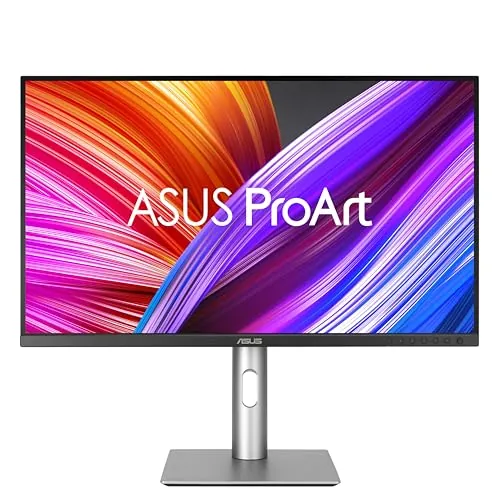
These two 27-inch ASUS monitors fit different desk requirements. ProArt PA279CRV (B0BQPSX5CR) lists 3840 × 2160 at up to 60Hz, USB-C DisplayPort Alt Mode with up to 96W Power Delivery, and a stand with tilt, swivel, pivot and up to 130mm height adjustment. ROG Strix XG27ACS (B0CV24GQ9W) lists 2560 × 1440 and input-specific vertical frequency ranges: up to 180Hz over USB-C/DisplayPort and 144Hz over HDMI. Its USB-C Power Delivery is 7.5W, and ASUS documents tilt, swivel, pivot and up to 120mm height adjustment. Compare the exact host mode, laptop charging requirement and stand position you need; this is a specification comparison, not a panel or speed test.

Read comparison
ASUS ProArt Display PA278CV · PA278CV
ASUS ProArt Display PA278CV
ASUS TUF Gaming VG27UQ1A · VG27UQ1A
ASUS TUF Gaming VG27UQ1A

Monitors

ASUS PA278CV vs VG27UQ1A: USB-C Work Setup or 4K Gaming Inputs?

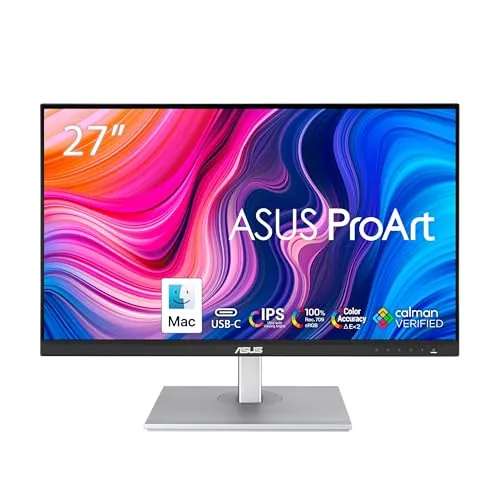
The ASUS ProArt PA278CV is a 27-inch QHD monitor listed up to 75Hz, with USB-C DisplayPort video, USB data and up to 65W power delivery plus a height-, swivel- and pivot-adjustable stand. The ASUS TUF Gaming VG27UQ1A is a 27-inch 4K display listed up to 160Hz for a suitable PC and up to 4K/120Hz over HDMI 2.1 for a console. Its supplied stand tilts only. Check the exact source, cable, desired timing, laptop power need and desk position before choosing.

Read comparison
Dell S 27 4K Monitor S2725QS — Ash White · S2725QS / Dell manufacturer part T4CNF
Dell S 27 4K Monitor S2725QS — Ash White
ASUS TUF Gaming VG27UQ1A 27-inch 4K Monitor — Black · VG27UQ1A
ASUS TUF Gaming VG27UQ1A 27-inch 4K Monitor — Black

Monitors

Dell S2725QS vs ASUS TUF VG27UQ1A: 4K Inputs and Stand Fit

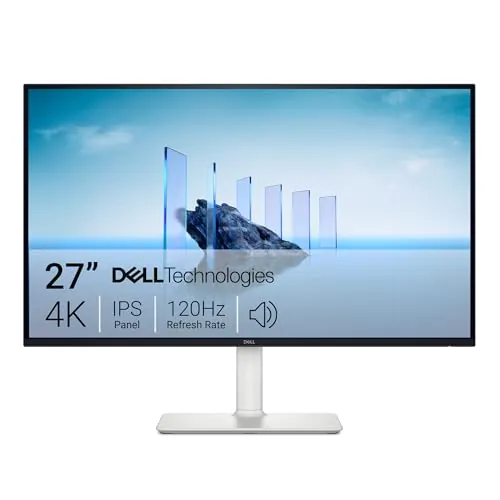
Both are 27-inch 4K monitors and both manuals/specifications document a 4K120 mode over HDMI. ASUS’s VG27UQ1A also lists 3840×2160 at 160Hz over HDMI and DisplayPort, but using that mode depends on the graphics source, cable, selected input, and settings. Dell’s S2725QS includes a stand with height, pivot, swivel, and tilt adjustment; ASUS’s stock stand is tilt-only, with a separately purchased 100×100mm VESA kit as another setup path. Choose by your source’s output and the monitor positioning your desk requires, not an untested picture-quality claim.

Read comparison
LG 27GR83Q-B.AUS 27-inch QHD 240Hz UltraGear Monitor · 27GR83Q-B.AUS
LG 27GR83Q-B.AUS 27-inch QHD 240Hz UltraGear Monitor
ASUS ProArt Display PA278CV 27-inch QHD Monitor · PA278CV
ASUS ProArt Display PA278CV 27-inch QHD Monitor

Monitors

LG 27GR83Q-B vs ASUS PA278CV: High Refresh or USB-C Desk Setup?

Both are 27-inch QHD IPS monitors, but their documented workflows diverge: LG lists up to 240Hz over a compatible HDMI 2.1 or DisplayPort 1.4 graphics output, while ASUS tops out at 75Hz and can carry DisplayPort video, USB data, and up to 65W power over USB-C. Check your host ports, charging requirement, and target refresh mode before choosing.

Read comparison
ASUS ProArt Display PA278CV · PA278CV
ASUS ProArt Display PA278CV
ASUS ROG Strix XG27ACS · XG27ACS
ASUS ROG Strix XG27ACS

Monitors

ASUS PA278CV vs XG27ACS: USB-C Charging, Refresh Inputs, and Stand

Both are 27-inch 2560 × 1440 monitors, but they solve different desk setups. PA278CV lists up to 75Hz, USB-C video/data with up to 65W power delivery, downstream USB-A ports and a stand with height, swivel and pivot adjustment. ROG Strix XG27ACS lists up to 180Hz through DisplayPort or USB-C DP Alt Mode and up to 144Hz through HDMI, while its USB-C PD rating is 7.5W. Choose by the port and power needs of your actual host, plus the stand positions you need; these specifications do not prove display or gaming superiority.

Read comparison
ASUS ProArt PA279CRV 27-inch 4K Professional Monitor · PA279CRV
ASUS ProArt PA279CRV 27-inch 4K Professional Monitor
ASUS TUF Gaming VG27UQ1A 27-inch 4K Gaming Monitor · VG27UQ1A
ASUS TUF Gaming VG27UQ1A 27-inch 4K Gaming Monitor

Monitors

ASUS PA279CRV vs VG27UQ1A: USB-C Desk Setup or Higher Refresh Modes?

The ASUS ProArt PA279CRV and TUF Gaming VG27UQ1A are both listed as 27-inch 3840×2160 monitors. The PA279CRV is specified up to 60Hz and adds USB-C DisplayPort Alt Mode, USB hub ports, up to 96W Power Delivery and a stand with height, swivel and pivot adjustment. The VG27UQ1A is listed up to 160Hz; its manual's mode table lists 4K/160Hz on both HDMI and DisplayPort, while its USB-C port is service-only. Choose based on your source connection and whether you need one-cable laptop video/charging or a higher refresh mode. Neither published maximum guarantees the mode a particular host or game will output.

Read comparison